
One of the main visual elements of the Prospects and Prospects by Brand sections is the Stage Bar.
The Stage Bar represents a conversion funnel (similar to what a sales team might use) where you are taking your prospects from New prospect to Converted partner with multiple stages in-between. It helps your team stay organized by presenting a quick view of where your prospects are in the prospect lifecycle.
When you get your new Mediarails account it may only have one visible stage: New. Once you start to take actions within Mediarails to start prospecting, more stages will appear on the stage bar. Stages are only shown if there are records in that stage to keep the stage bar clean. *New accounts may come preloaded with a handful of stages for demonstration purposes.
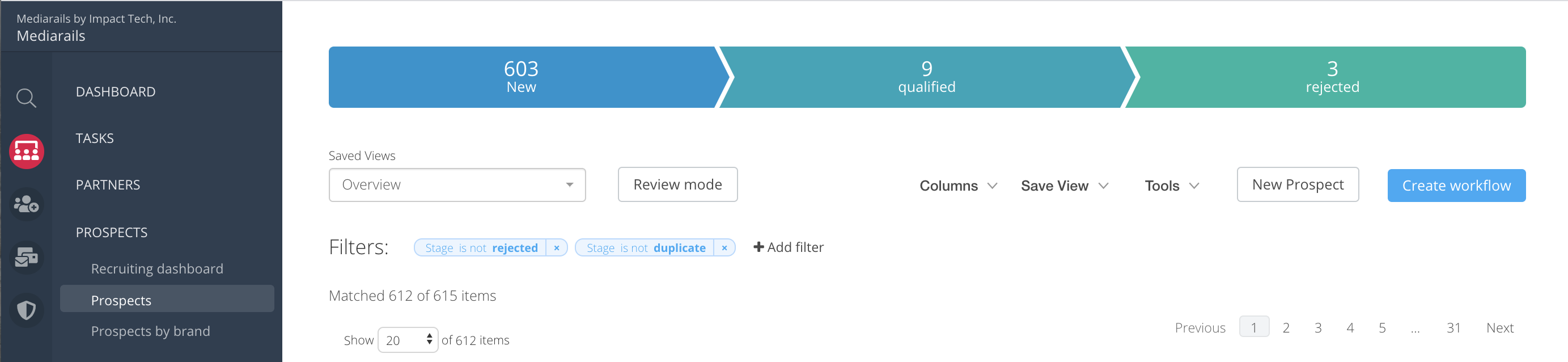
The New, Contacted, Existing and Converted stages are the only "automated" stages. Other stage changes are mostly manual to provide you with more control over your pipeline of prospects.
- New: New prospects will default to the New stage when the record is added to your database. Applies to both Prospects and Prospects by brand areas.
- Contacted: When you email a Prospect record from within Mediarails, the system will change that record's stage to Contacted. Applies to both Prospects and Prospects by brand areas.
- Existing: The system will automatically detect existing relationships and mark them as stage existing at the Brand level only. This status is automatic in the Prospects by brand area. Applies only to the Prospects by brand area.
- Converted: When you have invited someone to join your program through the system the system will automatically detect when they join your program and become a Partner in the tool. The system will then mark the Prospect by Brand level of the prospect as Converted. This only applies to the Prospect by brand area.
NOTE: The Stage Bar is also customizable to help fit your needs. To customize the stage bar and add/edit stages as you'd like, please see the instructional article here.
How to change a Prospect's stage manually?
As you begin your process to start reaching out to Prospects, you will find yourself using Review mode to Qualify or Reject your Prospects generated from your Prospecting integration. This will likely be the first stage changes you make. You will start to see your progress in the stage bar for the records you Qualified or Rejected. As you begin to send emails you will start to see the Qualified prospects change their status to Contacted. You will then find yourself working your records through the remaining process to either convert or find that the prospect's were not a good fit. You will use the tools below to adjust stages along the way as needed depending on what your prospects say to your messaging.
The two main ways of changing a Prospects stage are as follows:
On an individual Prospect record:
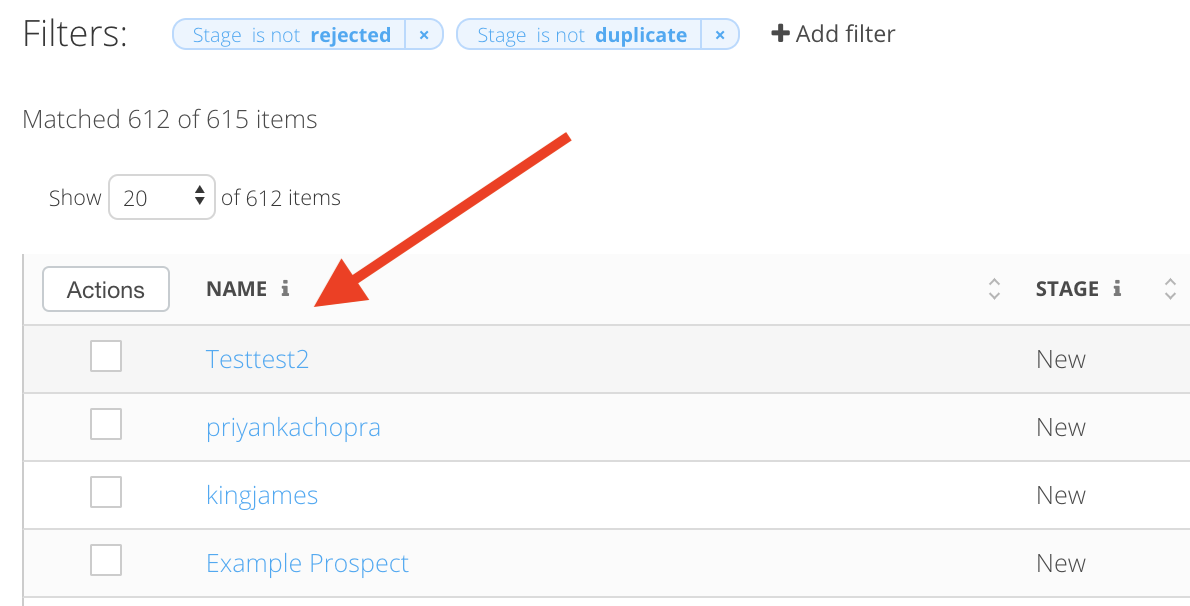
1. Click the Prospect's name in the list view to open the record detail page:
2. Once their detail page opens, click the Stage dropdown at the top of the page and select the desired stage: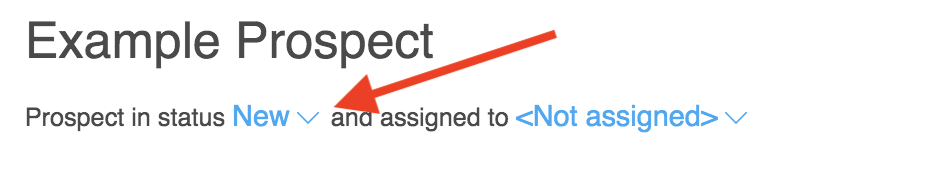
Changing stages in bulk or one-off from the list view:
1. Select all desired records on the list view using the checkboxes to the left of the Name column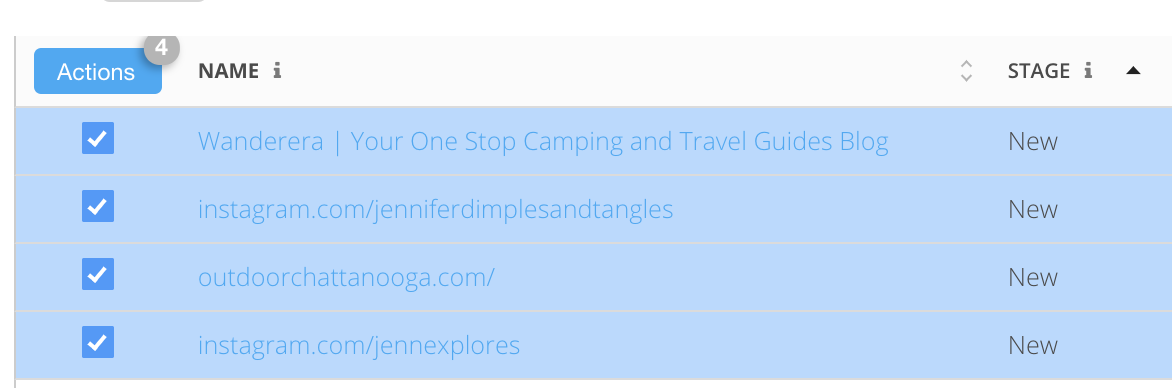
2. Click on the Actions button and select the option for Change Stage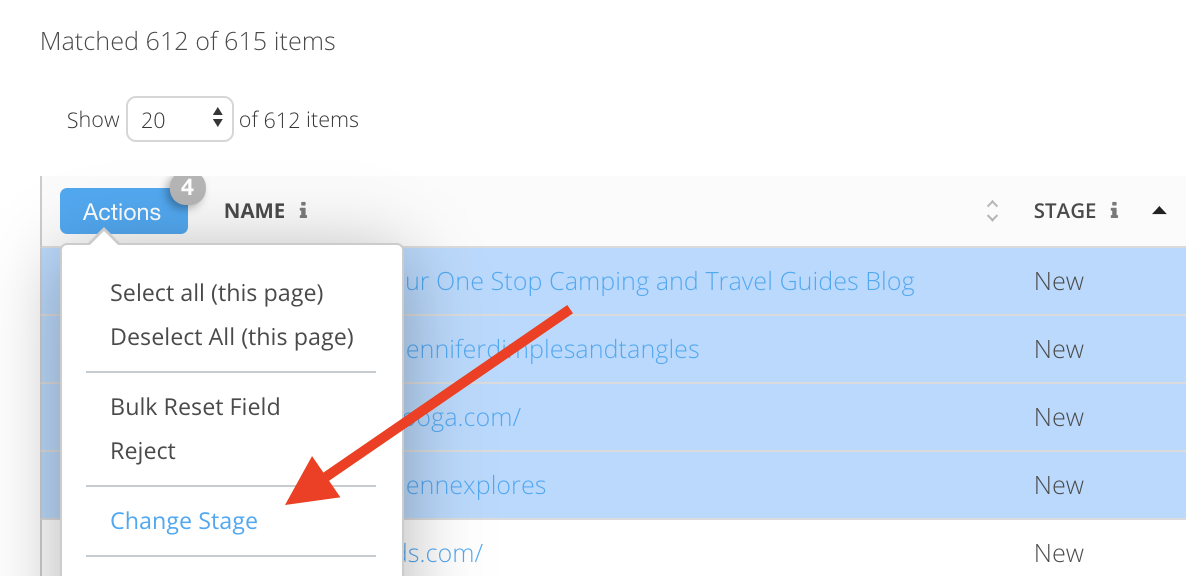
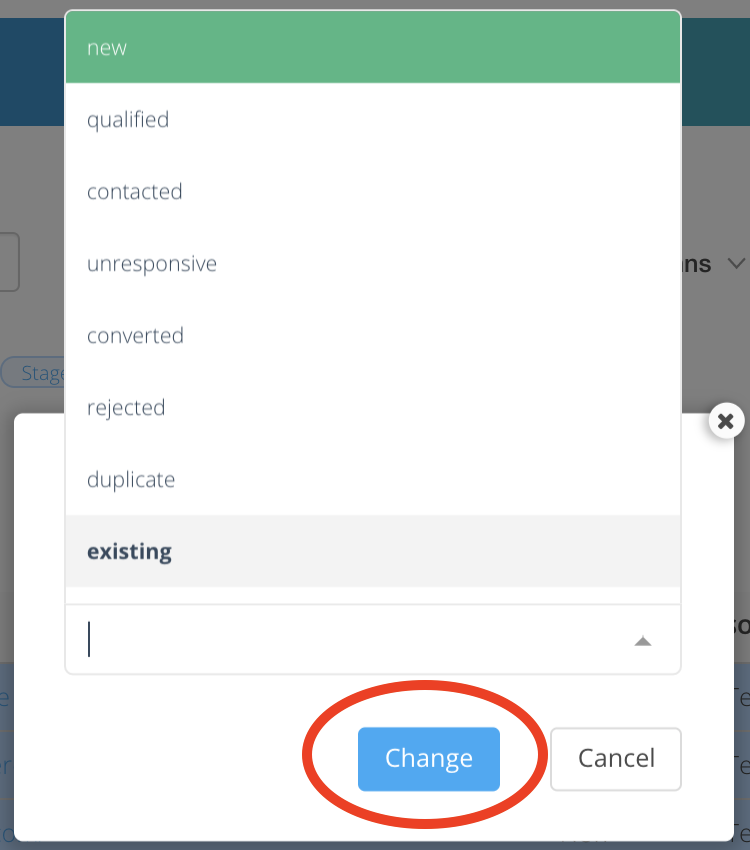
3. Select the stage you'd like to apply and click the Change button to save the stage
What is the difference between the Stage Bars in Prospects and Prospects by Brand areas?
You might have noticed there are separate stage bars in the Prospects and Prospects by Brand sections. Most of the functionality is the same, but they are separate from one another so the numbers of prospects in each stage could differ between sections. This is due to the nature of the two sections and how they interact. Think of the Prospect record as the "parent" and the Prospects by Brand records as the "children" of the Prospect record. The two records are related so depending on what makes the most sense for you depending on your program you can email these records from either layer.
For example: If you have 2 brands that you manage from your company that are very similar. Say you may want to email the Prospects regarding both brands at the same time. You would email the Prospect record because You are saying "hey prospect X, please work with both of our brands (children)". Alternatively if you have 2 brands that are not similar and you wanted to contact the Prospect twice, one for each brand to discuss separately, then you would use the Prospects by Brand records.
To make this difference a little clearer, see the images below to get a better idea of the conceptual differences between the Prospects and Prospects by Brand sections.
Prospects section:
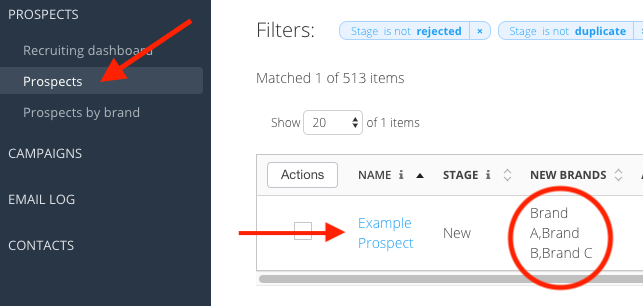
- Each Prospect record has a single listing with all brands tied to that record shown in the list
- There will only be a single Prospect listing for each Prospect, See below for one prospect with multiple brands tied to it:
Prospects by Brand section
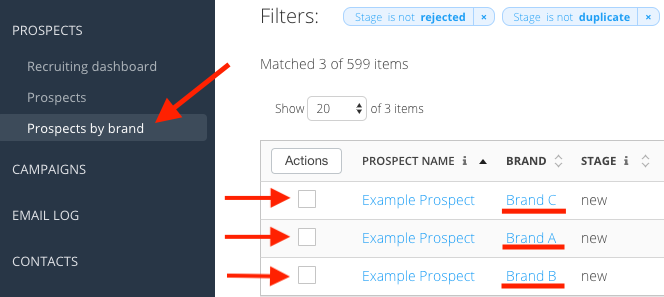
- Each Prospect listing is for a single Prospect and each brand has their own record and status.
- Each Prospect may have multiple listings depending on how many brands you have tied to it. See below for the same prospect listed above, this shows 3 listings, one for each brand.
Each section has its own Stage Bar, but in the Prospects by Brand section you are able to pull up the column Prospect Stage to see which stage the 'Parent" record is in on the Prospects section. That means you can also filter on the Prospect stage and take actions using this information as well.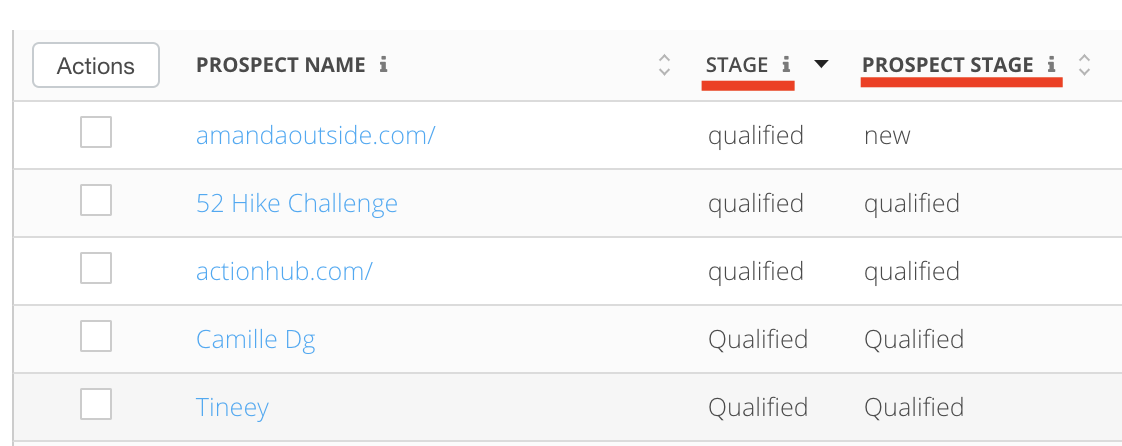
Similarly, in the Prospects section, you are able to view Prospects that were qualified or rejected at the brand-level by adding specific filters to include or exclude those records from your list.
- The filter In-Progress Brands is______ will pull up records where the Brand status has been moved past the Qualified stage, but not yet made it to Rejected or Converted.
- The filter Rejected Brands is _______ will pull up records that have been rejected at the brand-level for that brand.
- The filter Recruited Brands is _______ will pull up records where the brand status is Converted or Existing.
Ex:

Converted Stage
One of the most notable differences between the two stage bars is the Converted and Existing stages.
In Prospects, the Converted/Existing stages are manually maintained, meaning that a user must manually change the stage to Converted/Existing as described above. This helps you manage your records with multiple brands as you may still want to work on a record even after it had converted for one of the brands.
In Prospects by Brand, the Converted/Existing staged are automated and records will be marked as Converted/Existing once the system picks up the new Partner record or detects an existing one; thereby showing that the Prospect has now become a Partner or was already a partner.
Again, the difference between the two sections is due to the nature of each workspace.
Comments
0 comments
Please sign in to leave a comment.