
What:
One of the most useful features of Mediarails is the dashboard - which makes it easy to see all your recruiting efforts in one place. You can track messages sent, opened, replied and even view lift from your recruiting efforts. In addition you can filter by brand, network, time frame, team member and more.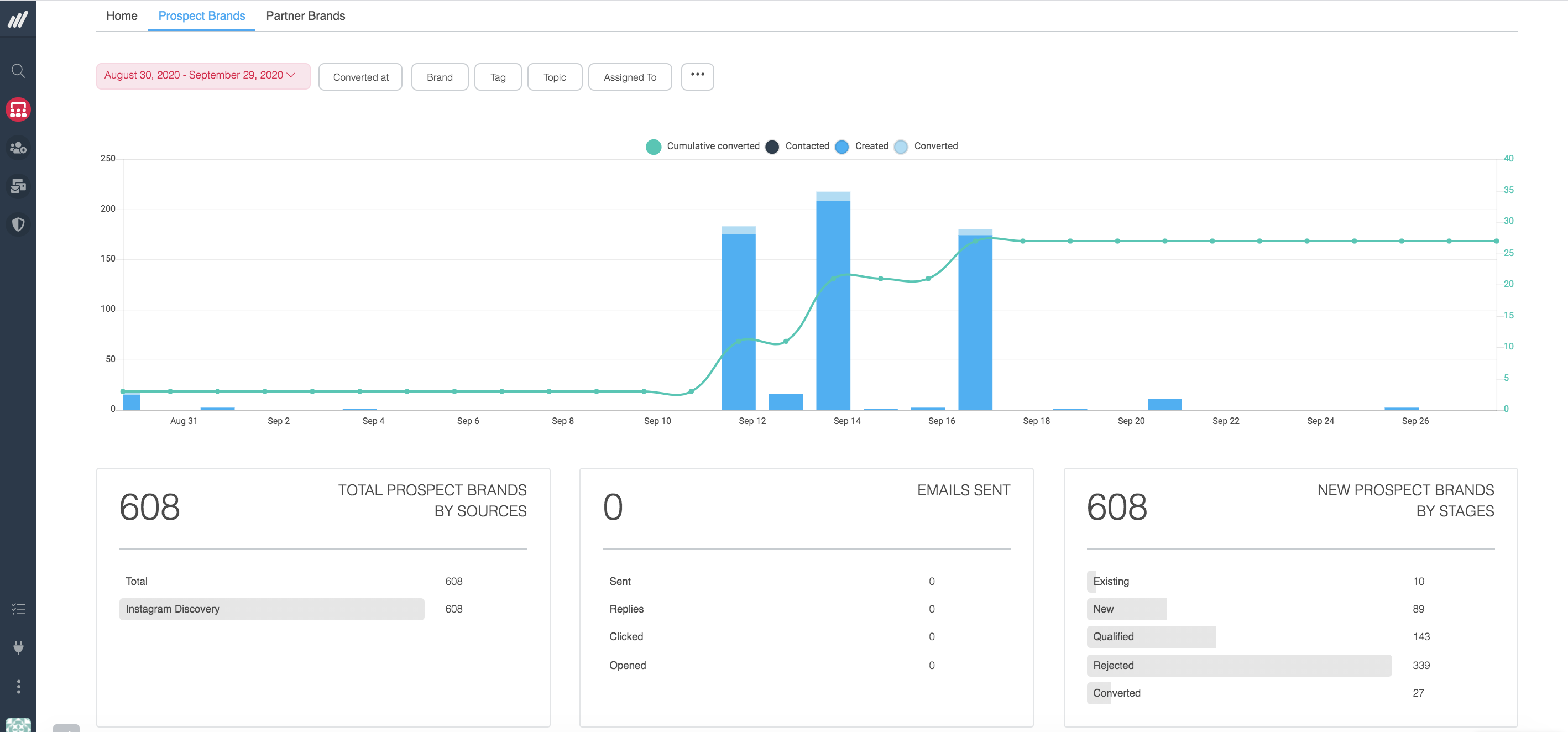
Why:
It can be difficult to understand and track all your recruiting efforts - especially communications and lift. Or, comparing the results from different lists? Or the outreach of different team members? The recruiting dashboard makes all that information automatically surfaced in one place and easy to filter.
How:
- Click "Dashboard" in the left sidebar
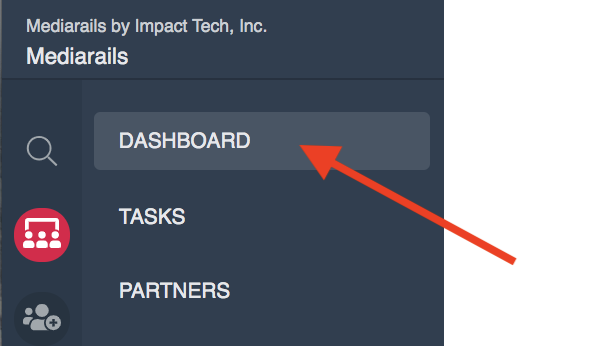
- The Home Dashboard will be the default page
- Home shows some elements of your team's prospecting activities
- To see more information on recruiting specifically, click the Prospect Brands Dashboard tab like shown below:

Tips:
-
- Notice that there is a time frame filter you can apply that will modify the numbers on the Prospect Brands Dashboard.
- Please note that on the Home Dashboard, the time frame filter is located mid-page

- Please note that on the Home Dashboard, the time frame filter is located mid-page
- Next to the time frame filter, you can find additional filters to modify the data on the dashboard. By selecting filters such as Brands, Tags, Topics, etc.. you can view data on Prospects that are part of a certain group
- Notice that there is a time frame filter you can apply that will modify the numbers on the Prospect Brands Dashboard.
Comments
0 comments
Please sign in to leave a comment.