
To fill out the form for connecting your CJ account you will need to follow the instructions below to collect the following information:
- Username
- Password
- Account ID
- Member ID
- Personal Access Token
- Creative ID
Steps:
- Fill in your User name and Password into the form. If you do not want to use your login information. Follow this link for steps to create a read only user: https://mediarails.zendesk.com/knowledge/articles/115001502566/en-us?brand_id=200039
- Login to your CJ account with the user that you are wanting to use. https://members.cj.com/member/login/#/?_k=iro3d6
- You will need to gather the Account ID, which is in the upper right hand corner as shown in the image below, fill that into the form.

4. Next we will need to collect the Member ID. You will need to click on Publishers tab then select Manage By Status. (NOTE: "The Member ID must be the same as Member ID of the read only user send us if you created one")

5. Look in the resulting url and copy the number you see after member/"NUMBER" and paste into the form. Then logout of your account.

6. To collect the Personal Access Token, click on this link: https://developers.cj.com/account/personal-access-tokens which will bring you to the following page:
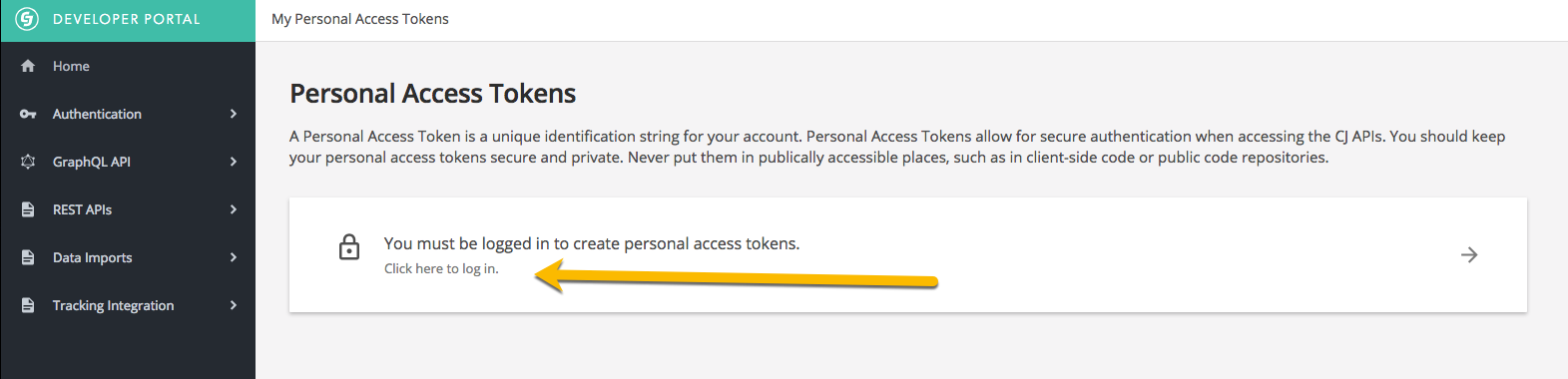
7. Click the link to get to a log in screen
8. Enter your email and password you set up for Commission Junction into the proper fields.
9. You will be directed to a new page where you will need to copy the Personal Access Token
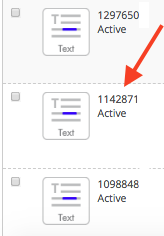
10. Get Creative ID. This can be the ID# of any creative in your account that does not expire.
Go to Links > Manage within your CJ Account as seen below:

Once your Creative Links page comes up you can copy the ID# of any creative that does not expire and paste it into the Creative ID field of the CJ Integration.
Comments
0 comments
Please sign in to leave a comment.