
- Sign into your AvantLink account: https://avantlink.com/signin
- Click on Reports located on the navigation bar.

- Click on the report form button
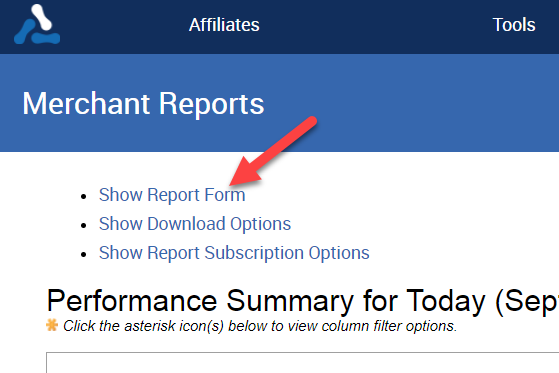
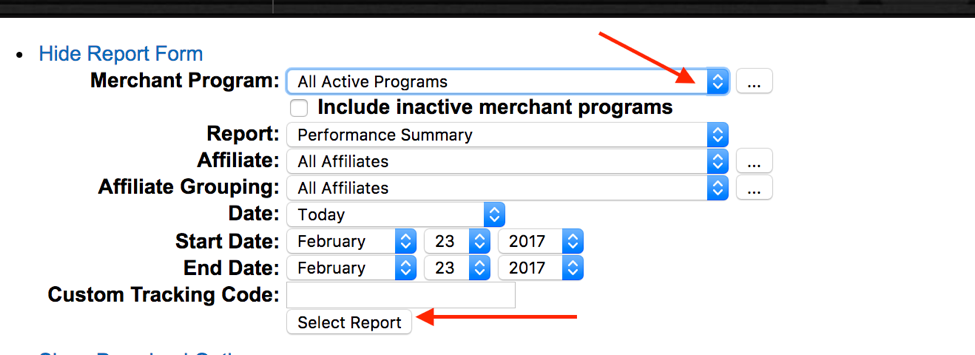
4. Select the correct merchant in the dropdown then click “select report” Note: The report selector may vary depending on if you are a merchant or an agency with several merchants. Also, make sure your Date drop down says "Today" otherwise the links will not show.
5. Click on “ Show subscription Report options”

6. Then select “Tab Delimited”

- You will be redirected to a page of raw data. The url at the top of the screen contains the information you will need to fill in the integration card. (see bolded example below)
- Example: https://classic.avantlink.com/api.php?module=MerchantReport&auth_key=XXxXxxXXXxXXxXXXXxXXXXXxXXXXXXXX&merchant_id=XXXXX&merchant_parent_id=XXX&affiliate_id=0&website_id=0&date_range=Today&affiliate_group_id=0&report_id=1&output=tab
- If your account is a parent account containing several merchant accounts. We will need the Merchant Parent ID for the account. If the account only has one brand the Parent ID is not required.
NOTE: due to the creative nature we extract your partners from this network, we may be unable to pull in some partners that have never had any performance activity e.g. clicks, revenue. If this is the case you can manually load in these missing partners. Please send us an export of all of your partners if you would like the Mediarails team to assist.
Comments
0 comments
Please sign in to leave a comment.