
This article will guide you through getting the necessary credentials from Affiliate Window in order to setup the Partner integration between Awin and Mediarails.
Please note that Awin does not allow API access to partner email addresses or URLs. To add these to your Mediarails Partner database, you will need to manually import the email addresses and URLs of your partners. The instructions below walk through the full process. If you do not wish to add email addresses and URLs to your partner records, you only need to follow the steps below on how to setup the API integration.
Setup the API Integration
1. Go to https://ui.awin.com/login and enter your login credentials for your account.
2. Once logged into the home page, click on your username in the top right corner then click "API Credentials".

3. On this page you will need to enter your password to show your api key.

4. Copy your api key as that will be one of the pieces of info you will need.

5. Next, in the top right corner of your nav bar hover over user dashboard. You will see a dropdown of all your brands and their corresponding Account ID's associated with your affiliate window account. Copy each brand's account id that you would like integrated. You will need a separate form in Mediarails for each brand.

6. Fill in the form with the following info that you just collected:
- Awin Login Username
- Awin Login Password
- OAuth2 Token
- Account ID
Your integration between Awin and Mediarails is now setup, it may take about 24 hours for all data to populate in Mediarails.
Import Partner Email Addresses and URLs
1. Login to Awin using your login credentials.
2. Select Publishers on the top navigation bar to go to your main publishers page.
3. Export your partners from the Publishers page by selecting Options > Export to CSV on the right side of the screen.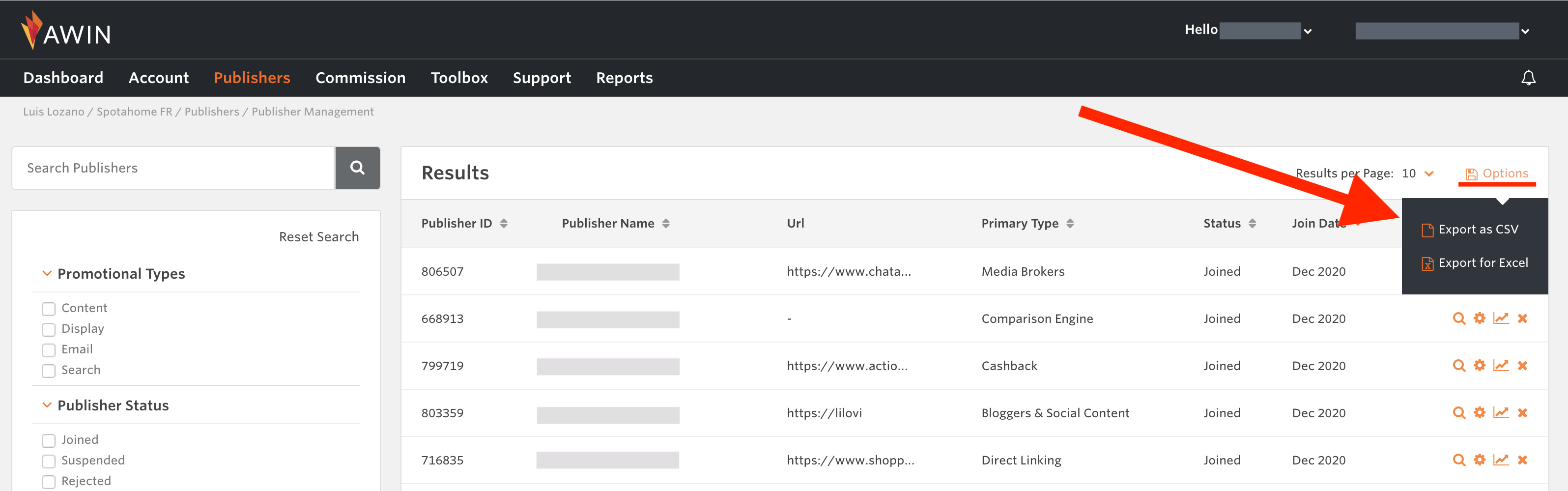
4. Edit the CSV file headers to match Mediarails import fields.
- Change the publisherId column header to Network Publisher ID
 ------>>
- Change the Email column header to Primary Contact Email
- Change the Website column header to Media Property Urls
 ------>>
- Add a new Network column with the static value of “AffiliateWindow”. Every row should have a value.
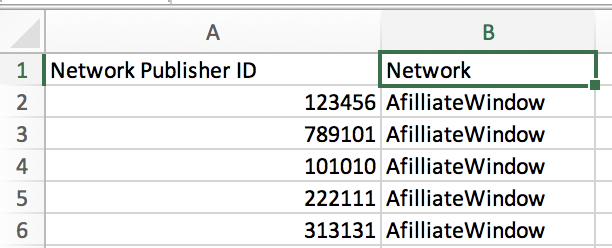
- Add a Brand column with the brand as it is listed in Mediarails. Every row should have a value.
- For example, if your brand is "Acme" in Mediarails, you would put "Acme" in the Brand column. If you have multiple brands, you would want to make sure the brand is correct for the respective records.

- For example, if your brand is "Acme" in Mediarails, you would put "Acme" in the Brand column. If you have multiple brands, you would want to make sure the brand is correct for the respective records.
5. Save the document as CSV
- Only a CSV (Comma Separated Value) file will be accepted for importing into Mediarails.
6. Import the data back into Mediarails by going to the Partner by Brand section and selecting Tools > Import CSV

7. Select the Upload option on the popup - since you already have a usable CSV, you do not need to click the Download option on the popup.
8. After the import is complete, you will see a message pop up saying whether the import was successful or not. If it was unsuccessful, any failed rows will appear in a downloadable CSV format. To check and correct the errors, download the Failed Row report. The first few columns will tell you why each row has failed. Correct any errors and re-upload the Failed Row CSV following steps 6 & 7 above.
Comments
0 comments
Please sign in to leave a comment.