
Add impact.com (formerly Impact Radius) to your Network Integrations
1. Click on the following link: https://app.impact.com/login.user and enter your impact.com credentials to login.
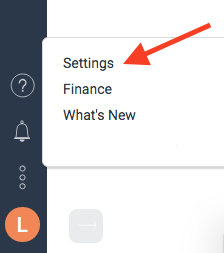
2. After being redirected to the home page, click on the three dots near the bottom of the left-side Nav bar and select the option for Settings:
3. On the Settings page, scroll down to the Technical section and select API. This will take you to the API Access / Platform REST Web Services page. Click on the "eye" icon to reveal the Auth Token.
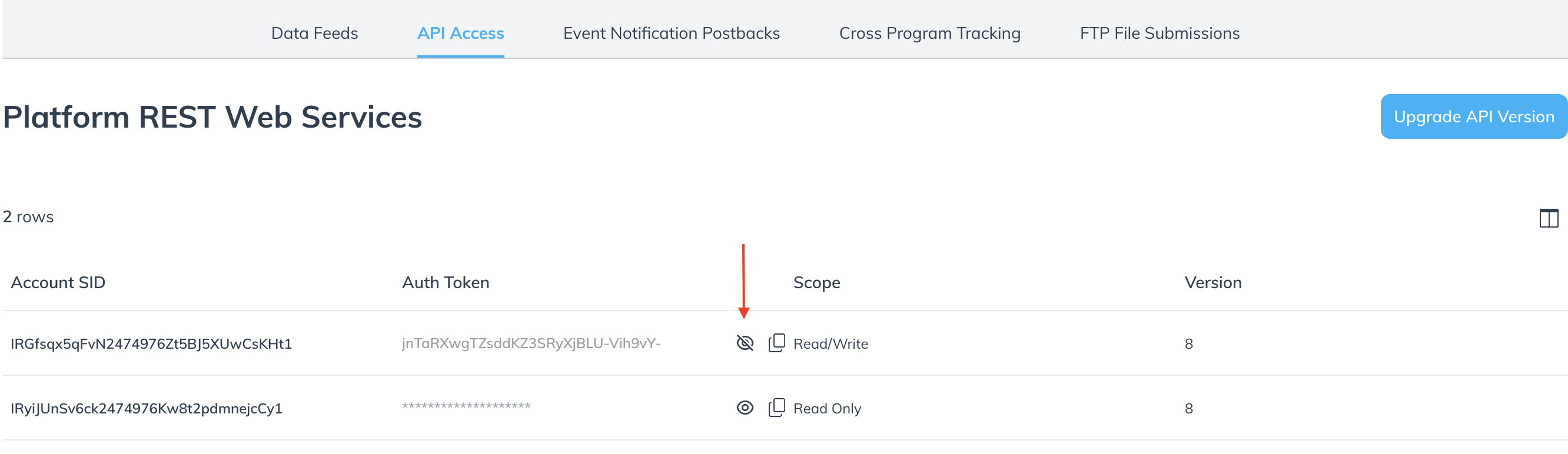
4. Once on the Platform REST Web Services page, you will need to gather a few pieces of information, as seen in the screenshot above, to plug into the Impact Integration in Mediarails:
- Account Sid*
- Auth Token
- Read Only Auth Token (optional)
*Note that Account SID in impact.com is called Account ID in Mediarails
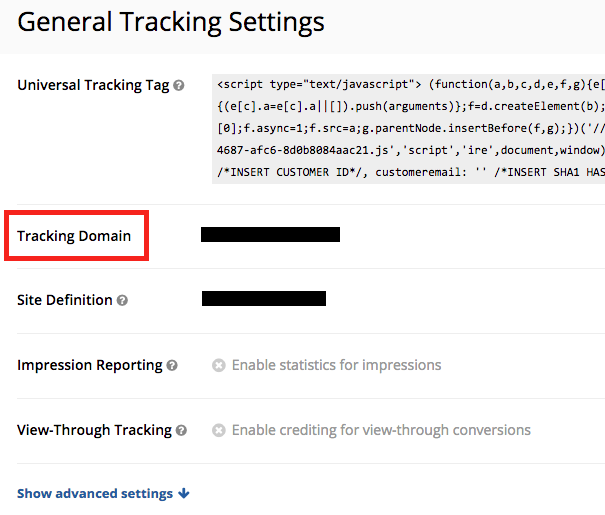
5. Get Publisher Redirect URL (known as Tracking Domain in impact.com)
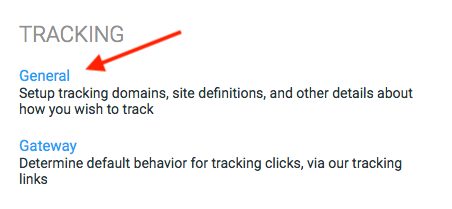
- Go back to the main Settings page (as seen in step 2) and scroll down to the Tracking section. Then select General to open up your General Tracking Settings page.
- Once on the General Tracking Settings page you will find the Tracking Domain. Insert this URL into the Publisher Redirect URL field on the Mediarails Impact integration.
6. Get Creative ID
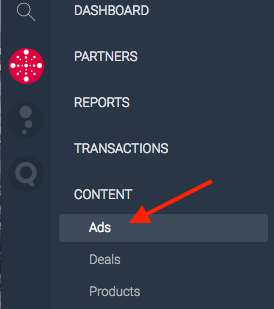
- This can be the ID# for any creative in your impact.com program that does not expire. This can be found under Content > Ads in your left side-bar.
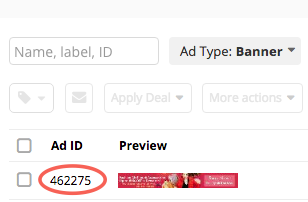
- Look for any Banner or Text link with no expiration date and copy the creative ID # and paste it into the Mediarails Impact Integration.
7. Campaign ID Filters
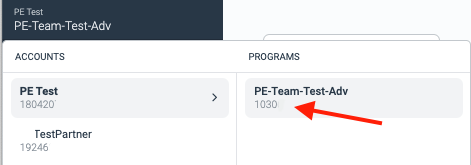
- Known as Program IDs in impact.com, these IDs are located in the drop down in the upper left hand corner of your impact.com account when logged in.
- Hover over your brand's name in the top left corner of the screen, select the dropdown arrow, and view your account's Program IDs below the program name.
Advanced options, not required
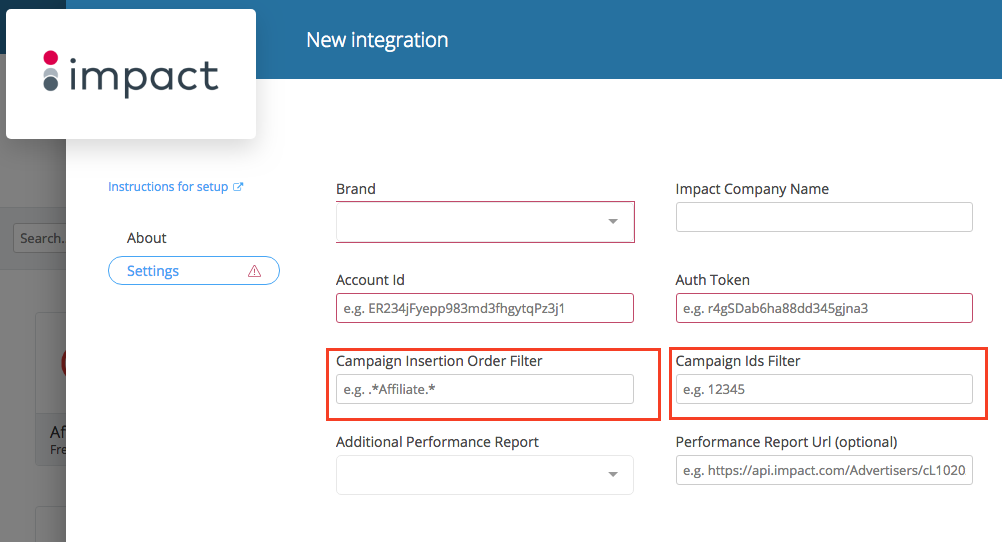
The following fields are for advanced filtering options when you have more than one IO or campaign. You can also use keywords contained in the IO names to filter.
- Campaign Insertion Order Filter
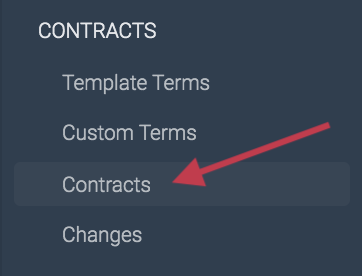
- Use keywords contained in the IO names to filter. These can be found by going to Contracts > Contracts in the main left-hand sidebar.
-
- Add to the fields in the integration as seen below.
Comments
0 comments
Please sign in to leave a comment.