
Prospect Detail pages are present in the following workspaces:
- Prospects
- Prospects by Brand
Detail pages are where you can see the details of a Prospect or Partner record such as full email threads, media properties and contact info. In addition to viewing information on the record, you are also able to assign tasks to yourself or team members, add comments and edit contact info.
Detail pages have similar features on all workspaces, so the Prospect Detail pages are much like those in the Partners workspace. See here for more information on Partner Detail pages.
See below for details on each tab of the Detail page for Prospects.
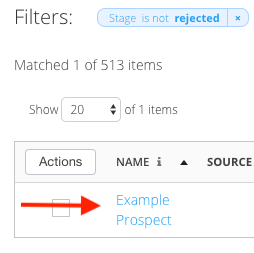
To get to a record's Detail page, click on their name in the list view. Once the Detail page loads you will be on the Workspace tab.
See below for a description of each tab on the Prospect Detail page:
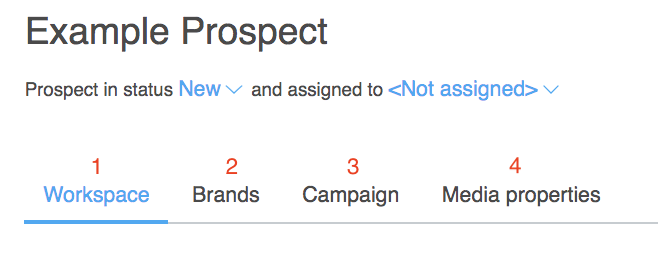
- The Workspace tab is where you can view full email threads in the live feed or add comments, tasks or files directly onto the Prospect's record. The Workspace tab is also where you can manage the full contact list of a record. The workspace tab is covered in-depth below
- The Brands tab allows you to manage the brands assigned to the Prospect record. If your business only has one brand, all information will regard that brand. If you have multiple brands in the Mediarails system, information will be present for the brands that you've assigned to the record.
- The Campaign tab shows any Campaigns a Prospect might be a part of. There is a list view with relevant columns to view more information on this Prospect's Campaign activities.
- The Media Properties tab shows screenshot previews of any media properties this Prospect has in the Mediarails system. If you hover over the thumbnail you will get some quick stats on the property like Alexa rank and monthly visitors. You can also add or delete media properties on this tab.
See below for in-depth descriptions of features in the Workspace tab:
(listed clockwise according to the image below)
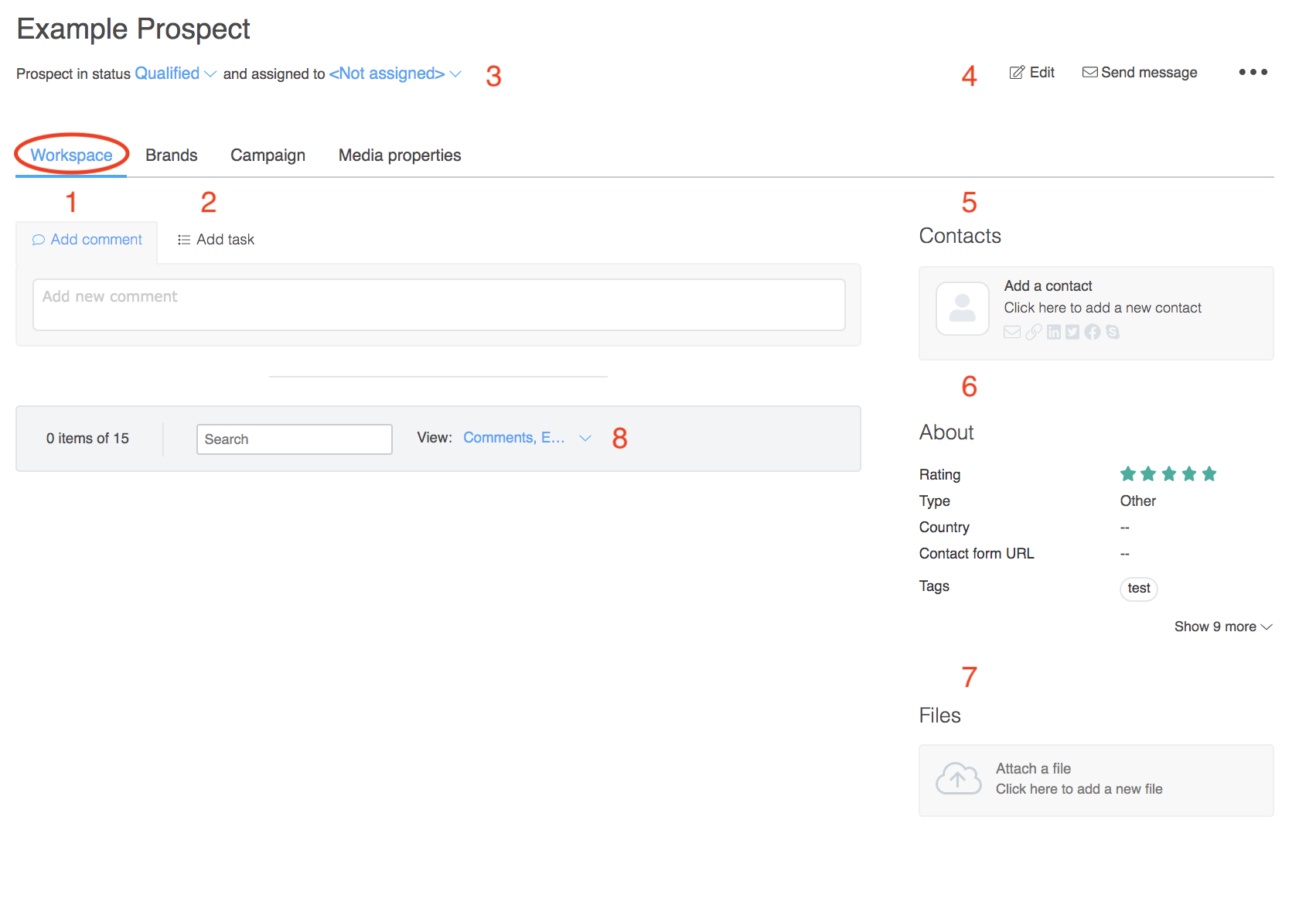
- Add Comments: Add a comment to the live feed of the record. Use the @ symbol to notify a team member of your comment.
- Assign a Task: Assign a task to yourself or a team member here
- Prospect Stage and assign records:
- Edit the Prospect's stage (in the stage bar) by clicking the dropdown and selecting the desired stage. More about Prospect Stages can be found here.
- To assign a record, click the dropdown and select the desired team member.
- Edit, Send Message, and Email Workflow membership (three dots) :
- Edit the details of a record (Name, Tags, etc..) by clicking the Edit icon
- Click Send Message to initiate a new email message to this Prospect
- View and Edit a Prospects Email Workflow membership by clicking the three dot icon
- Contact Info: Add, edit, or delete contacts here
- About: basic stats on the Prospect
- Files: Click to add files up to 50mb in size
- Live Feed: This is where you can find the live feed of actions taken in Mediarails. Full email threads, comments and tasks can be found in the Live Feed, in addition to details on other various actions taken on the Prospect record in Mediarails.
Comments
0 comments
Article is closed for comments.