
Creating email templates can be very helpful to speed up the process of sending out emails or replicating Email Workflows.
You could even save your signature as a template so you can pull up your signature when starting a new email and have your signature already present.
Creating email templates can be done in two areas of the tool:
- From an email workflow editor
- From a one-off message editor
Please note: Using a template will override ALL current text on the edit box and you cannot undo the action. Please use templates at the very beginning of creating a message, otherwise all your other work will be lost.
Instructions for creating an email template:
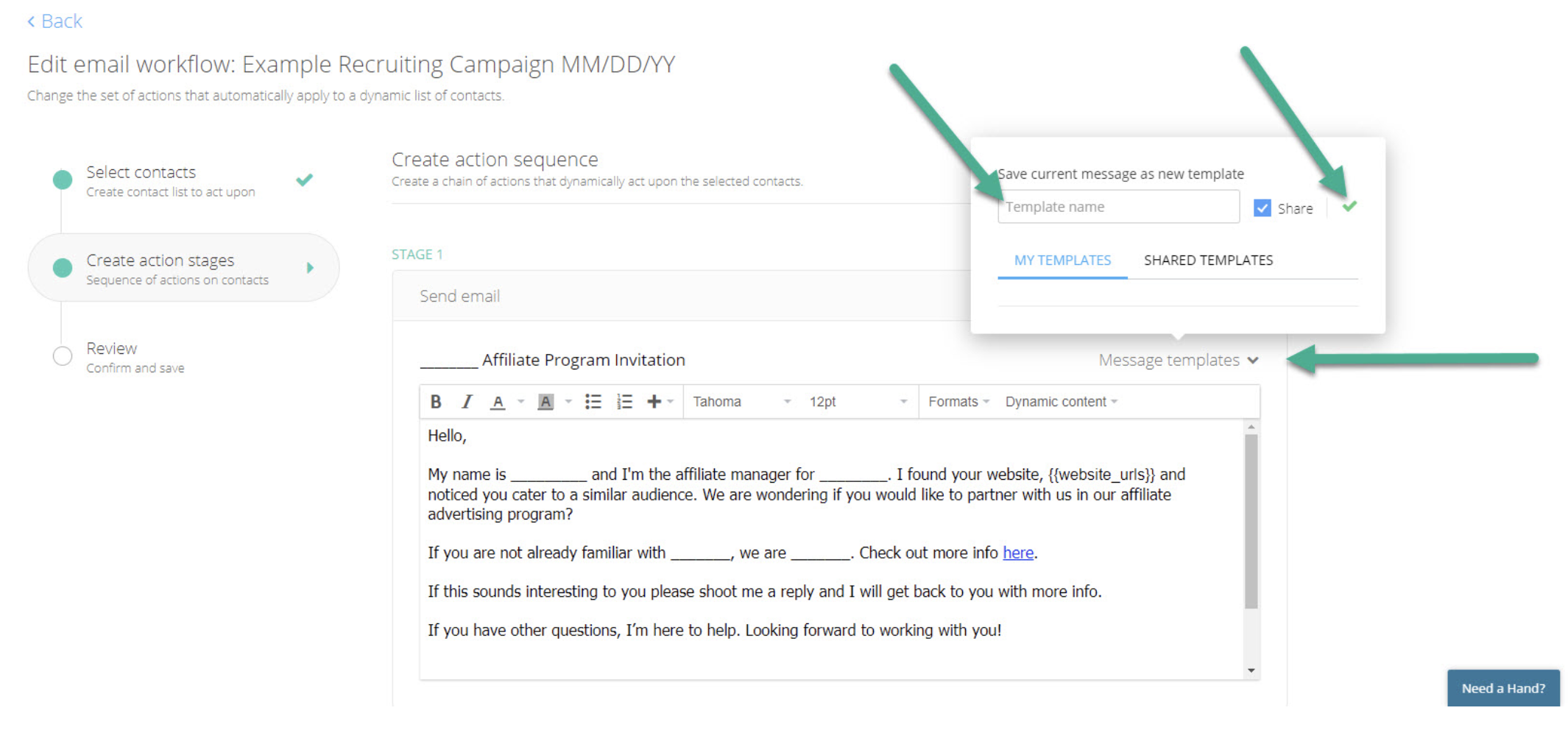
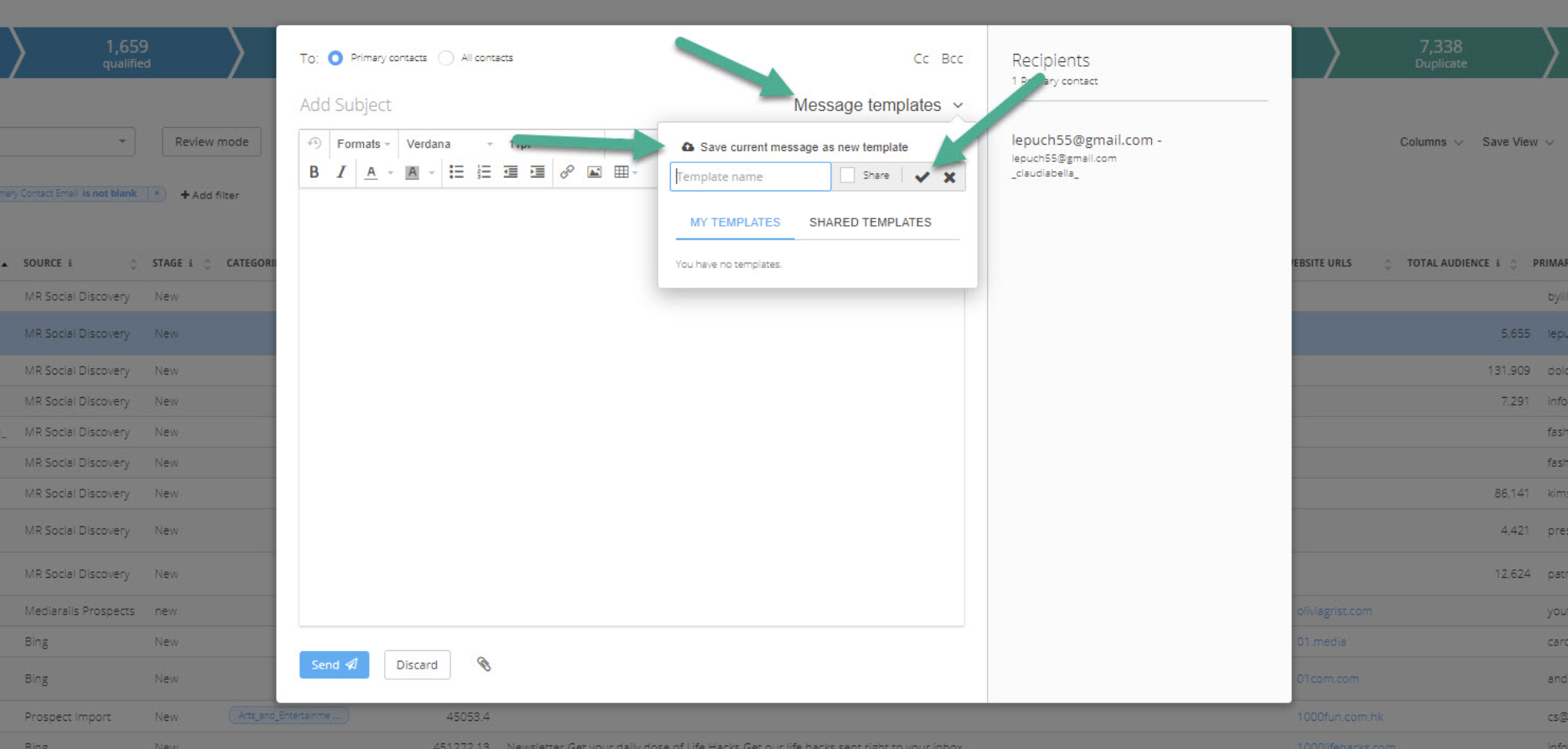
While you are in an Email workflow or a one off message writing your email, you can access the Message templates drop down to save your current email as a template.
- Select message templates
- Type in the name of the template you want to save
- Select the green check mark to save
Note: If you would like to make this email template Private (only view-able in your login not any of your teammates if you have any) un-check the Share option (blue box)
From within an email workflow:
For more info on setting up Email Workflows see article here.
From within a one-off email from the list view:
For more info on sending one-off emails see article here.
Comments
0 comments
Please sign in to leave a comment.