
In Mediarails you can send one-off messages to Prospects or Partners directly from the list view. You can send messages to a single record or to many records at once by sending the message in bulk.
Sending one-off messages differs from using Mediarails' automated email workflows in that you will be sending recipients a single message, not multiple stages of messages that include follow-up stages.
How to send one-off messages from the List View
- Go to either the Prospects or Partners workspace to access the list view. The functionality works the same in both workspaces.
- Select the desired records using the checkboxes to the left of their name or by selecting Actions > Select All to select ALL the records currently showing on the list view.
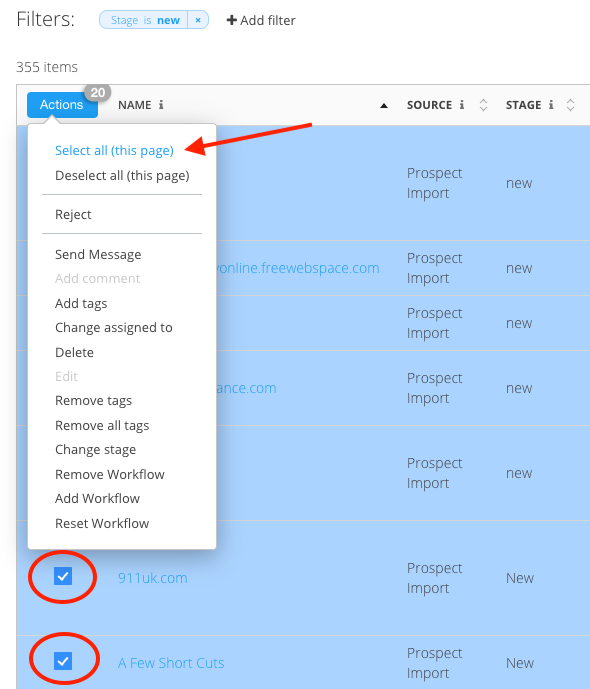
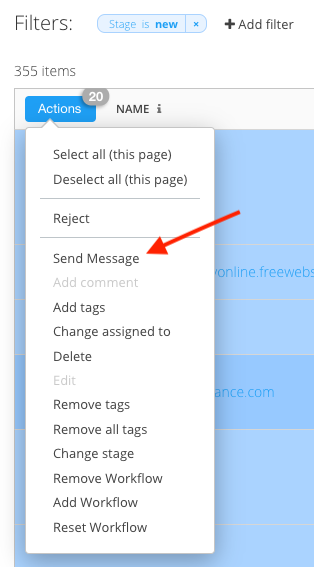
- Once your desired records are selected click Actions > Send Message to bring up the Email edit box.
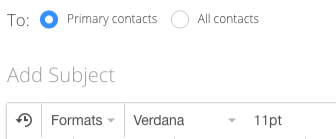
- On the Email edit box, select either Primary Contacts (default) or All Contacts at the top.
This gives you the option to decide whether you want to reach out to only the record's primary contact or all contacts that are in the Mediarails system for the selected records.
- Using the Recipients pane on the right, you will be able to remove specific contacts. So if you do select All Contacts, you are able to remove any unwanted contacts from the Recipients pane.
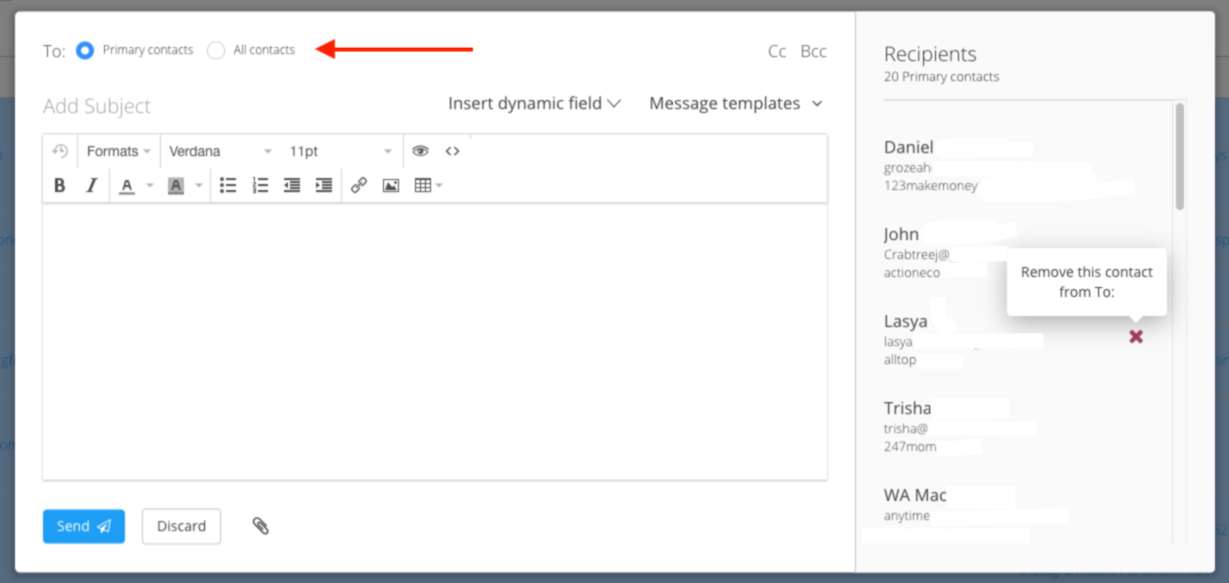
- Using the Recipients pane on the right, you will be able to remove specific contacts. So if you do select All Contacts, you are able to remove any unwanted contacts from the Recipients pane.
- Make sure to add a Subject line to the Add Subject field
- Write your message and include any desired Dynamic Content, such as the Unsubscribe button
- Note that if popular dynamic content such as First Name is selected but is not populated on a record, the Recipients pane on the right will show a red message explaining which piece of dynamic content is missing per recipient.
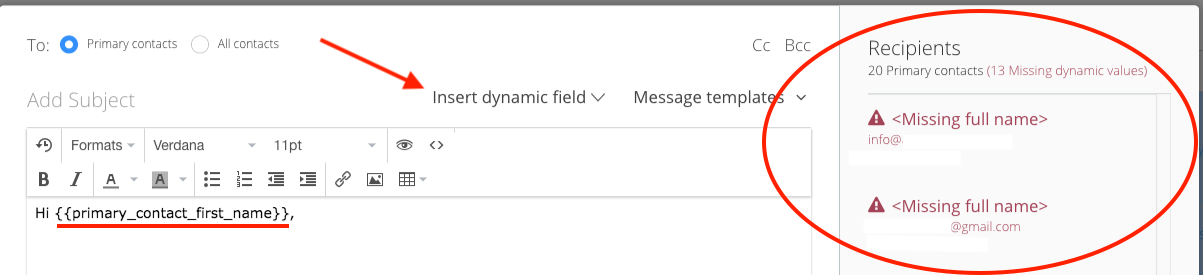
- Note that if popular dynamic content such as First Name is selected but is not populated on a record, the Recipients pane on the right will show a red message explaining which piece of dynamic content is missing per recipient.
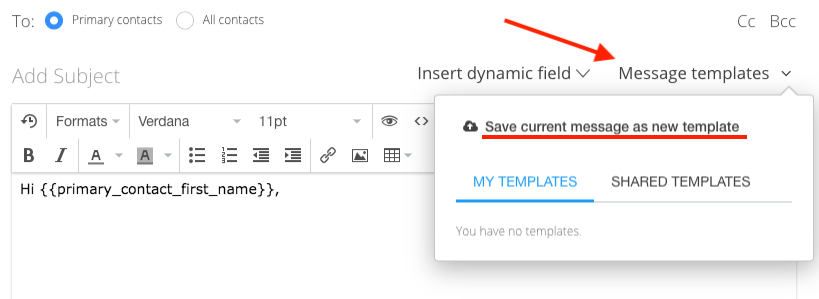
- If desired, you can work from a template by choosing one from the Message Templates link, or you can save the current message as a template for later use:
- After finalizing your message and your recipient list, you are ready to hit Send!
Mediarails Email Batch Report
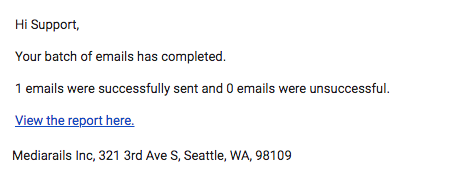
After sending your message you will receive a Mediarails Email Batch Report (as shown below) to your normal email inbox from hello@mediarails.com.
The report will give the number of successful and unsuccessful sends. If there were any unsuccessful sends, the report will include a link to a file that will show you which contacts threw errors and the reason for the error. The contacts will be listed using their Mediarails ID#, called EntityID in the report.
Comments
0 comments
Please sign in to leave a comment.