
In Mediarails you are able to schedule the start date of an Email Workflow. This allows you to schedule the date and time an email will start to send without having to manually push the play button.
For more information on how to create a new email workflow, please see instructions here.
Understanding Email Workflow Send Times and Dates
First off, it is important to understand how email workflows send so that you have the correct expectation of how email sending will take place when scheduling.
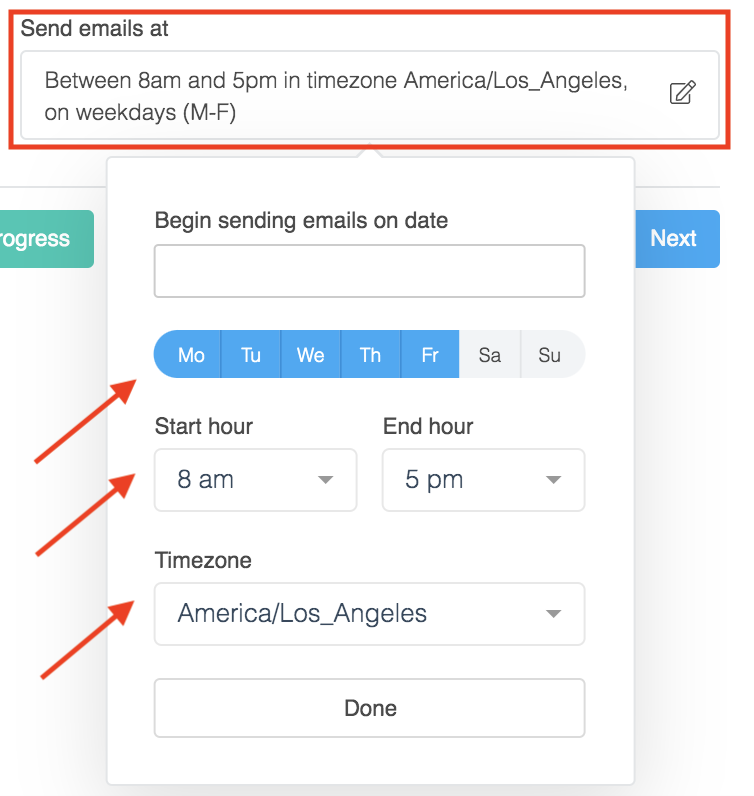
In the image below you can see that this workflow is set to send from 8am-5pm Monday-Friday in the Pacific time zone (America/Los Angeles).
These are the ONLY times/days that this workflow will actively send emails. It will not send any emails outside of the designated times, regardless of scheduling.
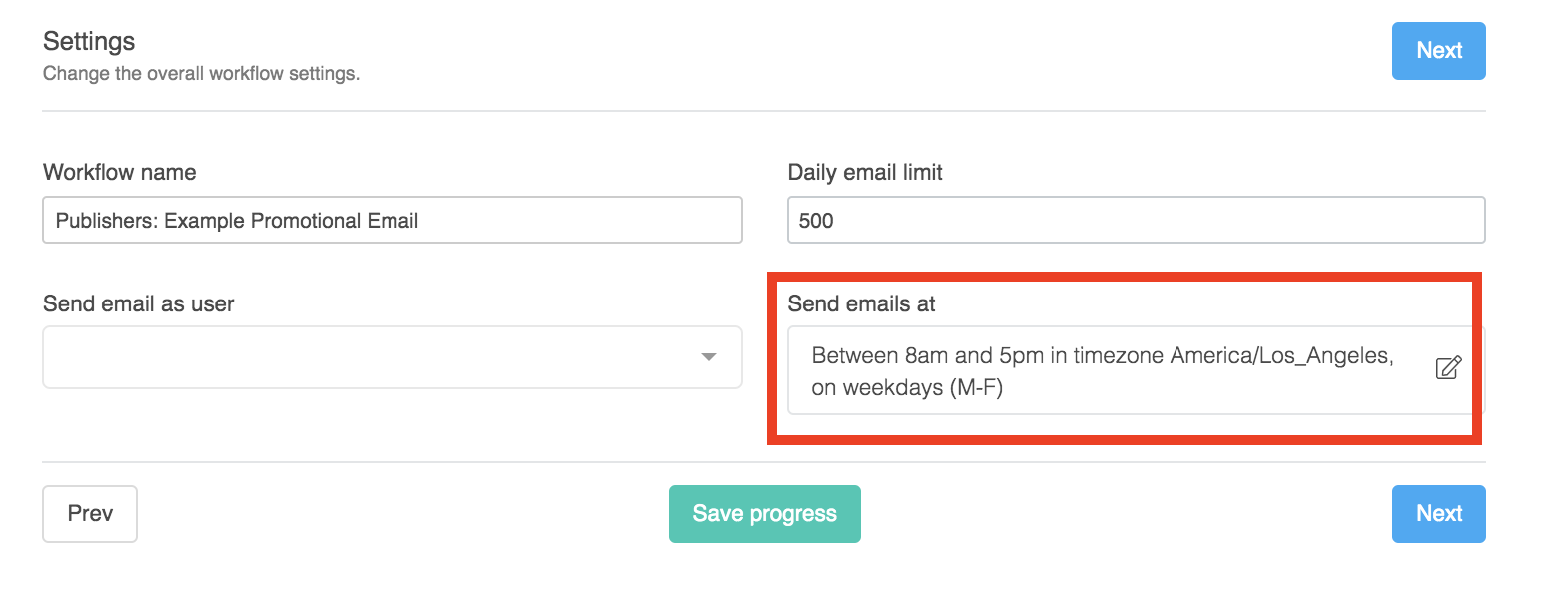
When scheduling a time and date for an email workflow to start sending it needs to be within the designated active days and hours.
For example, if you were to schedule the above workflow to begin sending at 7am on a Saturday, the emails would still not send until 8am Monday because the scheduled time was set outside of the active workflow hours.
How to Update the Designated Active Days and Times
1. Go to the main workflow page by clicking on the automate icon on the left sidebar: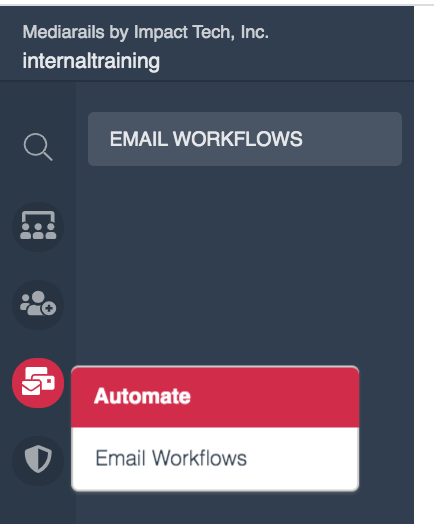
2. Select the Edit icon to the right of the desired workflow: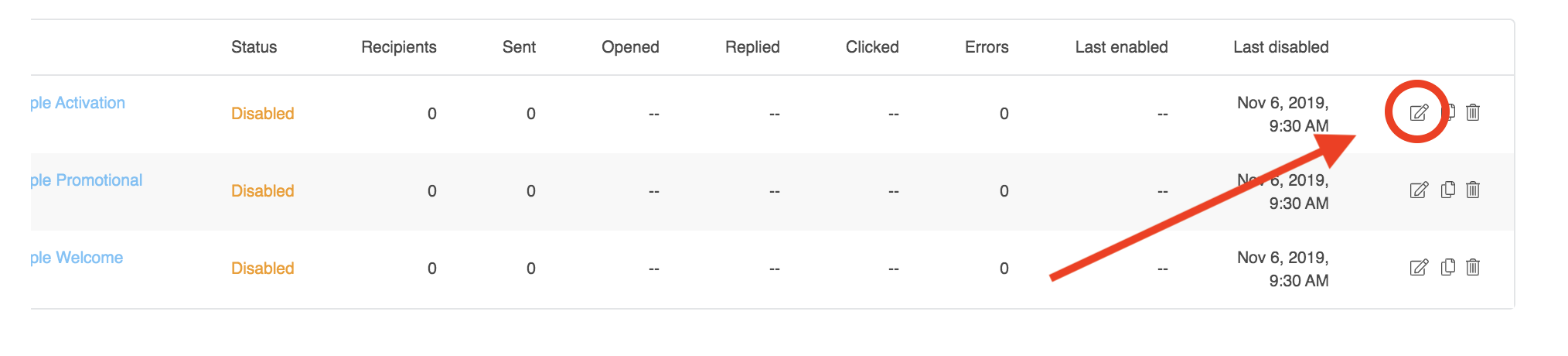
3. Click the option for Change Workflow Settings: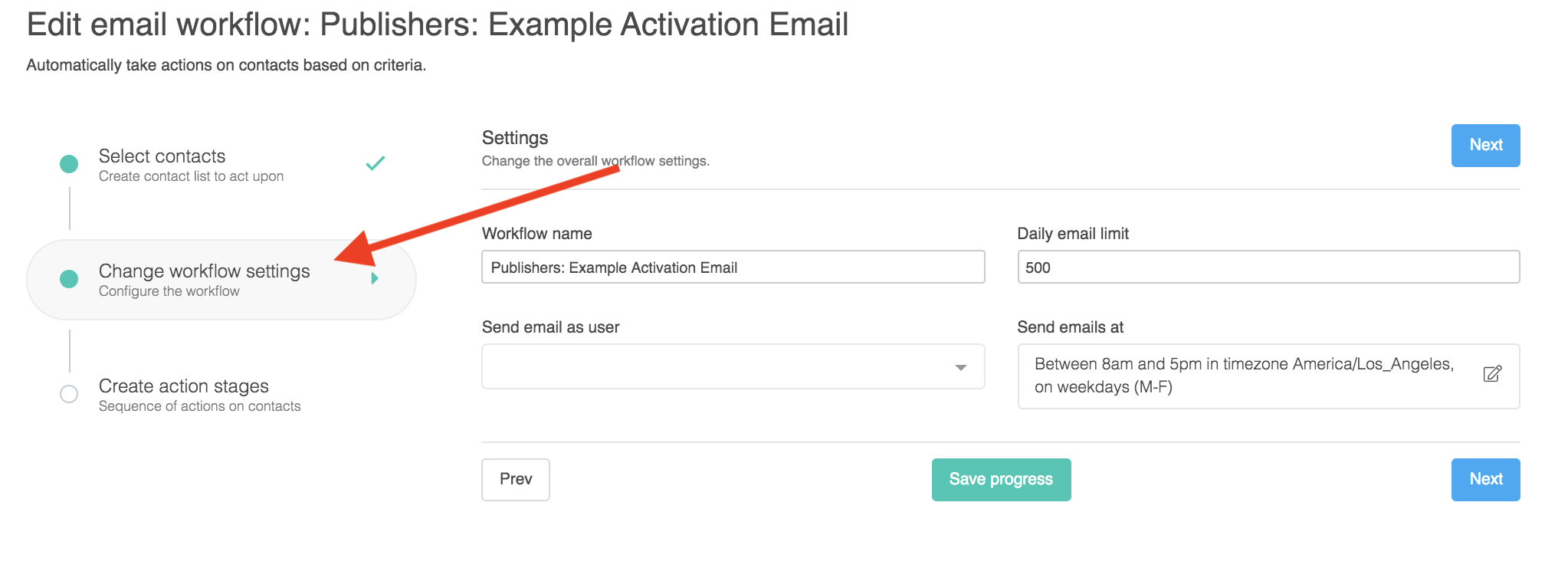
4. To update the active days/times of a workflow, click on the Send Email At field and change the options as desired, like shown with the red arrows below:
How to Schedule a Workflow Start Date & Time
1. Follow steps 1-3 listed above.
2. Click on the Send Emails At field: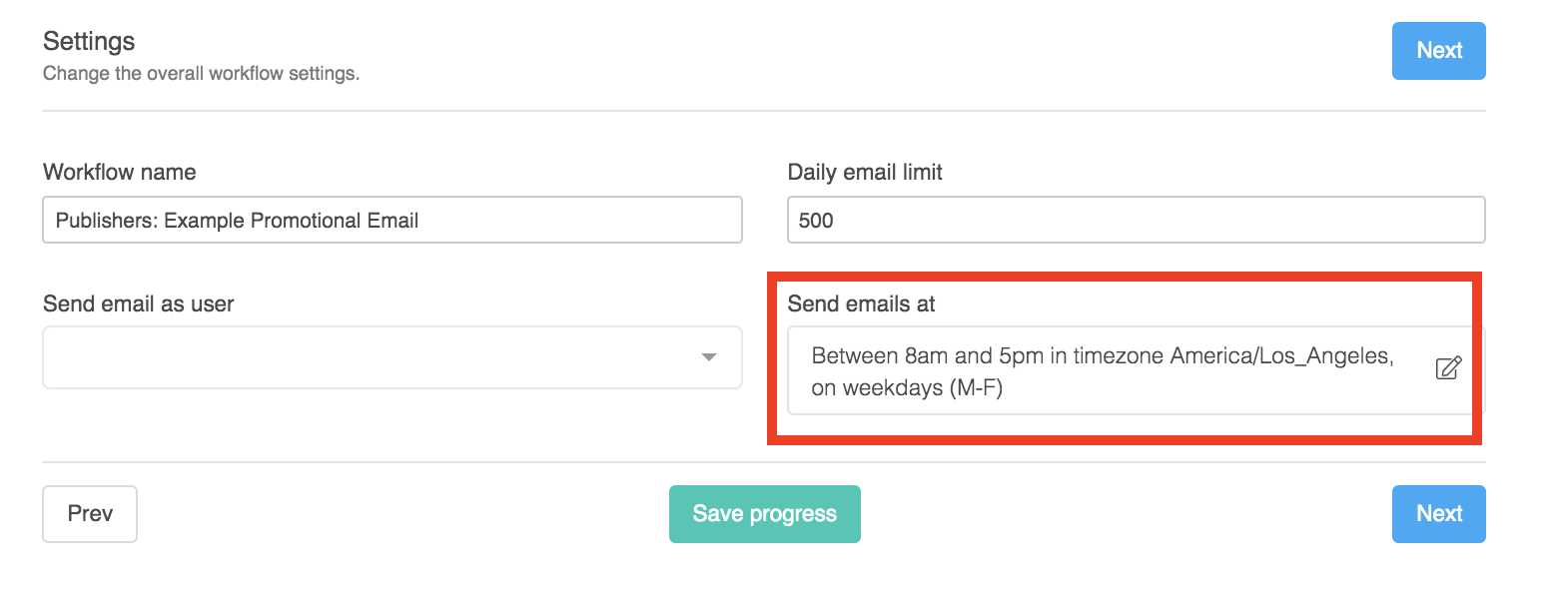
3. Click on the blank field at the top of the dropdown to get a calendar to appear: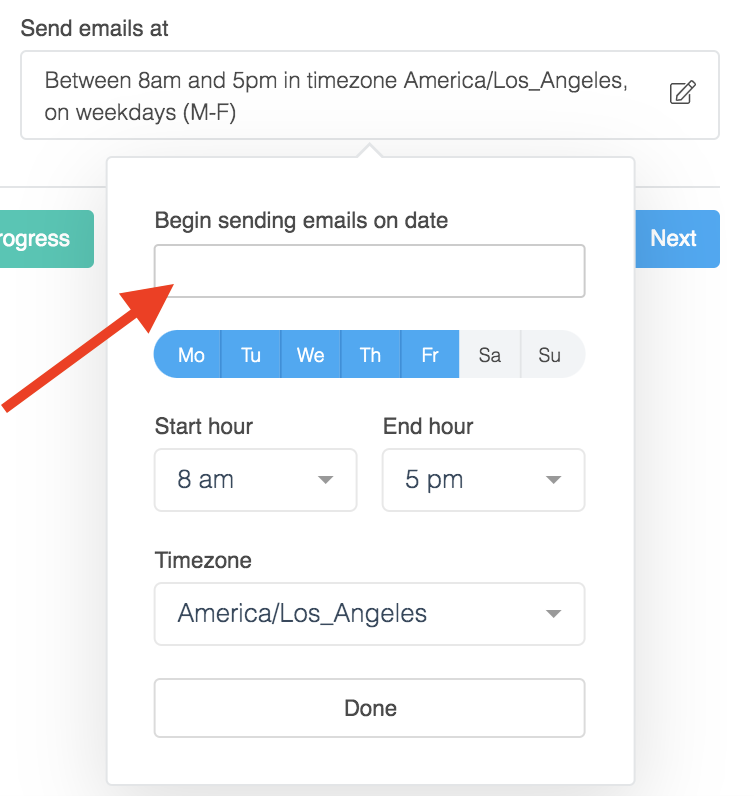
4. Select the desired date from the calendar dropdown: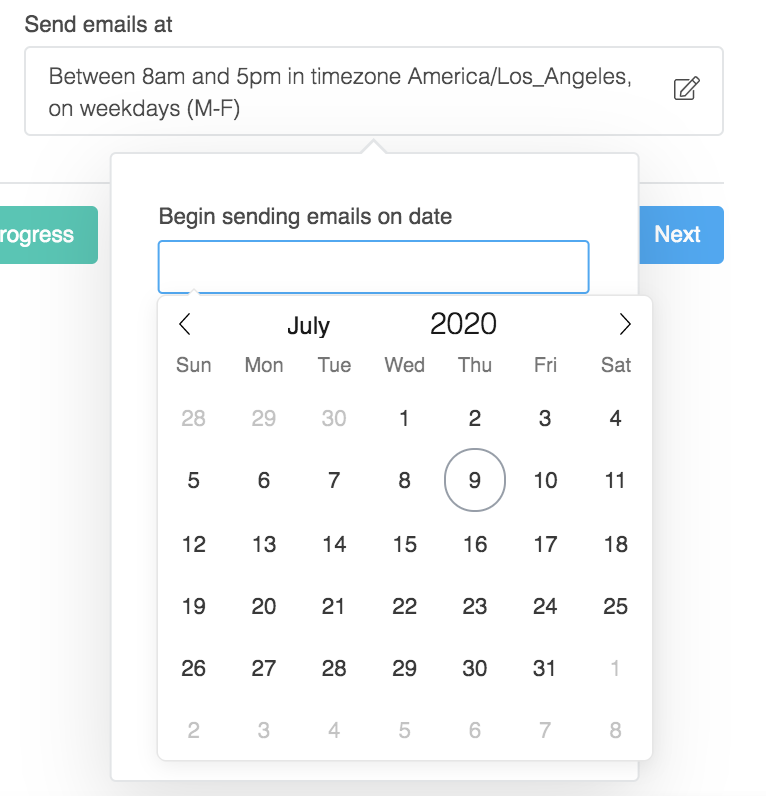
5. Once you select a date, a time option will appear at the bottom of the calendar. Select a time, then make sure both the date and time are correct at the top of the field: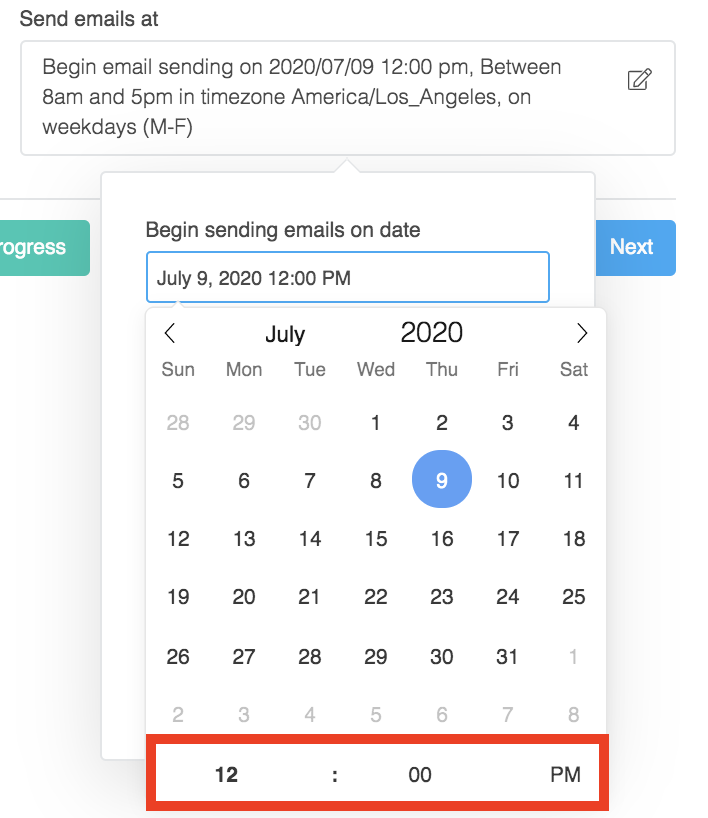
6. Click Save Progress and your workflow has now been scheduled: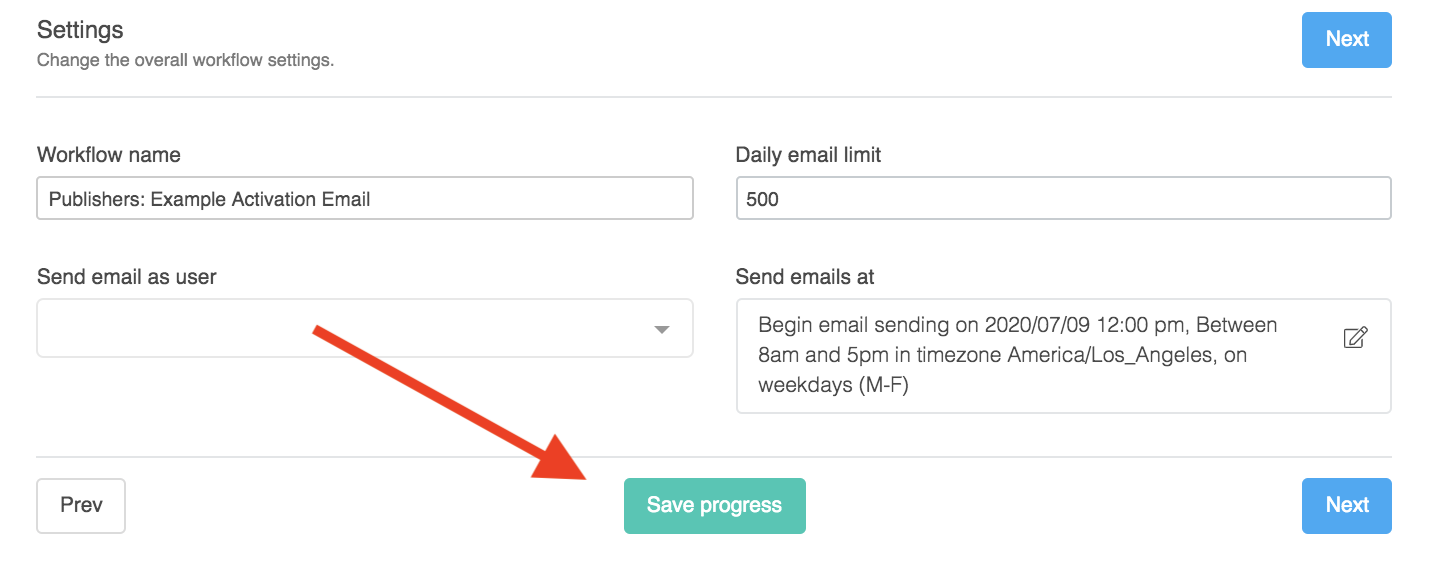
Please note:
- Scheduling a workflow only STARTS the workflow at the set time. The workflow will still send in a cycle that mimics human behavior and will send throughout the day sporadically, during the active hours of the workflow.
- Workflows always send according to the daily email limit (set on the same page of setup). Scheduling an email does not affect the daily limit.
- What this means is that if you have 2,000 recipients in a workflow and the daily email limit is 500, it will still take 4 days to send all the emails. This system is setup this way to help you avoid getting flagged as spam.
Comments
0 comments
Article is closed for comments.