
If your company has multiple brands and an existing partner program, you may want to invite the successful partners from your existing program to join another of your programs.
This process works well for cross-brand recruiting, allowing the same partners to be recruited for several different brands.
For example: let's say your company sells clothing and has 2 brands. The first brand sells clothing and has a successful partner program already running. The second brand sells shoes and is launching a new partner program. Since you already have successful partners promoting your clothing brand, it would make sense to try to recruit those same partners into your new program for shoes.
The steps outlined below show you how to begin cross-brand recruiting in scenarios such as this.
Turn existing Partners into Prospects for Cross-brand Recruiting:
- Go to the Partners section in Mediarails:
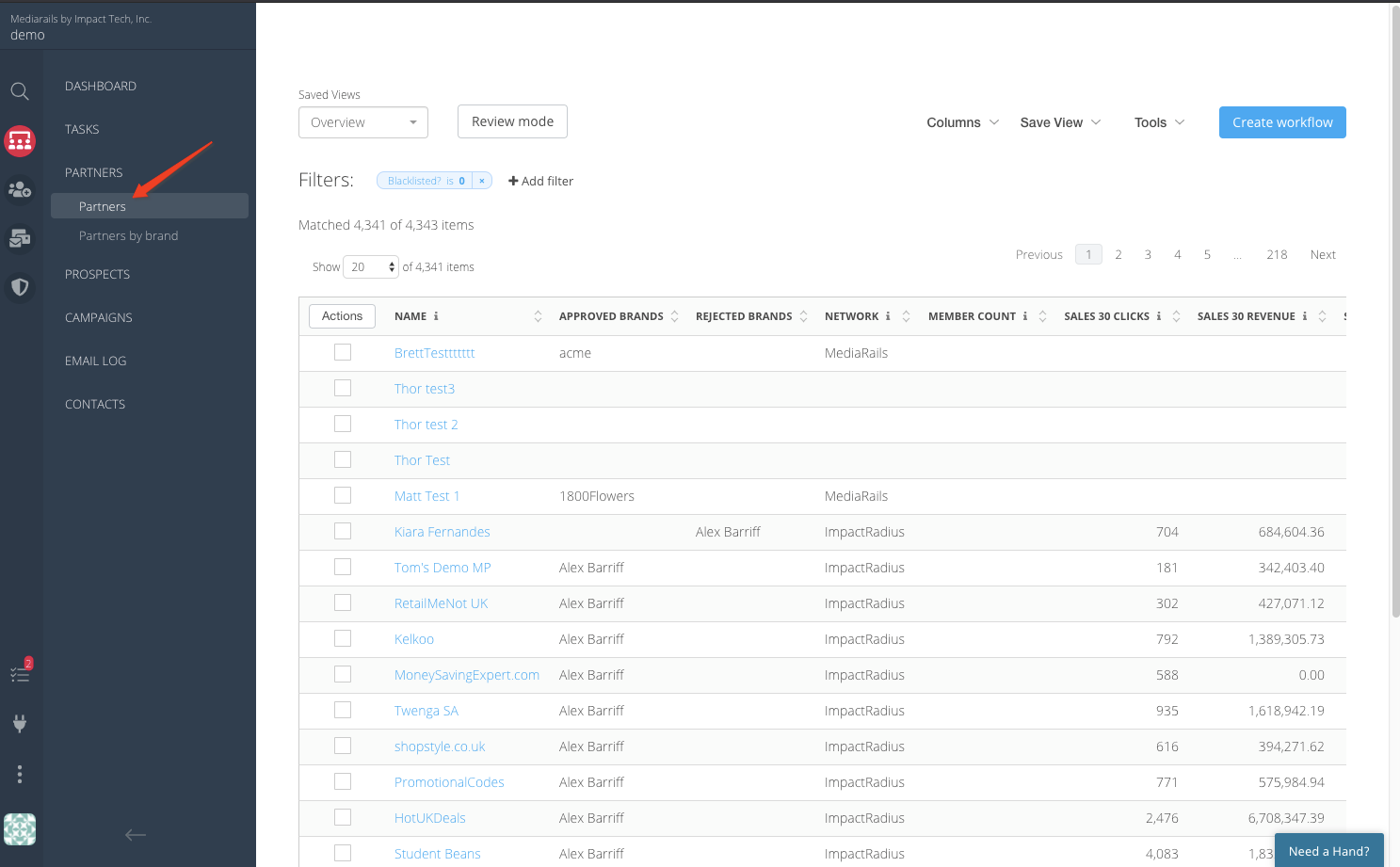
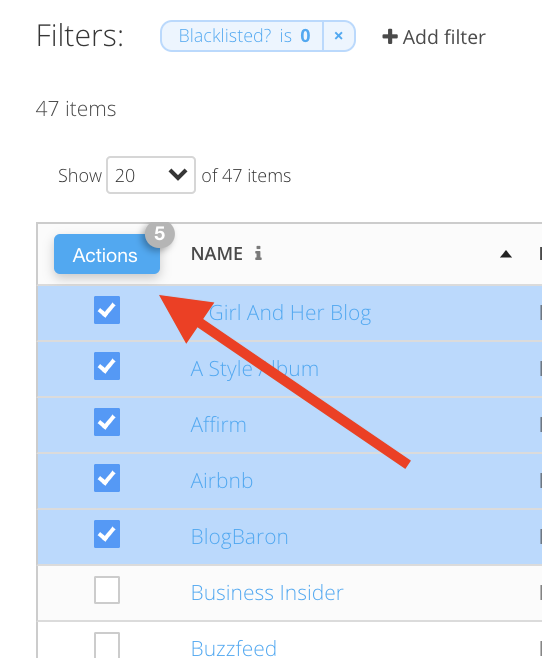
- While in the Partners section, select as many desired records as you'd like by clicking the checkbox to the left of the Name column.
- Select the Actions button:
- Select Add to prospects from the Actions menu.
This will prompt a selection window to pop-up.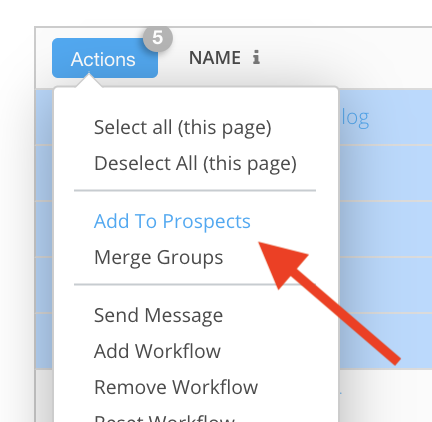
- In the pop-up, enter any brand(s) you want the partner to be associated with. You can select multiple brands.
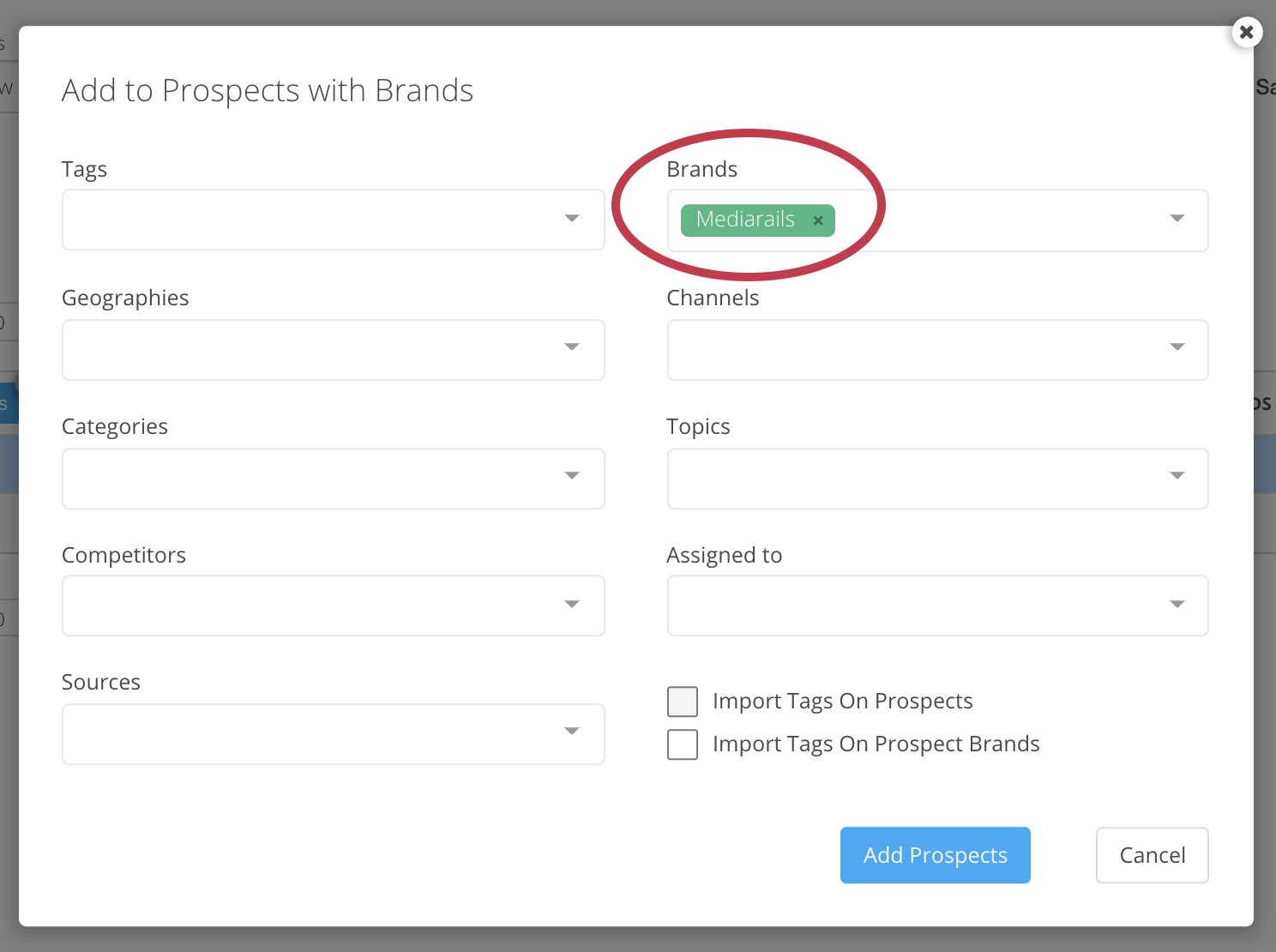
- If desired, you can add data points so that the new prospect record is pre-populated with desired data.
Available data points to add:
- Tags
- General tags
- include any Recruitment tags used to send prospects into email workflows
- Geography tags
- Category tags
- Competitor tags
- Channel tags
- Topic tags
- General tags
- Sources
- Team member assignments
- Tags
When adding tags, there is an option at the bottom right of the pop-up window to import selected tags onto the Prospect record, the Prospect Brand record, or both. If you are unsure, we suggest adding the tags to the Prospect record, as Prospect Brands are more advanced.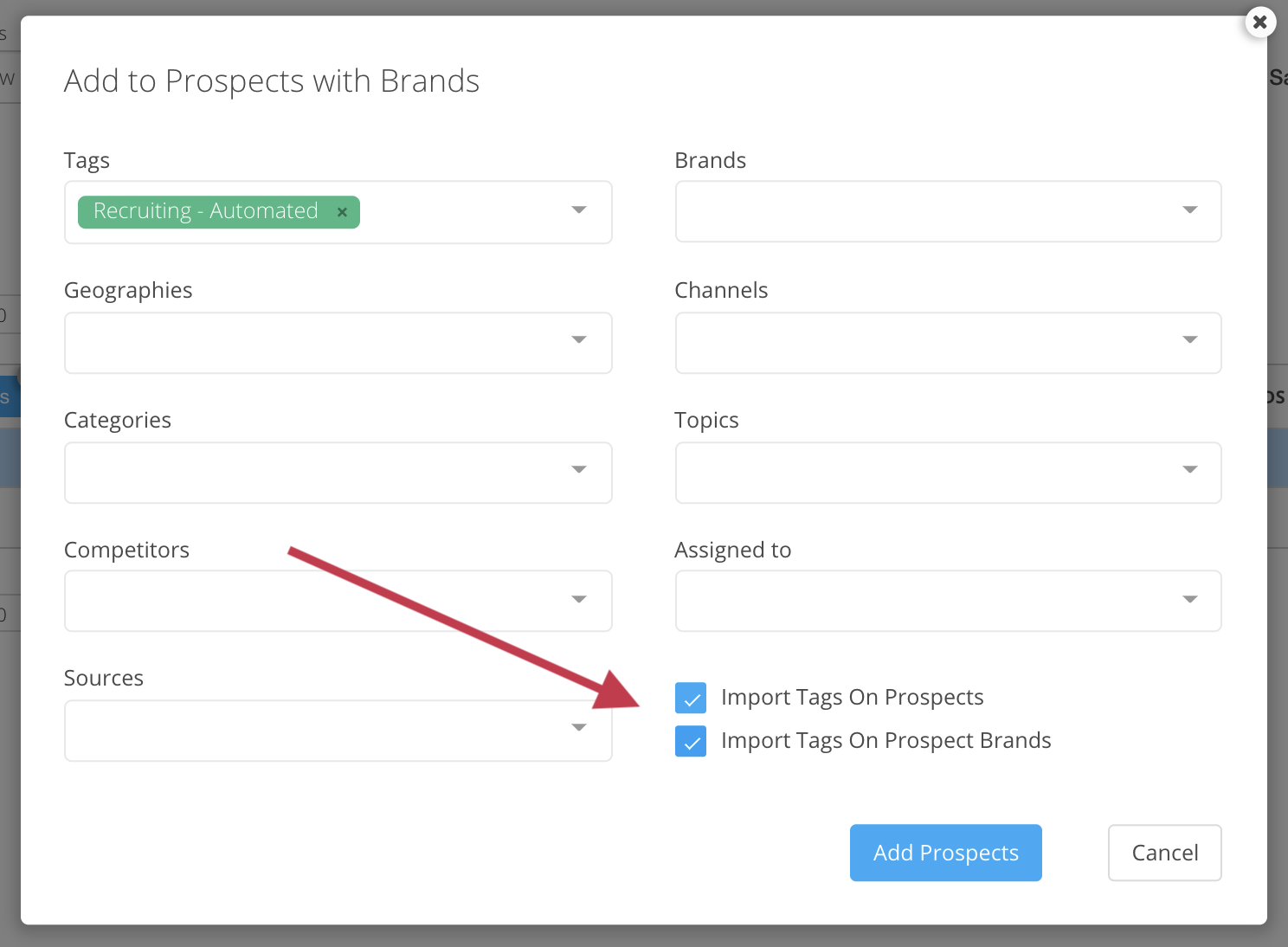
7. Click the Add to Prospects button.
Please note: when adding more than a hundred records at a time, it may take the system a few minutes to show the new records in the Prospects section.
For more information on using the Prospects workspace, see Learning Center articles here.
Comments
0 comments
Article is closed for comments.