
This article will cover the necessary steps for creating a Manual Recruiting process for prospects/partners that require a custom message instead of receiving the automated recruiting workflow.
The process for your manual recruiting efforts is very similar to the automated recruiting process and even has some overlap in the steps that will be outlined below.
Overview:
- Create a tag
- Create a Saved View
- Review prospects
- Send one off custom message
Manual Recruiting Process:
- Create a Tag in the Settings page for categorizing your qualified prospects for manual recruiting (Instructions here)
- Create a saved view titled "Recruiting - Manual" (or something similar to that idea which you’ll be able to easily identify later) to collect the qualified prospects for manual recruiting using the following filters:
- Primary contact email is not blank - this is to ensure that there is an email address for contacting them
- Stage is not Rejected - ensures that records that have been rejected are not contacted
- Recruited Brands is not [Brand] - this will remove any partner that has an existing relationship with that brand
- Stage is not contacted - this will remove records that have already been contacted, to help manage which records still need to be contacted
- Tags is [Manual recruiting tag] - apply the tag used for qualifying and organizing your records to collect those records in this saved view
- Open the load view *Review New Prospects W/Email and click on Review mode
- As you qualify prospects in Review Mode you’ll apply the brands you’re recruiting for on the Brands tab
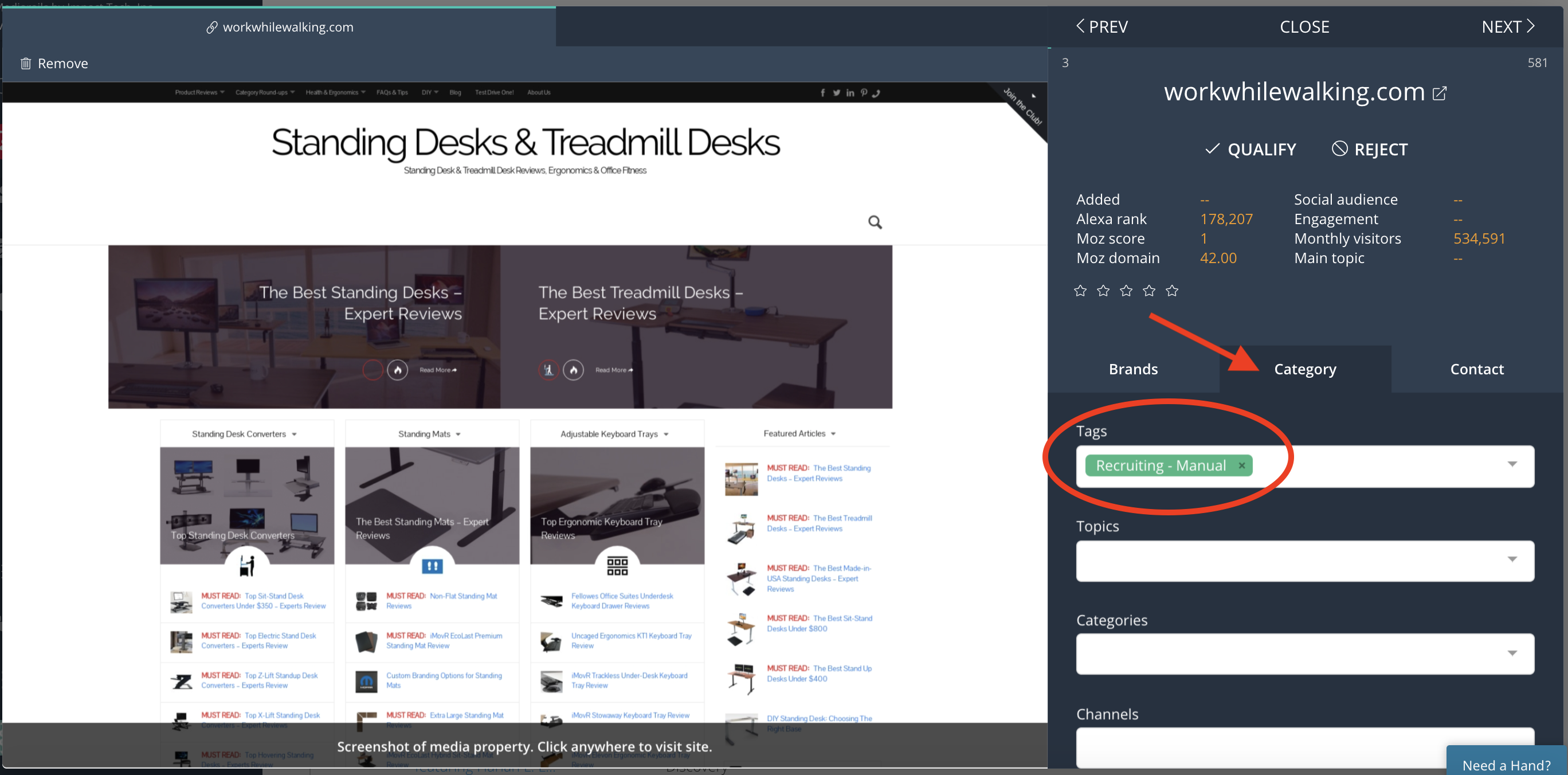
- Apply the newly created Recruiting - Manual tag to move those prospects into the manual recruiting saved view:
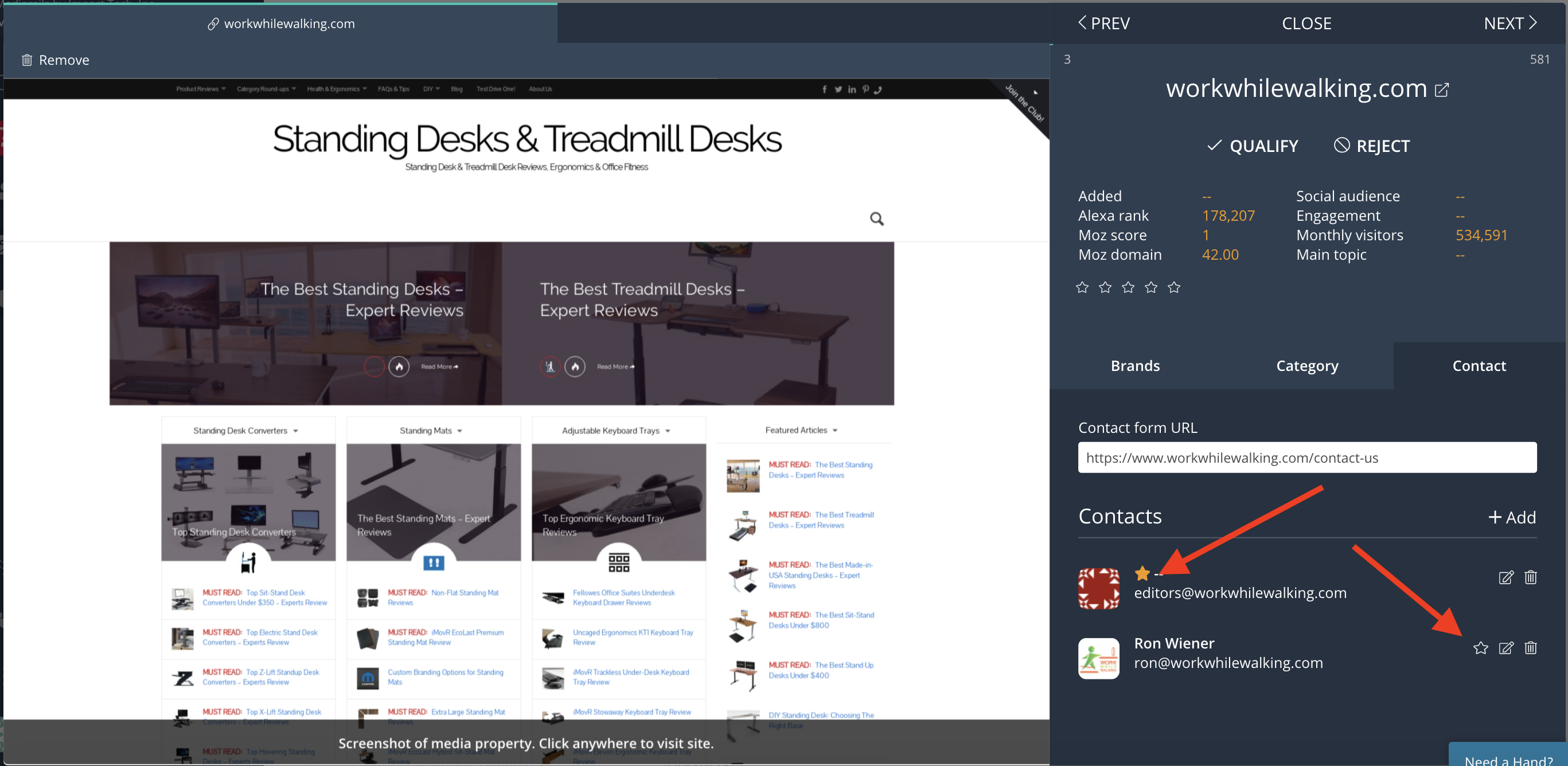
- Click on the Contact tab in Review Mode to determine what the best contact will be to send a message to. The star marks the Primary Contact, to change it, select the star on another contact to make it the new Primary Contact.
- When you're ready to start sending custom emails, open the Manual Recruiting saved view to pull up the list of prospects you’ve qualified for manual recruitment
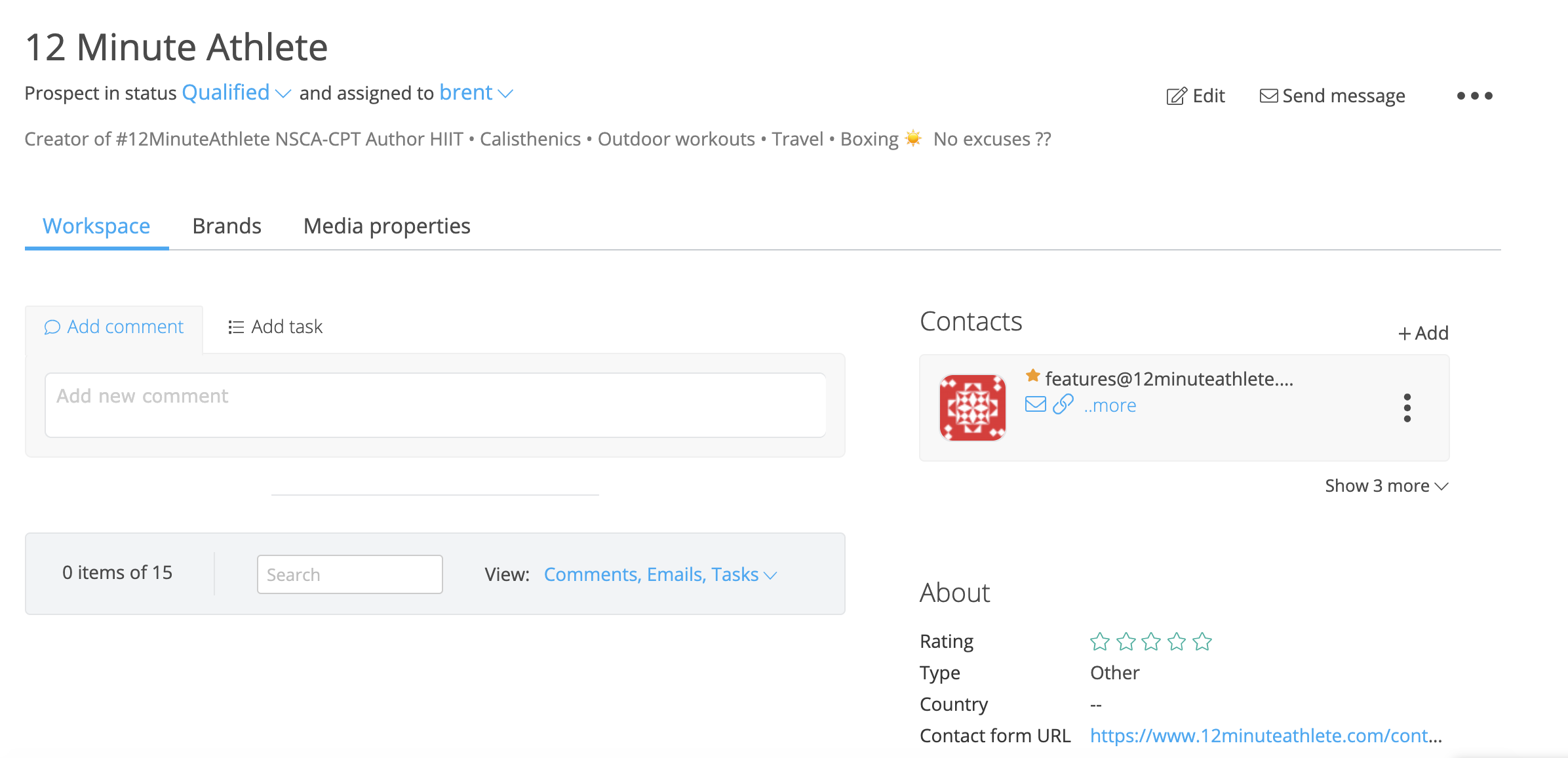
- Right click on the prospect records' name to open the records’ detail page in a separate tab
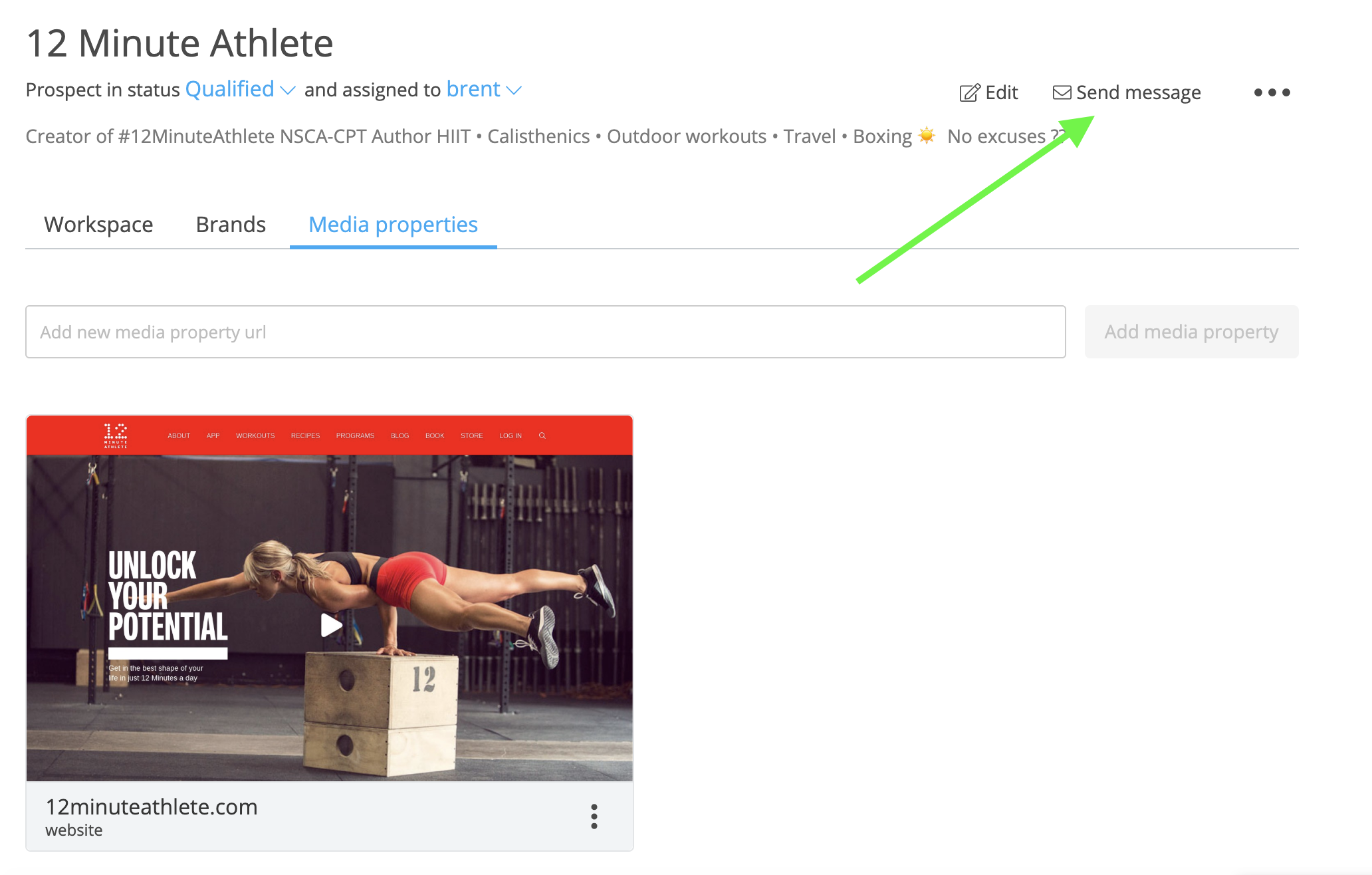
- When you’re ready to email the prospect, click on “Send Message” to open the email editor
- Within the editor you can:
- Select all contacts associated with a record to send them each an individual message
- Select a previously saved email template to use or save a new email template for later
- CC or BCC additional contacts
- Use dynamic content fields for personalizing your message your message
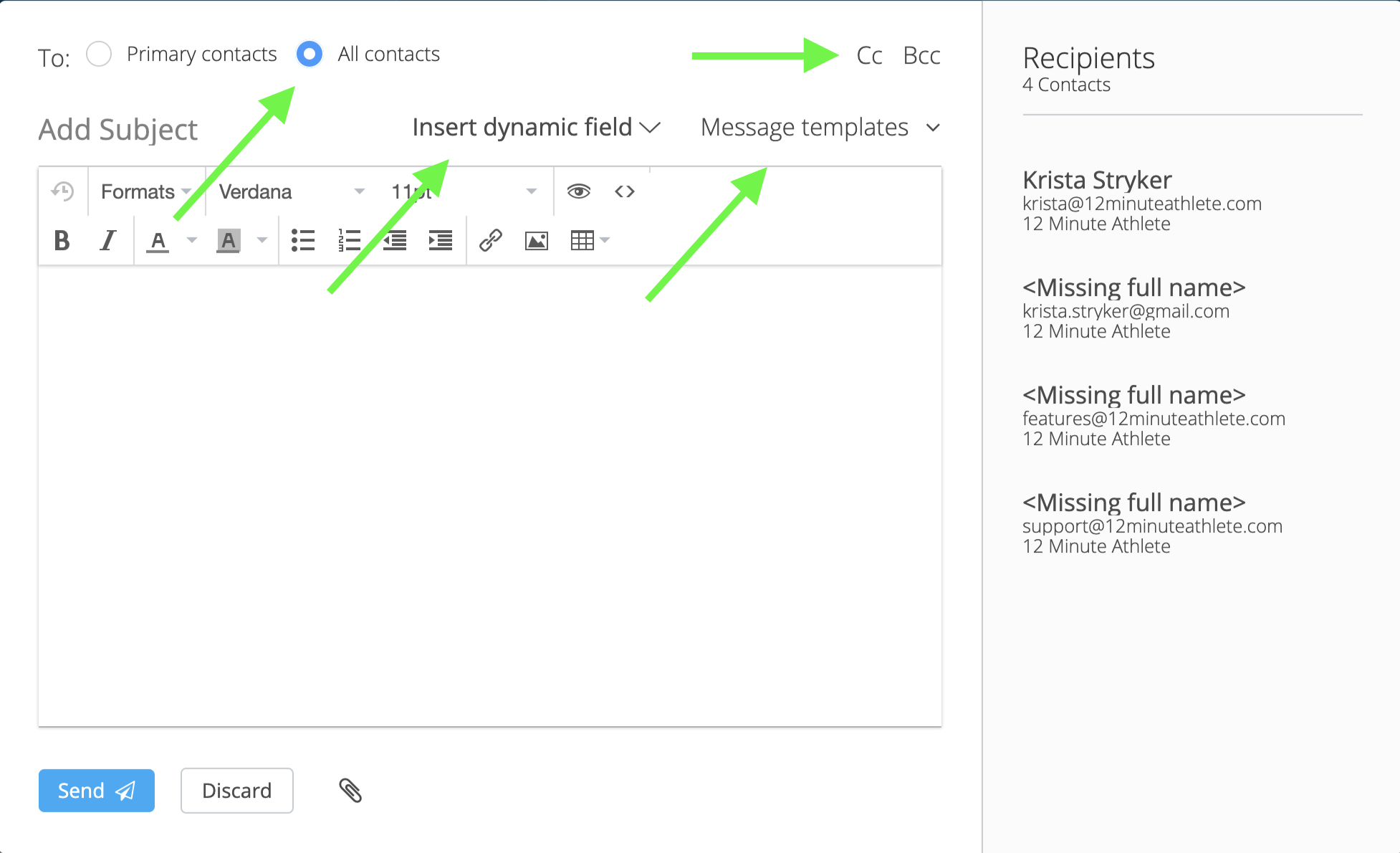
- Click Send the send the email
- You will get a batch report afterwards to your email address letting you know if the send was successful or not. If not, there will be a downloadable error report.
Note:
- Emails sent as a one-off message for manual recruiting will also impact your email service provider’s daily email limit.
- Mediarails will track the Open and Reply dates for the messages sent
Comments
0 comments
Please sign in to leave a comment.