
Mediarails Content Search allows you to search for prospects using search terms and phrases. Functioning similarly to a search engine, this integration enables you to search for any type of website that you'd like.
It is recommended that you test out your search terms on a search engine prior to adding the integration to get an idea of the types of results the integration may pull in.
How to add a Mediarails Content Search Integration
-
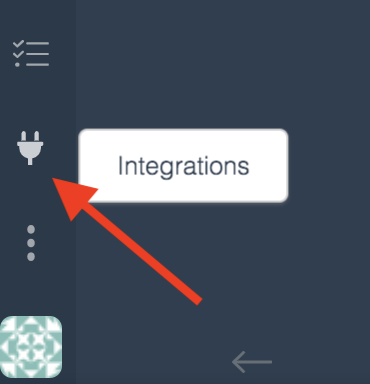
Go to the Integrations manager using the Plug icon on the bottom of the left sidebar
-
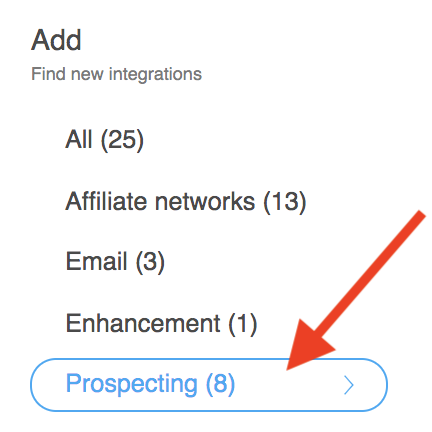
Select Prospecting from the Add list on the left side of the screen
-
Select the Mediarails Content Search Icon

-
Fill in the tabs as outlined below
-
Click the Add Integration button on the bottom of the integration card to add the integration
Criteria Tab:
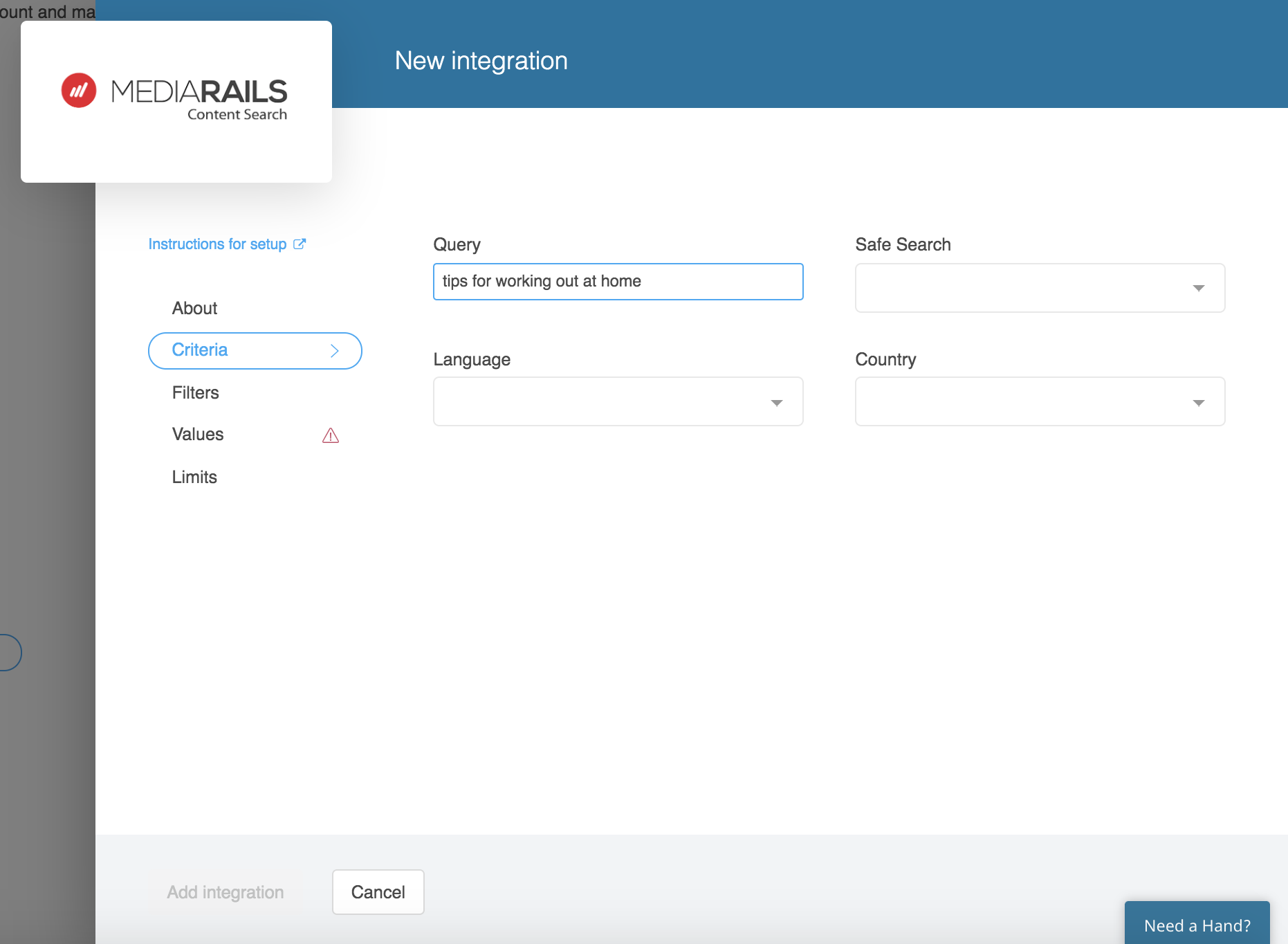
The Criteria tab is where you will add your search criteria as well as basic settings.
-
Query: This is the search you would like to perform, think of this as the same search box you would find in any search engine
(Note: the search term used will be applied as a Topics tag for the results) -
Safe Search:
-
ON filters out adult content
-
Off does not filter out any adult or graphic content from search results
-
-
Language: limits your searches to pages written in specific languages (defaults to English)
-
Country: selects the country where you would like to search results to come from
Filters Tab:
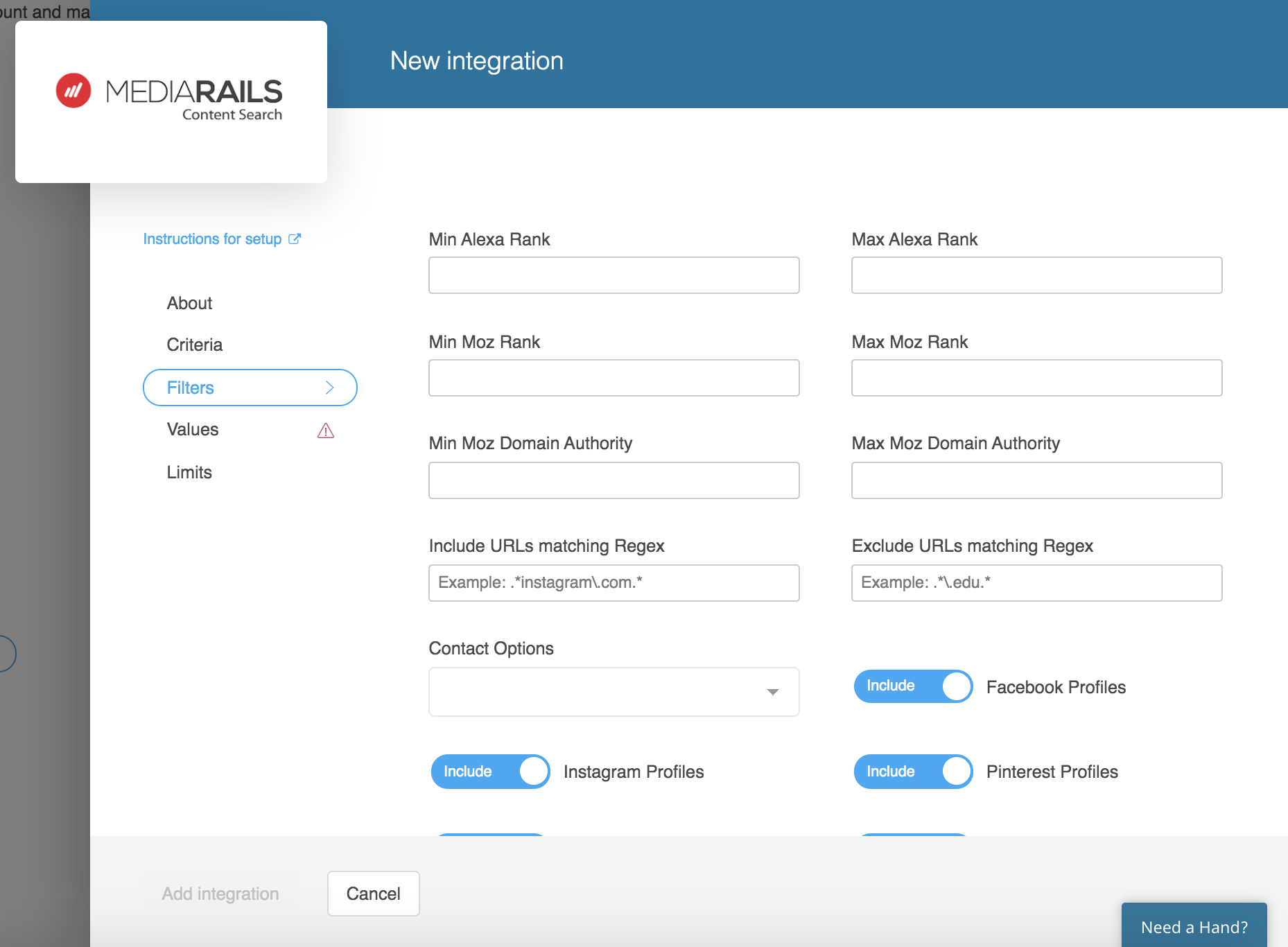
The filters tab allows you to pre-filter the results to better target your ideal prospects.
Filters:
-
Min/Max Alexa rank: Use this to limit your results to just Websites within the given values you provide. For example if you wanted sited that were between 10,000 and 50,000 you would put 10,000 in the Min Alexa Rank and 50,000 into the Max Alexa Rank
-
Min/Max Moz Rank: Use this to limit your results to just Websites within the given values you provide. This is a scale of 0-10 (10 being most popular) and measures the popularity of a website on the internet. A value of 3 is still considered to be a pretty popular site.
-
Min/Max Moz Domain Authority: Use this to limit your results to just Websites within the given values you provide. This metric predicts how well a website will rank on search engine result pages (SERPs). A Domain Authority score ranges from 1 to 100, with higher scores corresponding to a greater ability to rank.
-
Include and exclude based on Regex: These filters are a feature for more advanced users and will give you the ability to pre-filter your results further. You could limit your results to only include results that contain a certain keyword in the URLs or exclude results that contain certain values in the URLs.
-
Example: .*instagram\.com.* (this will only include websites that contain "instagram.com in the URLs)
-
.* this is a wild card, in this example it allows anything in front of or after "instagram.com" to be present
-
using a slash in front of the period: \. This "escapes" the period allowing it to be part of the keyword as periods are used in other ways in Regex
-
-
-
Contact Options: This allows you to limit your results to records that have contact info. If you eave this blank you will pull in all results regardless if we were able to enhance with an email or contact form. To limit your results with records that have an email, Choose "Has Email" If you are ok getting some that only have a contact form, you can also choose this option to expand your results.
-
Social platform toggles: These allow you to include or exclude site specific records in your results
Values Tab:
These are the values you would like to apply to the records after they are brought in. These values will help you organize and group the records once they are in the system. To add a Value, the values must first be added to your Tag Library - See Instructions Here
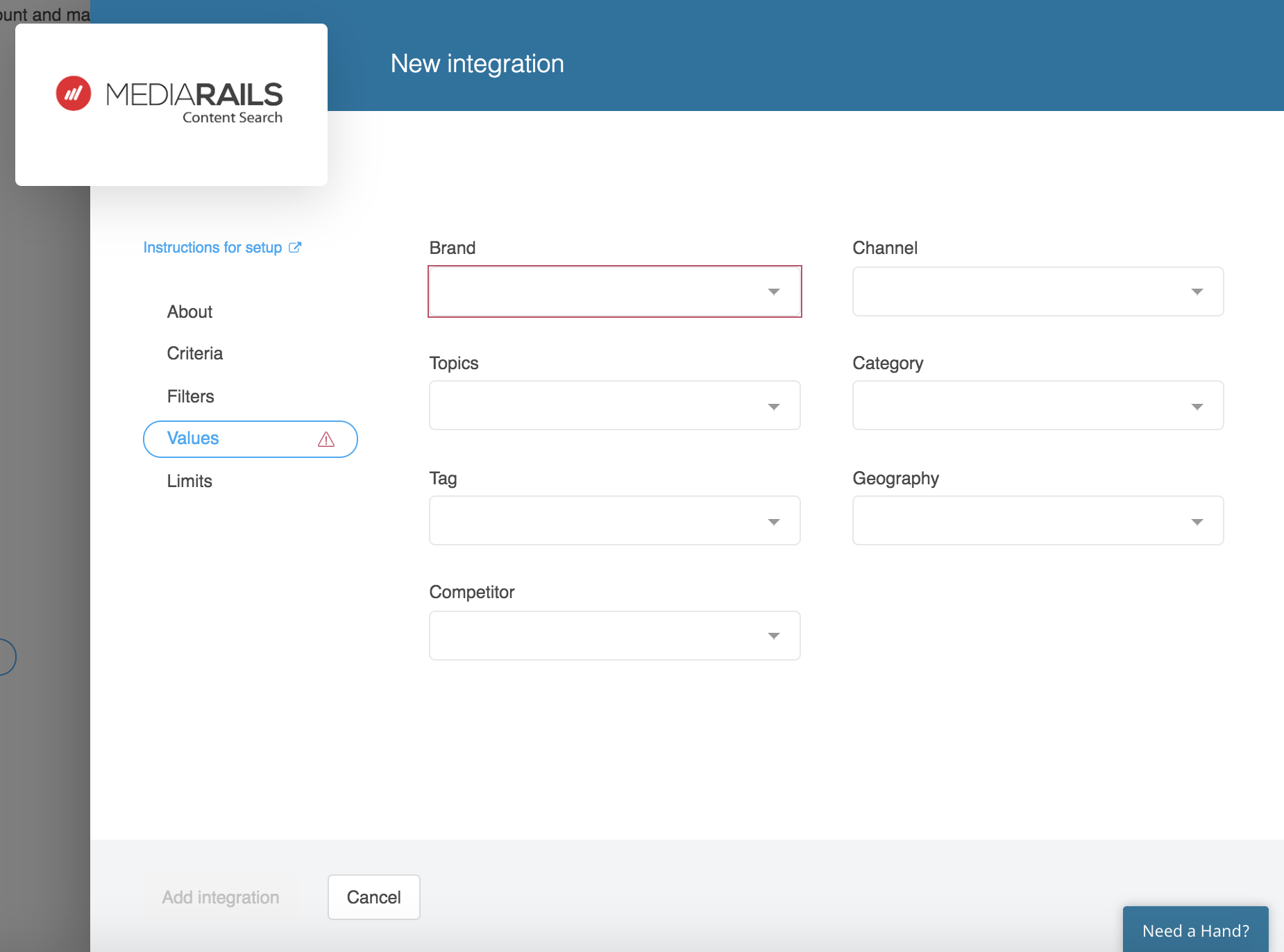
- *Required Field* Add the Brand(s) you are recruiting for
- Add any additional Values desired
To add a Value, the values must first be added to your Tag Library - See Instructions Here
NOTE: the Keyword used on the Criteria tab will be automatically added as a Topic Tag
- Channel: This is the Channel tag bucket in the system
- Topics: This is the Topics tag bucket in the system
- Category: This is the Category tag bucket in the system
- Tag: This is the Tags tag bucket in the system
- Geographies: This is the Geographies tag bucket in the system
- Competitors: This is the Competitors tag bucket in the system
Final Step: Add the Integration
Once you have filled in the Criteria, Filters, and Values Tabs Click Add Integration on the bottom of the page to enable the integration.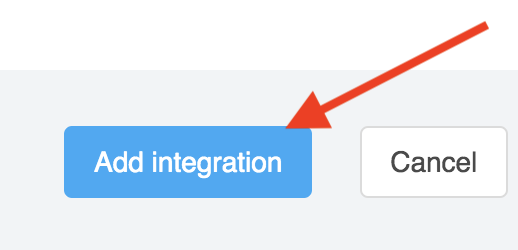
Afterwards: Limits Tab
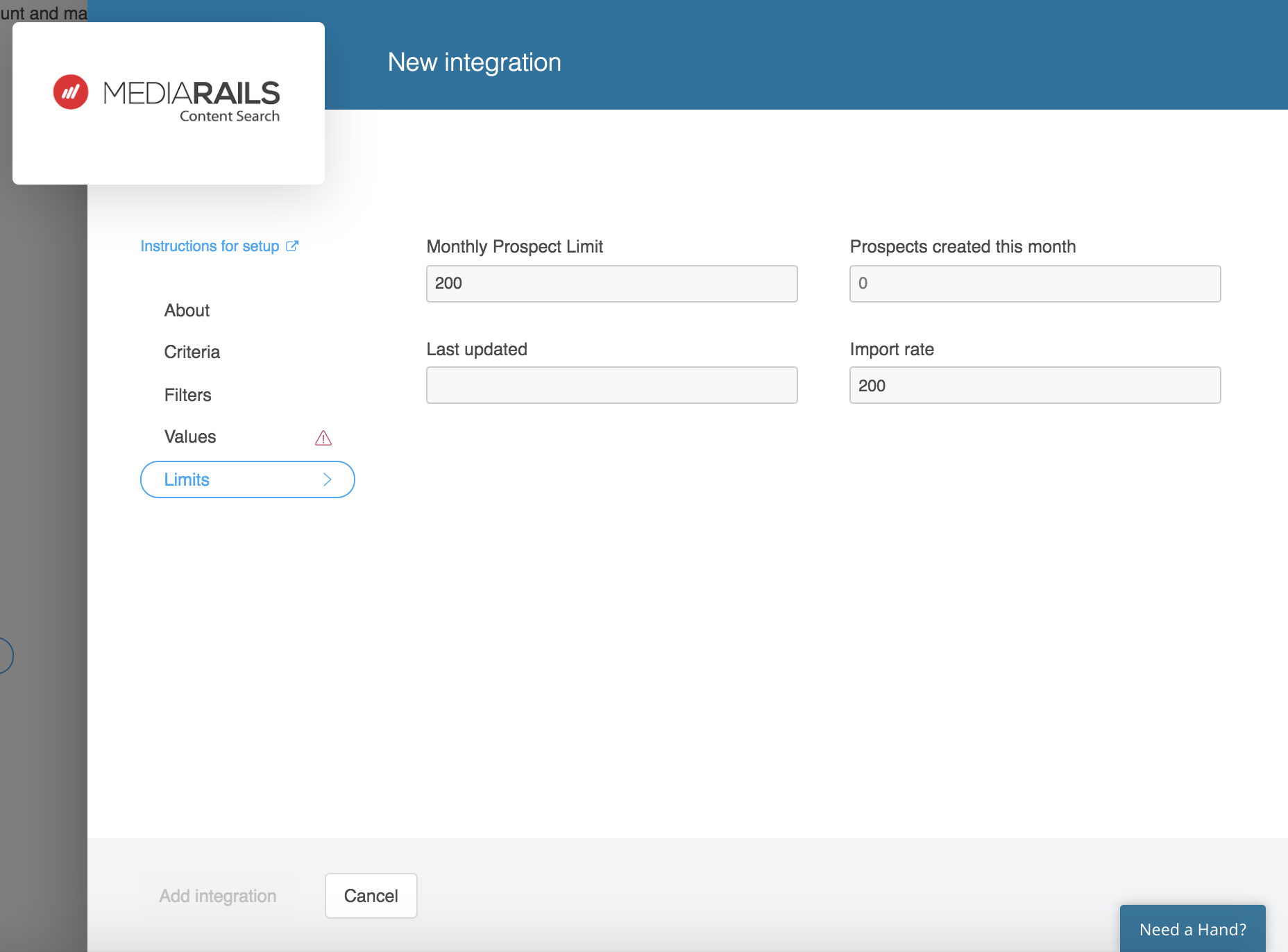
The Limits Tab is where you will be able to see how many prospect records were pulled in from that particular integration after it has run. It will also show the last date/time the integration ran. Integrations will run each month around the same time of month that the integration was added initially.
Reviewing your New Prospects:
After your integration has run, the prospects will be added to your Prospects workspace as New prospects. If you would like to review the results of the integration specifically, you can add a filter for Topics Tags is [Keyword Used].
If you have added multiple Affiliate Discovery searches and would like to review all the results combined, you can add a filter for Source is Content Search
We recommend adding a filter for Primary contact email > is not blank on the list view so you do not spend time reviewing prospects without an email address.
Comments
0 comments
Please sign in to leave a comment.