
Tags are how information is categorized in Mediarails.
For example, you may have a set of influencers who require a free product in exchange for their review. You could create a new tag of "Free Product" which you can then use to tag those specific influencers.
How to Create a New Tag
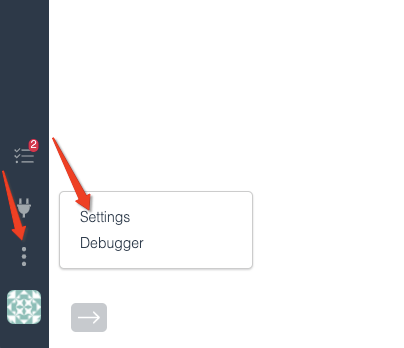
Step 1: Go to your account Settings by clicking the icon of three vertical dots on the sidebar:
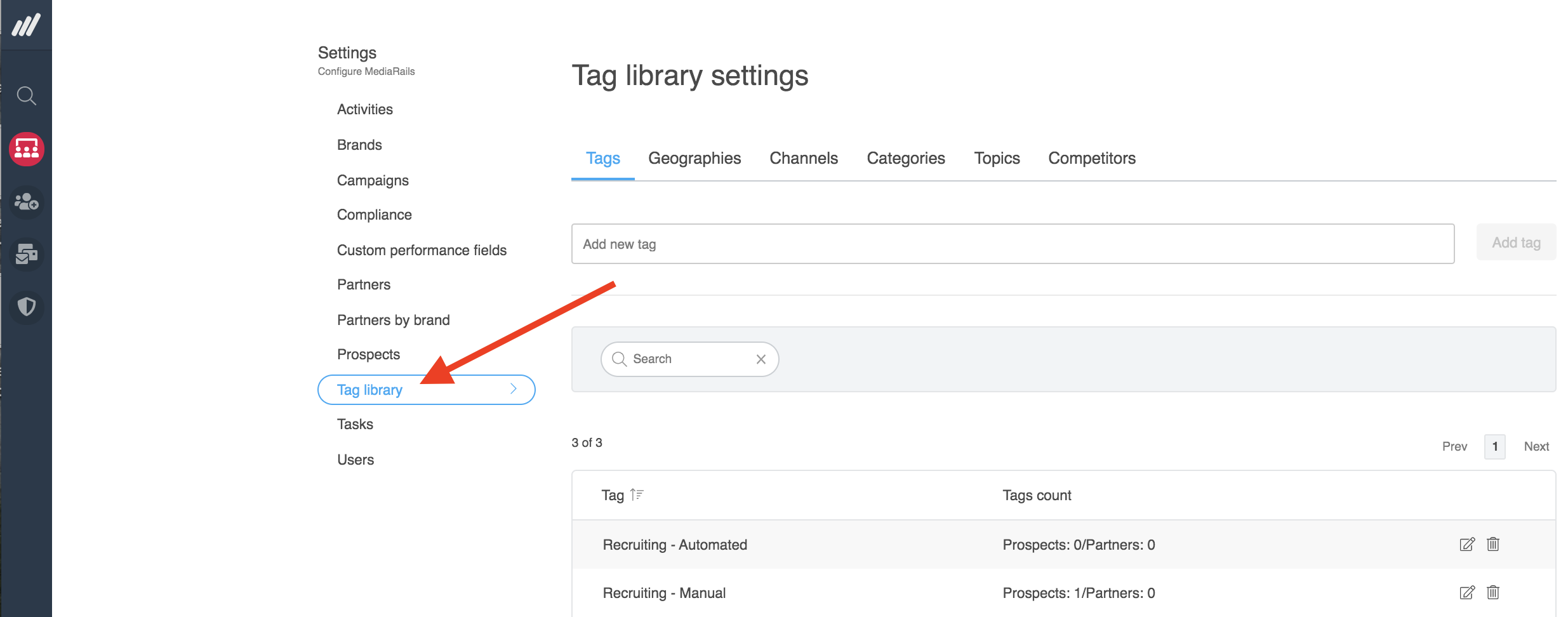
Step 2: Click on the Tag Library tab on the Settings page:
Once in the Tag Library section you will have several buckets to create a tag under:
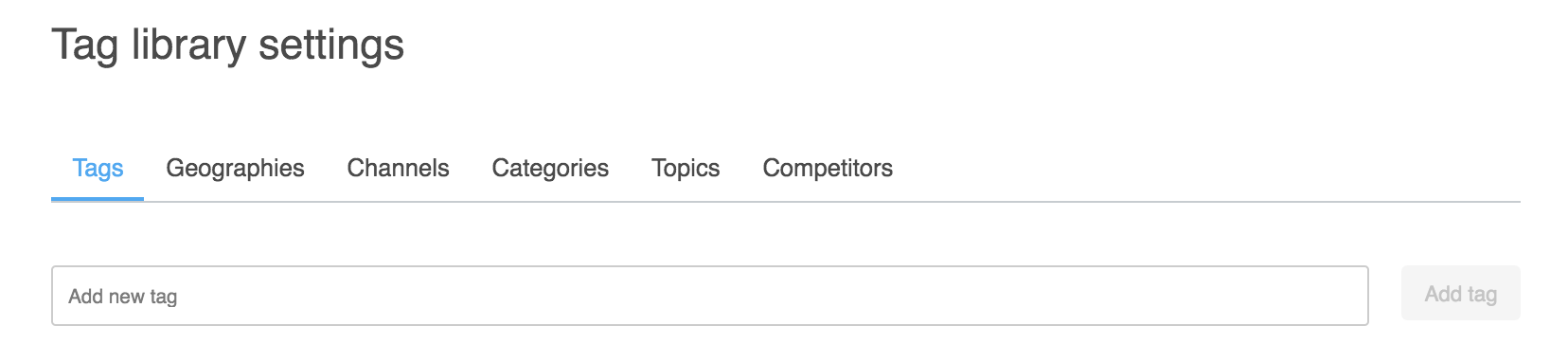
See below for a description of the different tag types:
Tags: Tags are a general bucket. For example, maybe you have a set of influencers who require a free product in exchange for their review. You could create a new tag "Free Product" which you can then use to tag Prospects or Partners.
Geographies: Whether country, region, or some other grouping - Geographies tags allow you to customize your information.
Channels: By default we include "Affiliate" and "Influencer" channels. However, you can also add channels that suit your business. For example "Mediabuy," "Print," or "Event."
Categories: For example, if you have a group of fashion Partners focused solely on women's shoes - you could create a category for "Women's shoes."
Topics: Topics Tags are auto-generated from search terms used in most of Mediarails' prospecting integrations. You do not need to manually add Topics.
Competitors: Use this tag bucket for tagging Prospects and Partners that work with your competitor's brands. For example, if you were managing a program for Nike you could tag your Partners working with Adidas. Competitor Tags are also auto-generated from competitor domains used in the SimilarWeb prospecting integrations.
Step 3: Create the New Tag
-
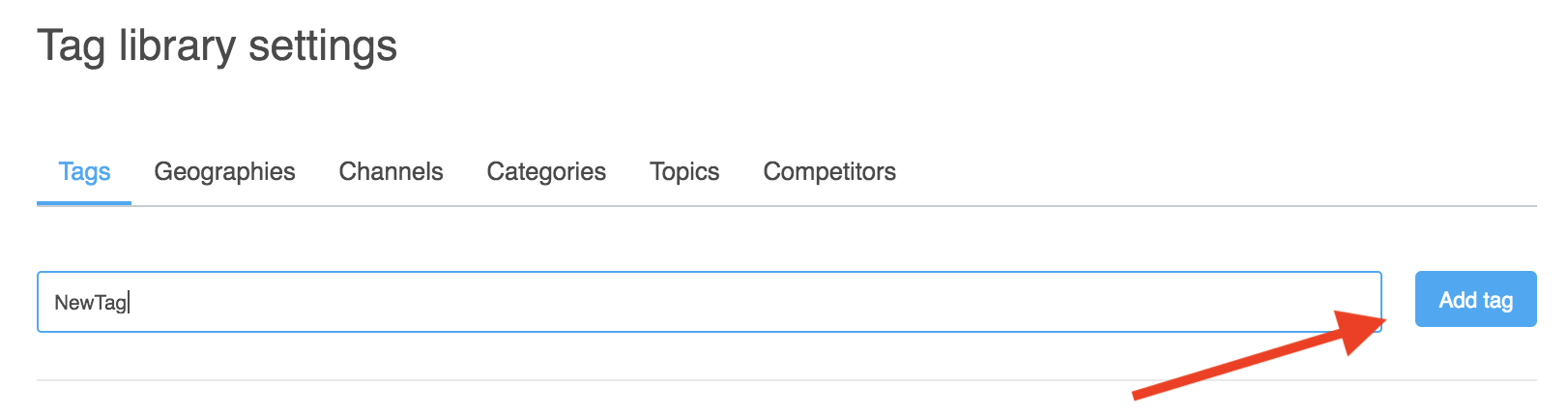
Select Add Tag on the right side of the list to add a new tag
- The new tag will appear on the list below, alongside a running count of how many Prospects or Partners are tagged with each Tag
To Edit or Delete a Tag:
Follow the instructions above to get to the Tag Library page in Settings.
To edit a tag, click on the edit icon (little pen and paper) to the right of each tag.
To delete a tag, click on the trash can icon. This is a permanent change that cannot be undone.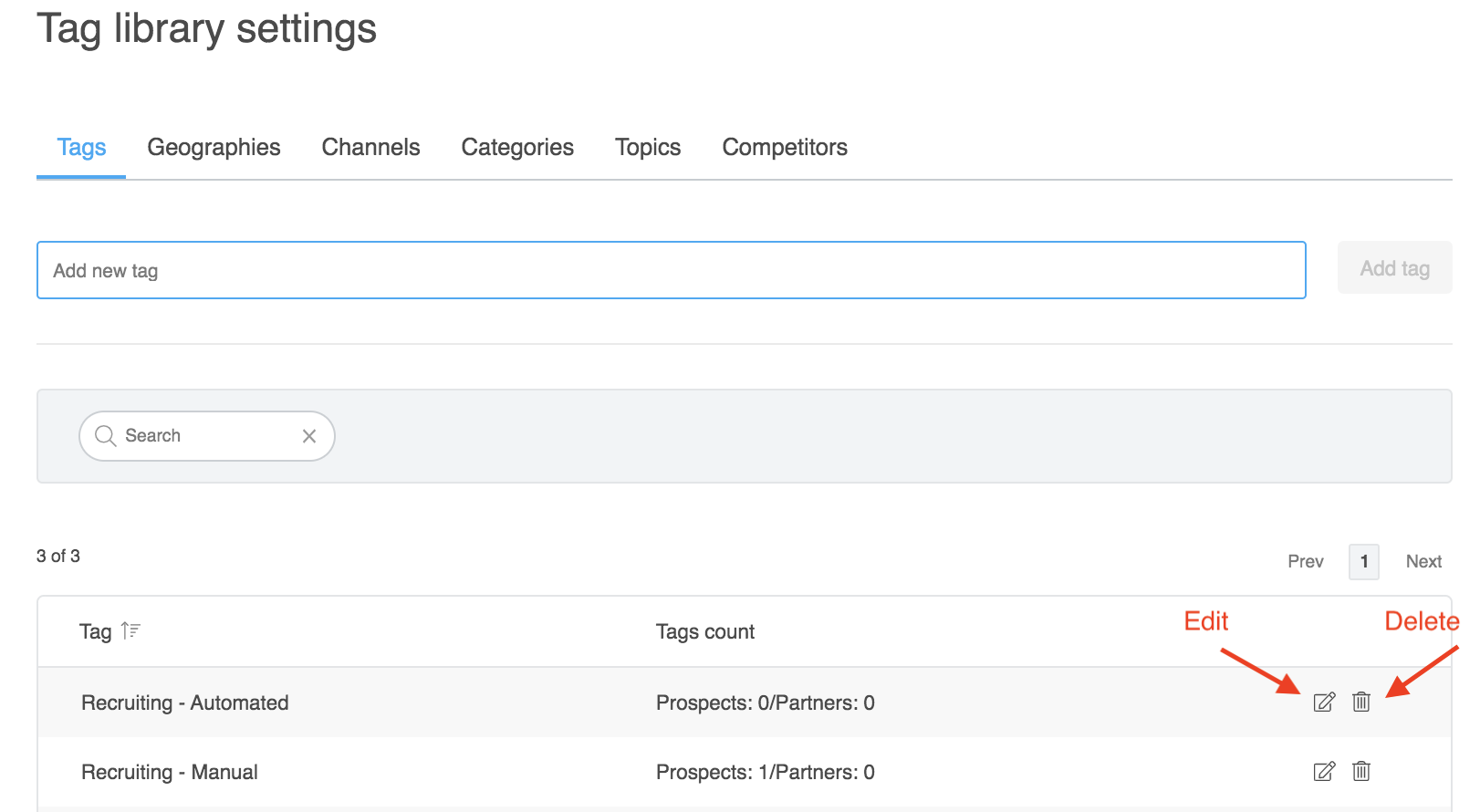
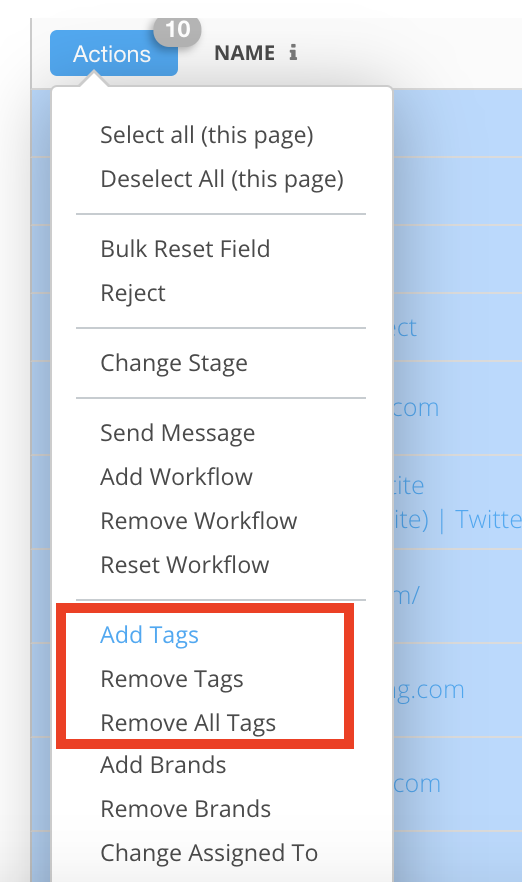
To add or remove a tag on a Prospect or Partner record using the bulk Actions button, click on the Actions button on the left side of the List View and select Add or Remove Tags:
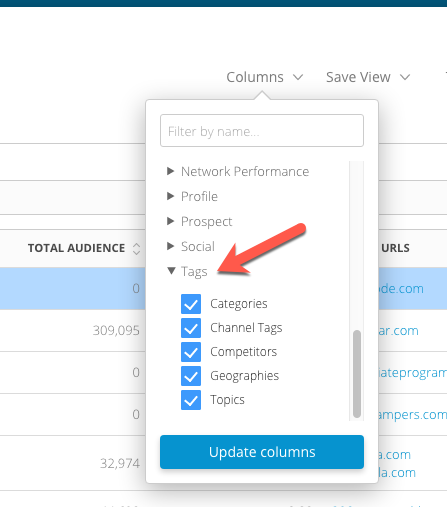
You can also add Tags to the List View using columns to see what Prospects or Partners have been tagged:
Note: Mediarails' tags are different from network tags which are imported directly from your partnership platforms. Network tags can be selected as a filter or column in the Partners list view.
Comments
0 comments
Please sign in to leave a comment.