
The Instagram Discovery prospecting integration allows you to use keywords to search Instagram for Influencers that could be a great fit to partner with your brand.
The Instagram Discovery integration allows you to filter on a variety of Influencer audience stats and demographics. See the Influencer & Audience Filter sections below for more details on filtering options.
How to add an Instagram Discovery Integration
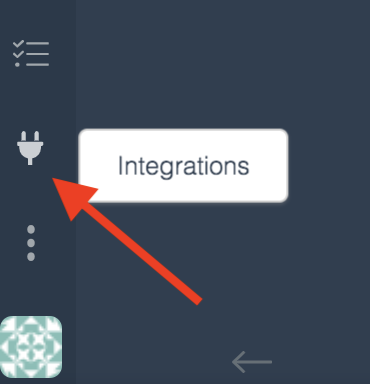
Step 1: Click on the Plug icon to go to the Integrations page
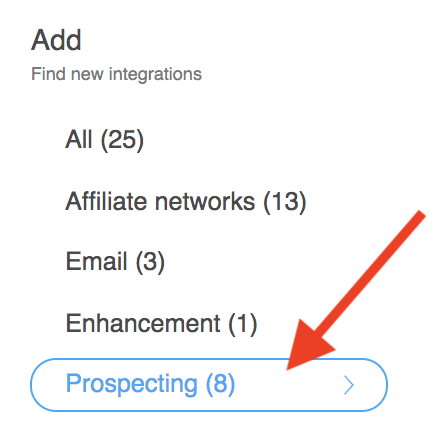
Step 2: Select the Prospecting integrations section under the Add list
Step 3: Select the Instagram Discovery Card
Step 4: Fill in the tabs as outlined below
Step 5: Click the Add Integration button on the bottom of the integration card to add the integration
Criteria Tab
The Criteria tab is where you will add your search criteria as well as basic settings.
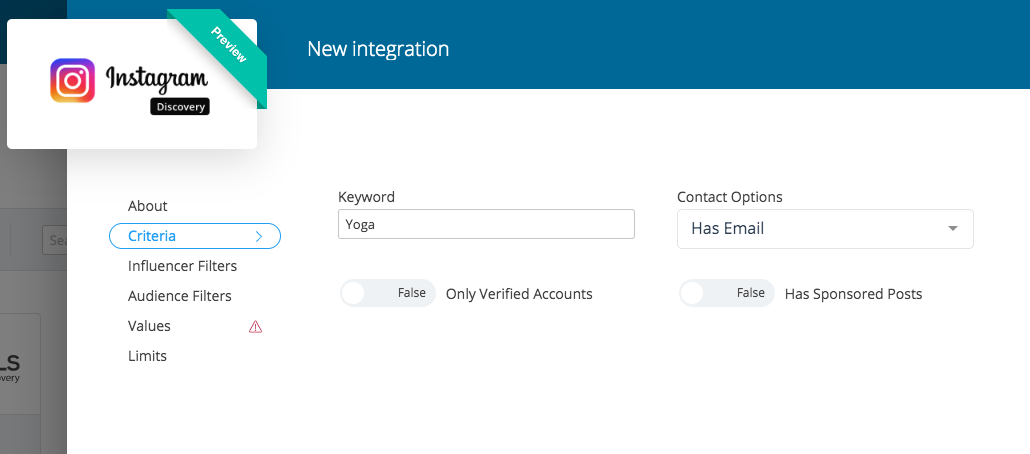
- Add a Keyword
Start typing to see a dropdown of available keywords and select one.
Tip: Keywords in the dropdown are listed in order of popularity from top to bottom with the most popular keywords at the top of the list. - Contact Options
This option enables you to search for results with email addresses by selecting the Has Email option. If left blank, records could come in both with and without email addresses. - Only Verified Accounts
Pull in Instagram-verified accounts by toggling this option to TRUE
In Instagram, verified accounts are marked with a blue badge like below: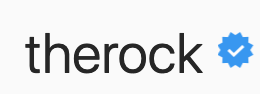
- Has Sponsored Posts
Pull in Influencers who have participated in Sponsored Posts by toggling this option to TRUE
Influencer Filters Tab
The filters on this tab are based on the owner of the profile themselves, ie the Influencer. Adding Influencer filters will enable the Discovery tool to search for profiles that match the criteria set on this page. All filters are optional.
*Please note that adding multiple filters could limit the number of results coming in, especially when adding more than 1-2 filters
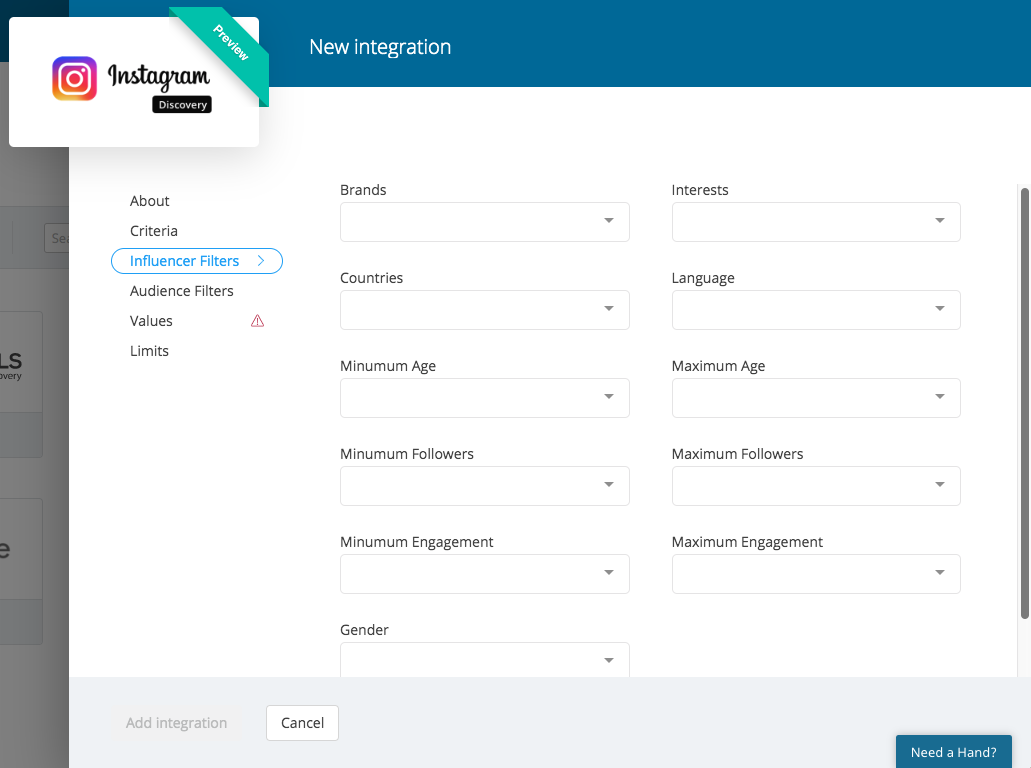
Influencer Filters:
Brands: Brands an Influencer has shown interest in via hashtags or mentions
Interests: Topics an Influencer has shown interest in by referencing in posts and hashtags
Countries: The countries an Influencer might be located in
Language: The language an Influencer might post in
Min/Max Age: The minimum and maximum age group of desired Influencers
Min/Max Followers: The minimum and maximum follower numbers of desired Influencers
Min/Max Engagement: The average number of likes+comments on an influencers recent posts
Gender: The gender of desired Influencers
*Note that the gender options can reduce commercial/business listings. The "Male or Female" option searches for non-commercial accounts of either gender, as do the other options respectively. If left blank, commercial accounts might be populated in addition to independent profiles.
Audience Filters Tab
The filters on this tab are based on the audience (follower) demographics of an Influencer. Adding Audience filters will enable the Discovery tool to search for profiles whose audiences match the criteria set on this page. All filters are optional.
*Please note that adding multiple filters could limit the number of results coming in, especially when adding more than 1-2 filters
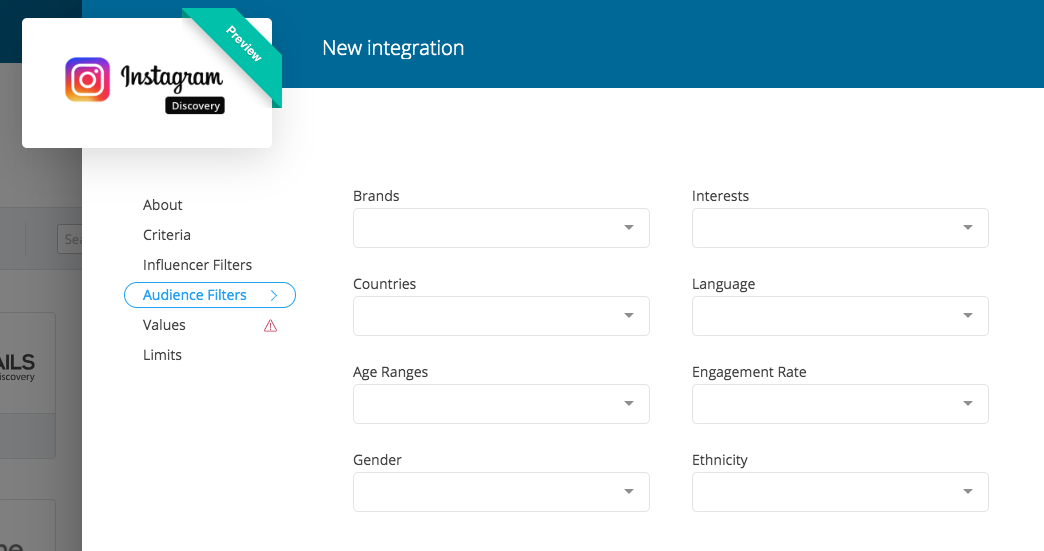
Audience Filters:
Brands: Brands an Influencer's audience has shown interest in via hashtags or mentions
Interests: Topics an Influencer's audience has shown interest in by referencing in posts and hashtags
Countries: The predominate countries an Influencer's audience might be located in
Language: The predominate language an Influencer's audience might post or comment in
Age Ranges: The general age range of an Influencer's audience
Engagement Rate: The average number of likes and comments on an influencer's recent posts
Gender: The predominate gender of an Influencer's audience
Ethnicity: The predominate ethnicity of an Influencer's audience
Values Tab
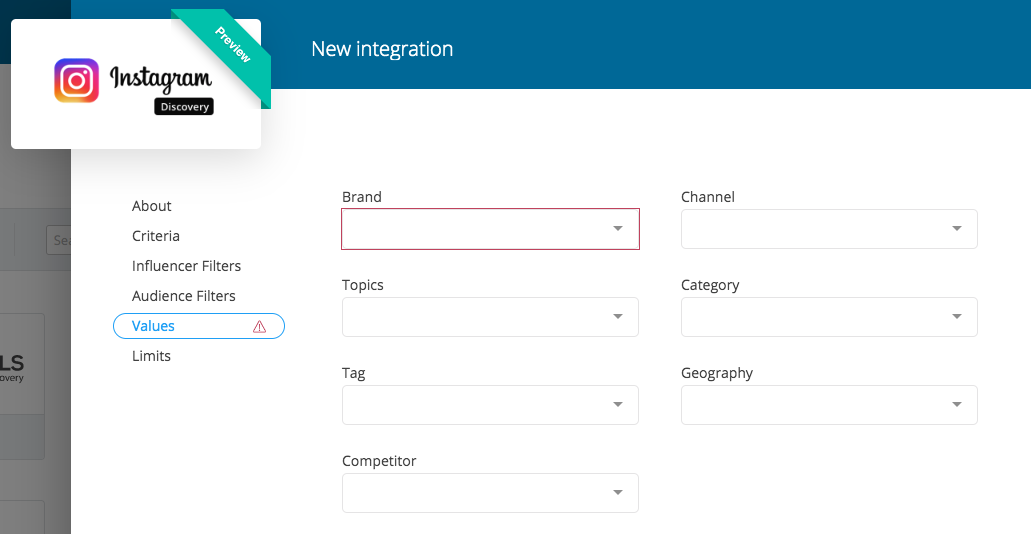
These are the values you would like to apply to the records after they are brought in. These values will help you organize and group the records once they are in the system.
- *Required Field* Add the Brand(s) you are recruiting for
- Add any additional Values desired
To add a Value, the values must first be added to your Tag Library - See Instructions Here
NOTE: the Keyword used on the Criteria tab will be automatically added as a Topic Tag
- Channel: This is the Channel tag bucket in the system
- Topics: This is the Topics tag bucket in the system
- Category: This is the Category tag bucket in the system
- Tag: This is the Tags tag bucket in the system
- Geographies: This is the Geographies tag bucket in the system
- Competitors: This is the Competitors tag bucket in the system
Final Step: Add the Integration
Once you have filled in the Criteria, Filters, and Values Tabs Click Add Integration on the bottom of the page to enable the integration.
Afterwards: Limits Tab
The Limits Tab is where you will be able to see how many prospect records were pulled in from that particular integration after it has run. It will also show the last date/time the integration ran. Integrations will run each month around the same time of month that the integration was added initially.
Reviewing your New Prospects:
After your integration has run, the prospects will be added to your Prospects workspace as New prospects. If you would like to review the results of the integration specifically, you can add a filter for Topics Tags is [Keyword Used].
If you have added multiple Affiliate Discovery searches and would like to review all the results combined, you can add a filter for Source is Instagram Discovery
We recommend adding a filter for Primary contact email > is not blank on the list view so you do not spend time reviewing prospects without an email address.
Comments
0 comments
Please sign in to leave a comment.