
What is SimilarWeb Prospecting? This tool is designed for you to enter a competitors website to collect the potential affiliate sites that drive traffic to the website you plug in. These traffic driving sources will automatically be imported as prospects into your account for you to review, we will enhance to gather extra data points like contact info and website audience.
How to Setup a SimilarWeb Prospecting Integration
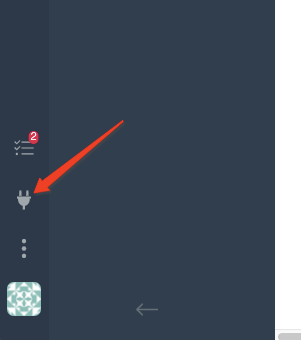
Navigate to the Integrations manager denoted by the little plug icon (Lower left corner of tool):
Once in the Integrations manager locate the Prospecting option under ADD on the left-side menu. You will find the SimilarWeb card:
Step 1: Criteria Tab
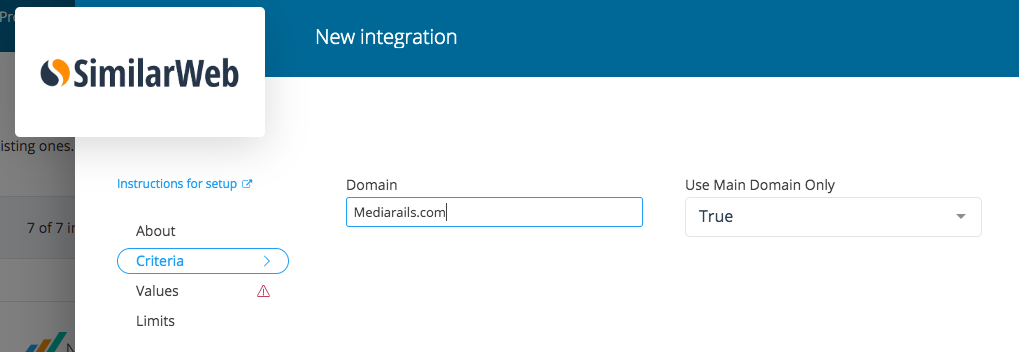
Domain: Once the card is open you will fill in your competitor of choice in the Domain Field in the following format: "mediarails.com". Leave off the "https://" or "www."
Use main domain only: TRUE will allow you to filter for traffic to only the domain listed in the domain field. If you would like to include sub domains or search the entire site, set the value to FALSE.
Step 2: Values Tab
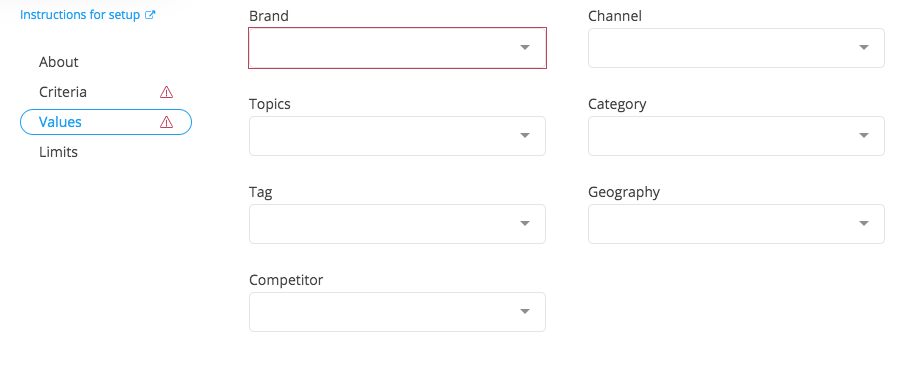
These are the values you would like to apply to the records after they are brought in. These values will help you organize and group the records once they are in the system.
To add a Value, the values must first be added to your Tag Library - See Instructions Here
- Add the Brand(s) you are recruiting for *Required Field*
- Add any additional values desired
NOTE: the Competitor you typed in will automatically become a Competitor tag.
- Channel: This is the Channel tag bucket in the system
- Topics: This is the Topics tag bucket in the system
- Category: This is the Category tag bucket in the system
- Tag: This is the Tags tag bucket in the system
- Geographies: This is the Geographies tag bucket in the system
- Competitors: This is the Competitors tag bucket in the system
Step 3: Add the Integration
Once you have filled in the Criteria and Values Tabs, you are ready to click Add Integration to enable the integration. See below for more info on what happens after the integration is added.
Limits Tab
The Limits Tab is where you will be able to see how many prospect records were pulled in from that particular integration after it has run. It will also show the last date/time the integration ran.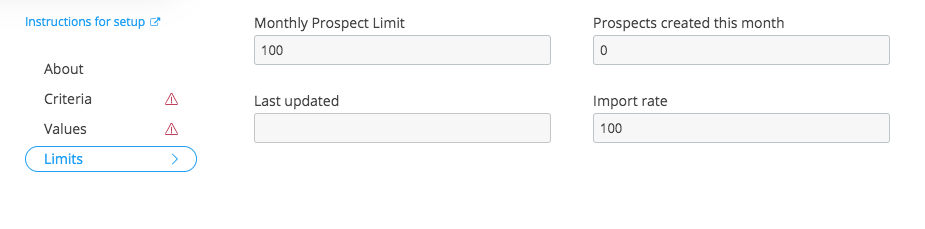
Reviewing your new prospects:
After your integration has run, the prospects will be added to your prospects workspace as New prospects. If you would like to review the results of the integration specifically, you can add a filter for Competitors is [Domain Used].
If you have added multiple Affiliate Discovery searches and would like to review all the results combined, you can add a filter for Source is SimilarWeb
We recommend adding a filter for Primary contact email > is not blank as well so you do not spend time on prospects without an email address.
Seeing a Warning on your SimilarWeb Integration?

A warning means that the SimilarWeb integration has auto-disabled due to finding all available results. A SimilarWeb integration will run 3-4 times in attempts to find new data. Once there is no more new data, the integration disables itself so it does not continue to run indefinitely and slow the system down.
To check and see whether an integration was able to find any results, click on the integration in the list (like shown above) and then on the popup click on the Limits tab to find the number of results pulled in the last time the integration ran, as well as the warning's error message: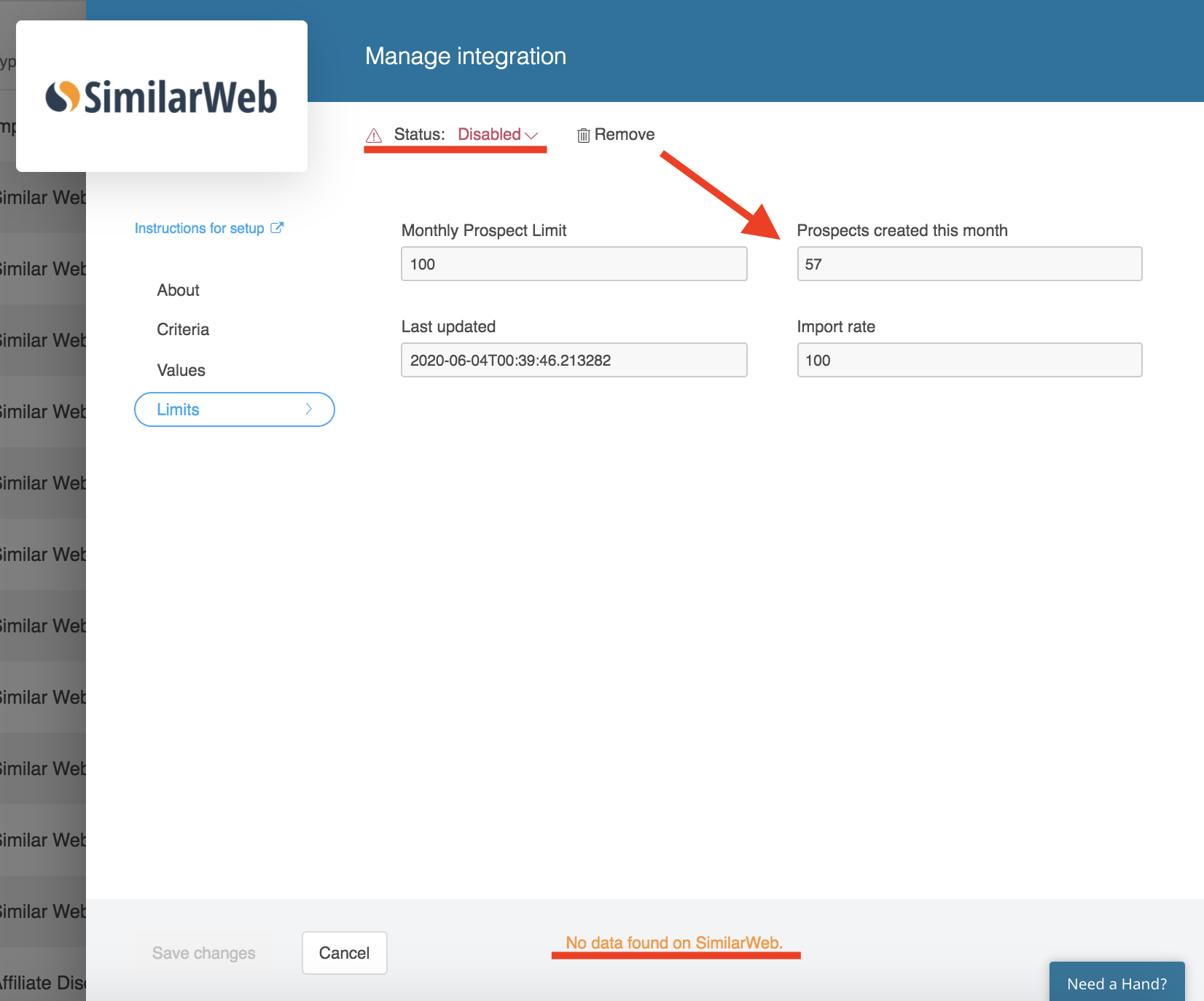
Comments
0 comments
Please sign in to leave a comment.