
Mediarails Affiliate Discovery allows you to use keywords to search the growing Mediarails prospect database for potential Affiliates. These prospects come from multiple sources that search the internet for affiliate-related websites.
How to Setup an Affiliate Discovery Integration
Step 1: Criteria Tab

- Add a Keyword
We recommend keeping it simple and using one main keyword such as "Fitness" or "Food" to start your search. For more information on how the search engine works see below: "Affiliate Discovery Keyword Search" - Choose any filtering options you would like to add
- Min and Max Alexa Rank
- Max Moz Authority
- Min Moz Rank
- Language (will default to English if left blank)
- Country (will default to USA if left blank)
- Affiliate Network: this allows you to search for results that we've identified as being on a specific network, using this filter could limit the number of results pulled in.
Step 2: Values Tab
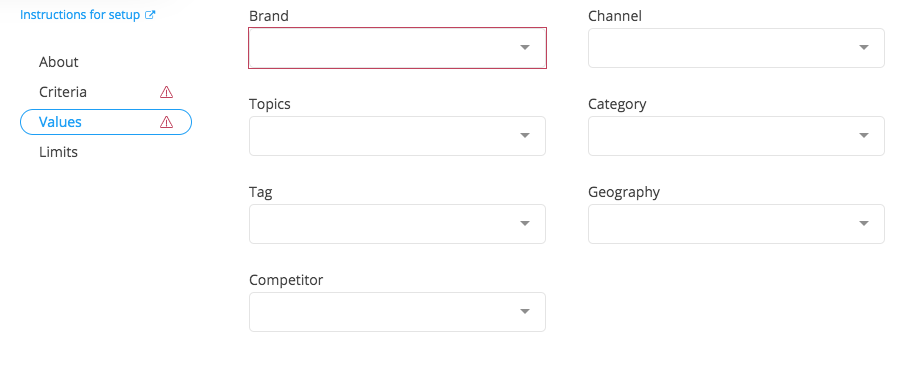
These are the values you would like to apply to the records after they are brought in. These values will help you organize and group the records once they are in the system.
To add a Value, the values must first be added to your Tag Library - See Instructions Here
- Add the Brand(s) you are recruiting for *Required Field*
- Add any additional values desired
NOTE: the Keyword used on the Criteria tab will be automatically added as a Topic Tag
- Channel: This is the Channel tag bucket in the system
- Topics: This is the Topics tag bucket in the system
- Category: This is the Category tag bucket in the system
- Tag: This is the Tags tag bucket in the system
- Geographies: This is the Geographies tag bucket in the system
- Competitors: This is the Competitors tag bucket in the system
Step 3: Add the Integration
Once you have filled in the Criteria and Values Tabs, you are ready to click Add Integration to enable the integration. See below for more info on what happens after the integration is added.
Limits Tab
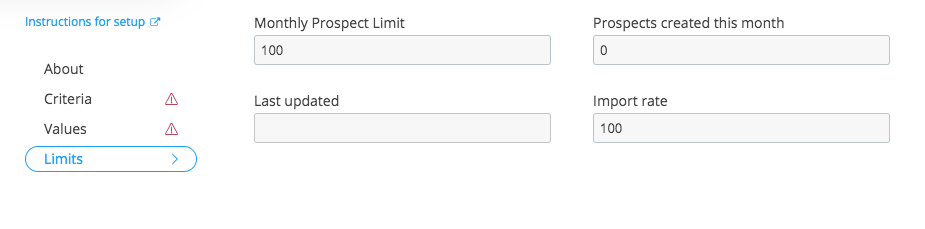
The Limits Tab is where you will be able to see how many prospect records were pulled in from that particular integration after it has run. It will also show the last date/time the integration ran.
Reviewing your new prospects:
After your integration has run, the prospects will be added to your prospects workspace as New prospects. If you would like to review the results of the integration specifically, you can add a filter for Topics Tags is [Keyword Used].
If you have added multiple Affiliate Discovery searches and would like to review all the results combined, you can add a filter for Source is Affiliate Discovery
We recommend adding a filter for Primary contact email > is not blank as well so you do not spend time on prospects without an email address.
Affiliate Discovery Keyword Search:
The Affiliate Discovery Prospecting integration uses an internal database of Partners, with a known participation of theAffiliate Discovery network, to source prospects based on the keyword search used.
Our keyword search engine leverages the RSS feed categories that each Partner has created content for on their site. Below is an example of how Partners might label their RSS feed categories:
<category>Crafting With Candy</category>
<category>giveaway</category>
<category>pets</category>
<category>tech</category>
<category>DIY</category>
<category>recipes</category>
<category>Dessert</category>
<category>health</category>
<category>travel</category>
<category>healthy living</category>
<category>Crafting</category>
<category>Candy</category>
The keyword(s) used in anAffiliate Discovery integration will then be matched to existing category keywords found in the Partners RSS feed. If there are multiple keywords used in the search, then each keyword would be singled out and used to match against one of the category keywords.
As an example, if someone were to enter the following keyword search, “Dessert recipes with Candy”, our system would then dissect the keywords to focus on individual keyword searches. Even though the keywords came from a phrase, the system would search for the following:
“Dessert”
“Recipes”
“With”
“Candy”
Based on the sample categories above these would be the categories our system would look for to return results on:
“Dessert” → <category>Dessert</category>
“Recipes” → <category>recipes</category>
“With” → <category>Crafting With Candy</category>
“Candy” → <category>Crafting With Candy</category>, <category>Candy</category>
Our search tool, will also apply some logic to determine if there are any other root word similarities to pull in additional results. In order to identify these similarities we need to break up the keyword searches to focus on the individual words for root word association. For instance, if your keyword was “running”, we would search for “running” and we would also break the word down to “run” so as to include the other potential options of the word: “run”, “runner”, “running”, etc...
Comments
0 comments
Article is closed for comments.