
When you have a large list of Prospects you want to edit you can do so easily with these simple steps:
- Export your desired list of prospects or partners
- Open file in excel
- Make changes to your records
- Import your list of edited records back into the system.
See details of each step below:
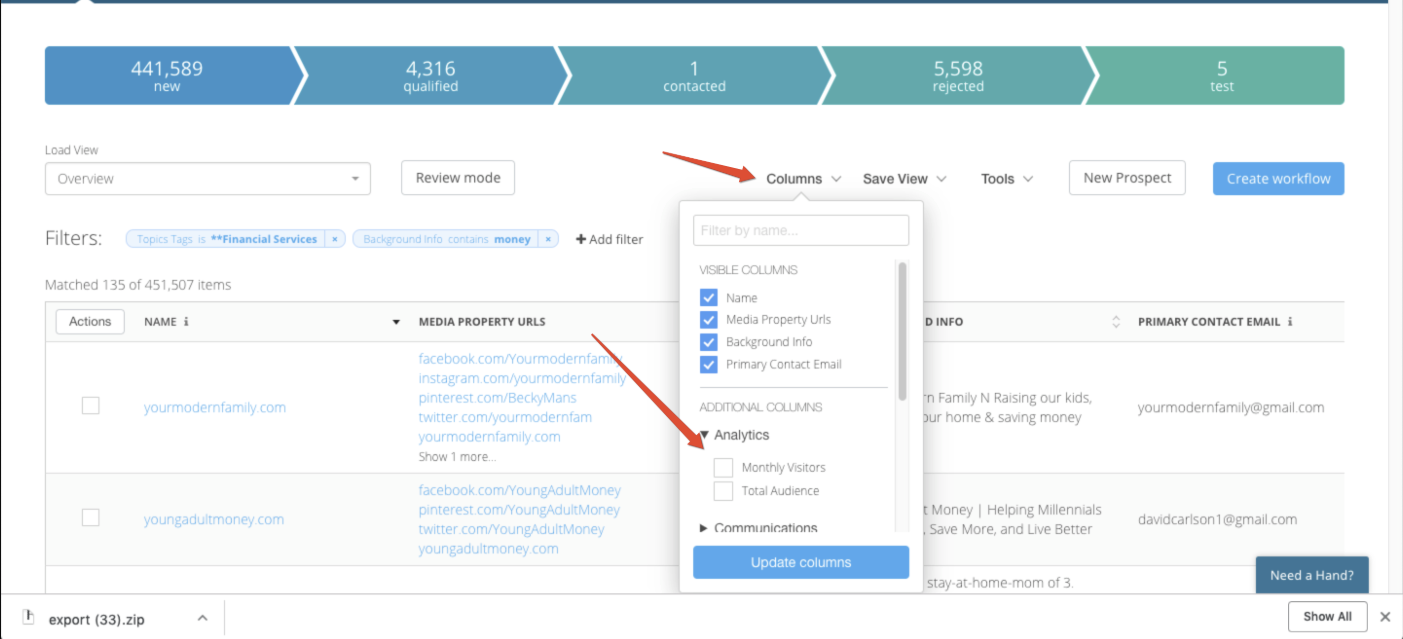
- Select your desired Columns by clicking the columns dropdown and selecting the columns you wish to be included. Note: Whatever columns are showing will be included in export:
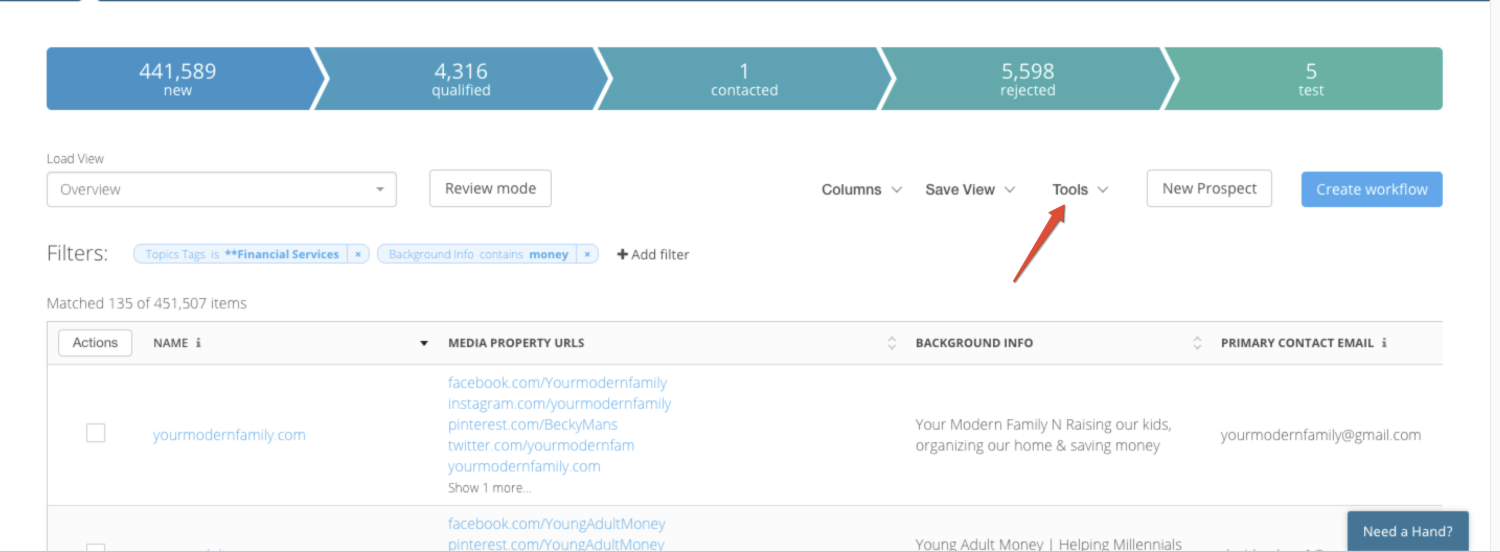
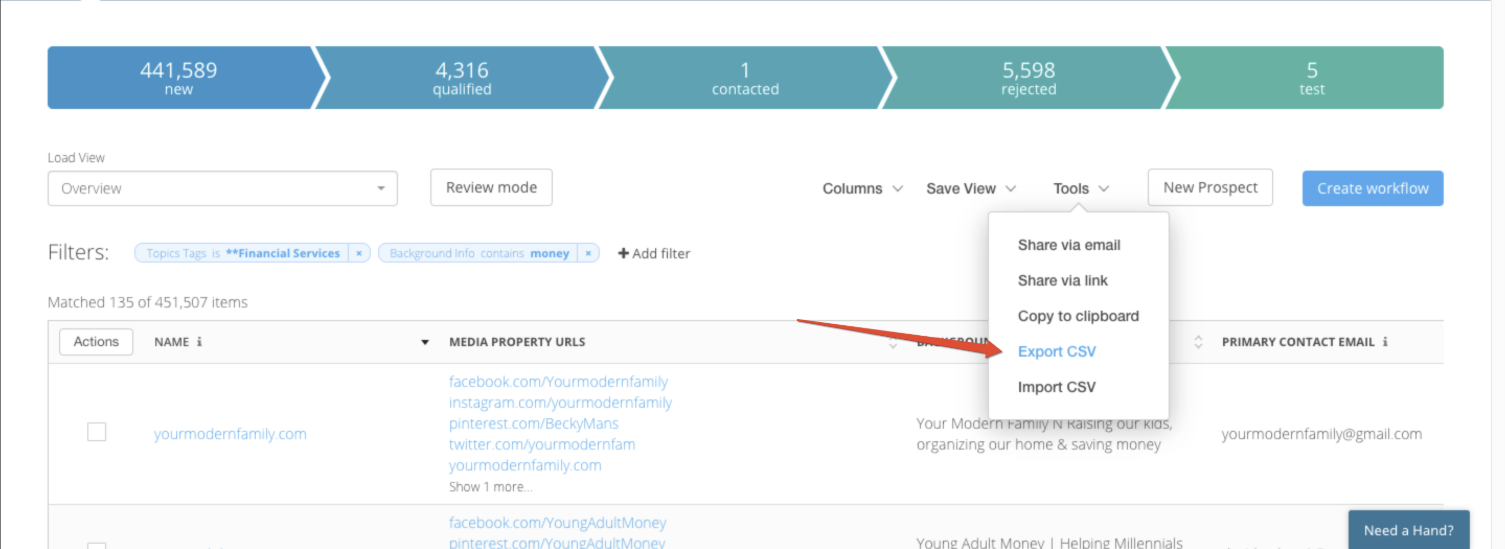
- Once you have pulled the columns in that you wish to edit, Select tools and click Export from the dropdown.
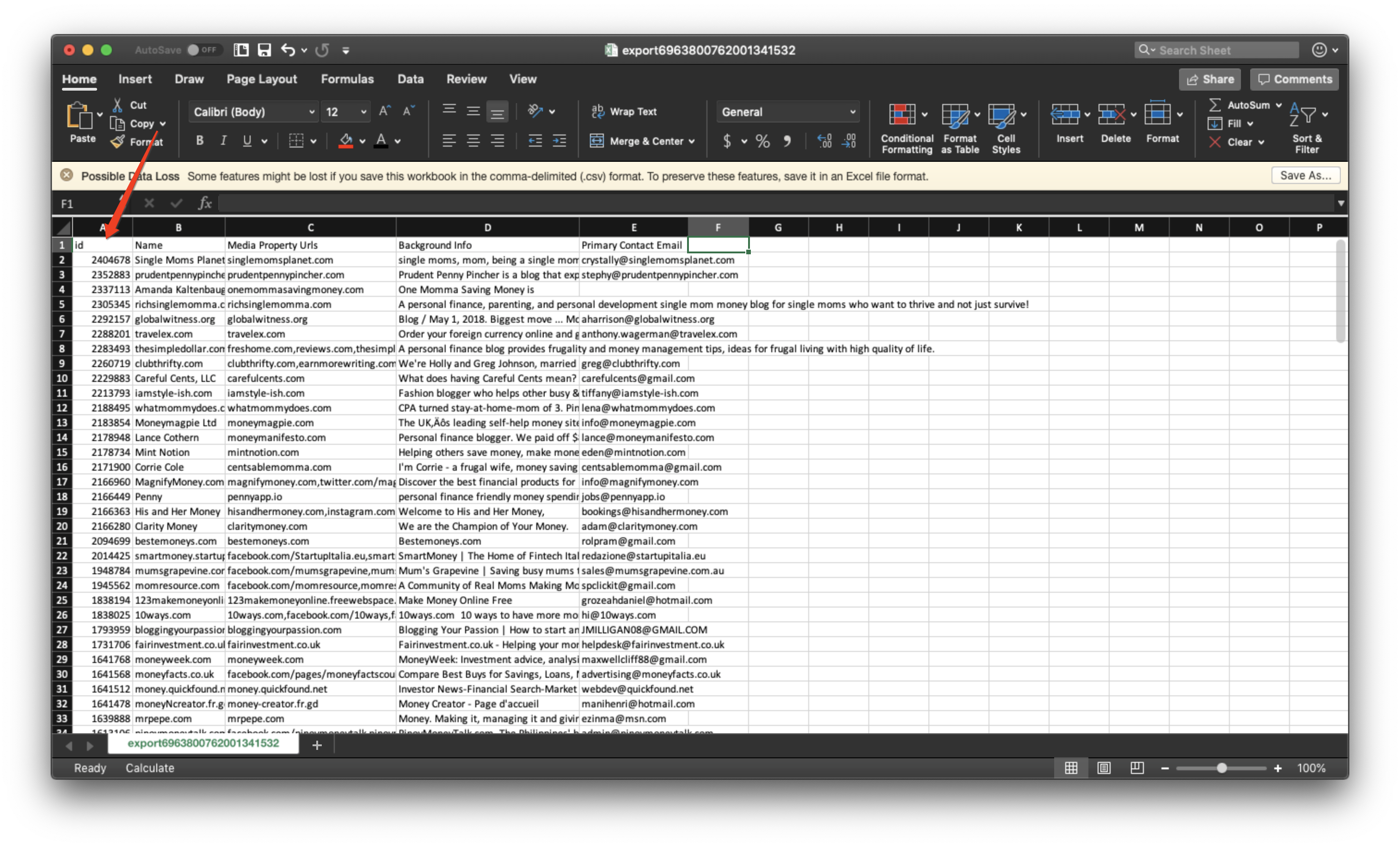
- After you have exported your list, Open it in excel and make any edits that you had planned.
- If you would like to add Tags (including Categories, Geographies, Channels or Topics) add a column with the respective title for the column header.
Example: to create Tags via an import, add a column titled "Tags"
Important Notes:
- Do not edit the ID column: this is the unique ID for each record so when you import your file after editing records this ID tells the system what records to make changes to.
- Make sure your column headers are spelled correctly if you add any new columns. The import will fail if the columns do not match those in the Mediarails List View exactly.
3. After you have made your changes. Save your file as CSV and import it back into the system.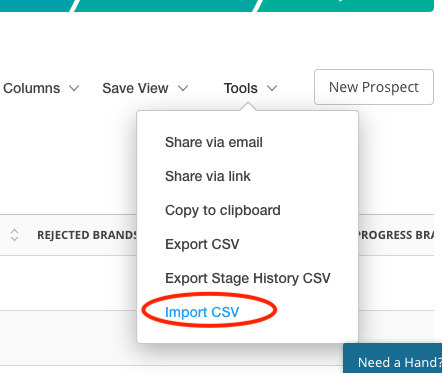
After the import, you will see a message pop-up saying whether the import was successful or not. If it was unsuccessful, any failed rows will appear in a downloadable CSV format. To check and correct the errors, download the Failed Row report. The first few columns will tell you why each row has failed. Correct any errors and re-upload the Failed Row CSV.
Comments
0 comments
Please sign in to leave a comment.