
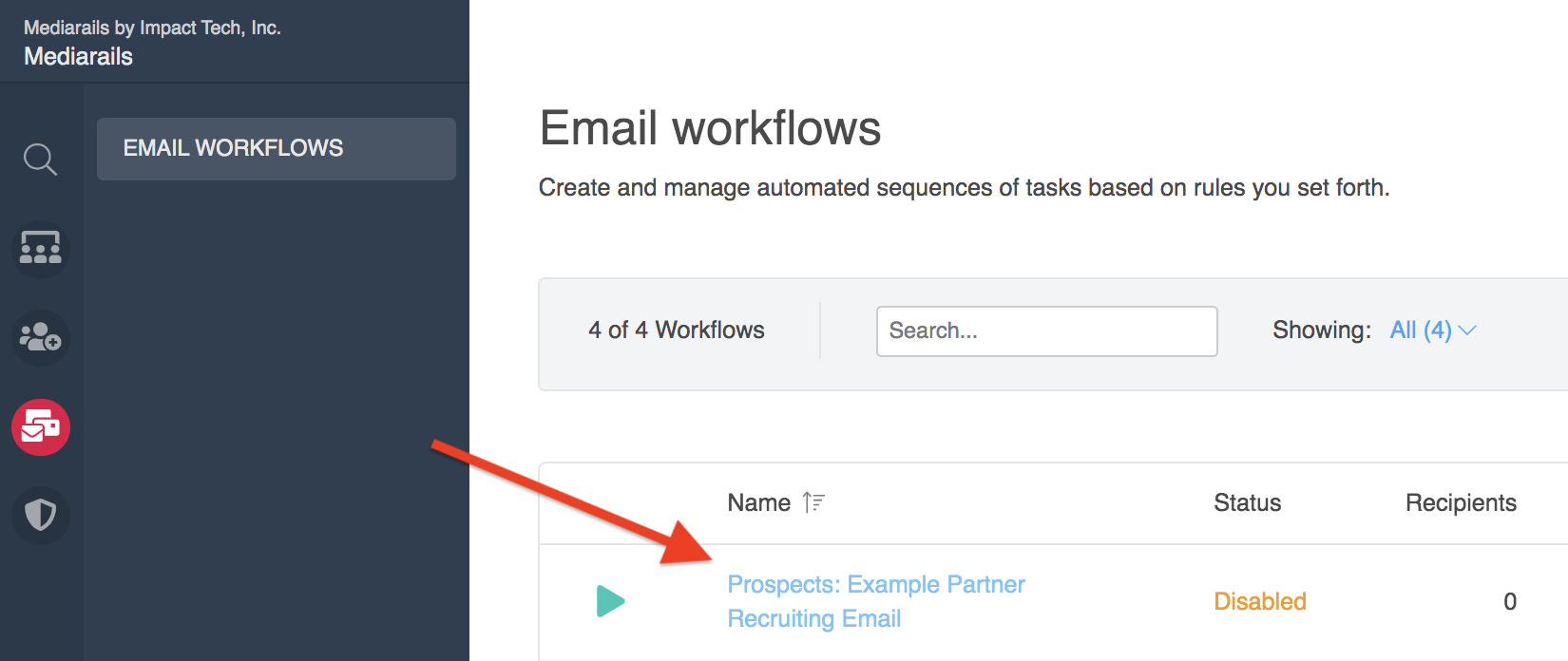
In Mediarails, you can view the progress of your Email Workflows or Newsletters in a variety of places. The most popular place to check the stats of an Email Workflow or Newsletter is on the respective reporting page. Reporting pages are located in the Automate workspace and can be accessed by clicking on the name of the desired workflow or newsletter from the main Email Workflow or Newsletter page.
Bar Chart
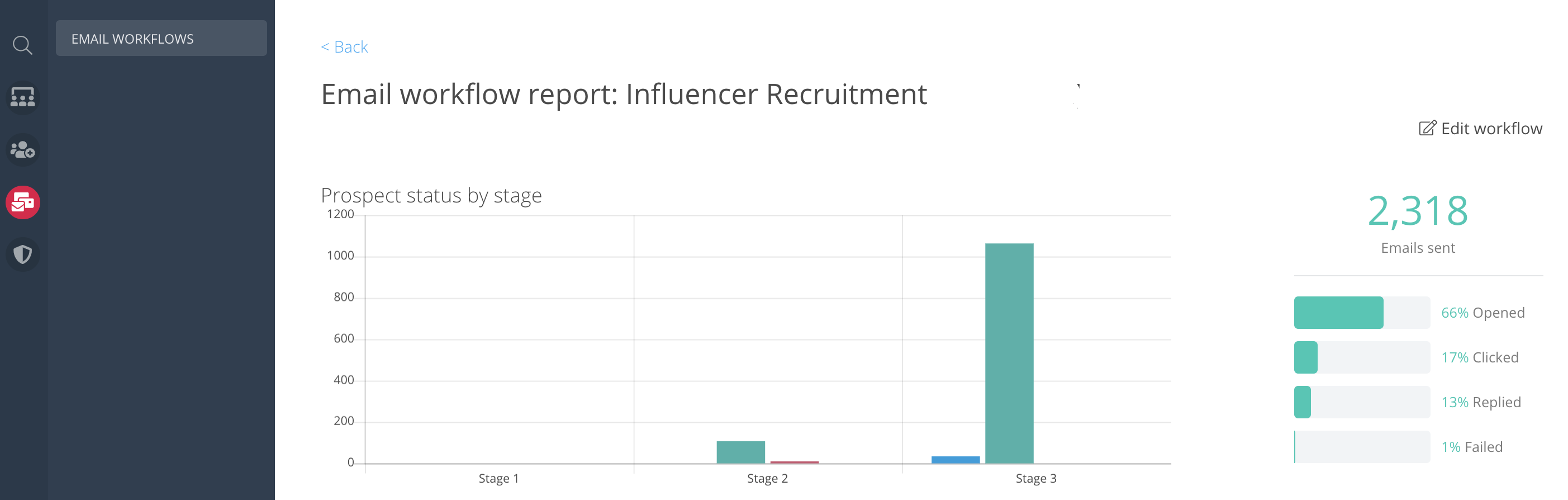
On the top-left side the page is a bar chart showing where each Prospect or Partner is currently at in the Email Workflow. Each stage is representative of a single email. There will be the same number of stages in the bar chart as emails that you setup in the workflow. If a record is in a stage, it means it has NOT received the email for that stage yet.
To see the number of prospects or partners in each stage, hover over the bars to see a number popup.
Bar chart color key:
- Blue = currently active in that stage
- Green = exited or completed
- Exited means the prospect or partner responded in that stage
- Completed means the prospect or partner has received all messages of the workflow
- Red = the message for that stage has failed
- To see the reason for error, check the last column of the table below the chart (not pictured)
Percentage Chart
On the top-right of the page, there is a percentage chart. This shows the percentage of prospects or partners who opened, clicked, or replied to a workflow message as well as the percent of failed messages.
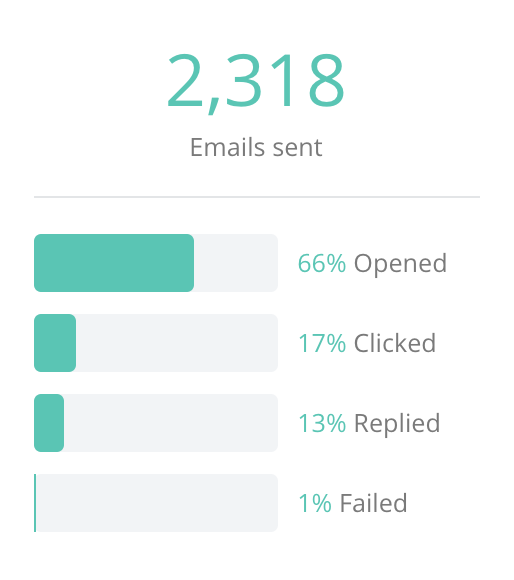
It is important to understand that the percentages on the chart are based off the total number of messages sent - not the total number of recipients.
For example:
- If you reach out to 100 prospects in a 3-stage email (the initial email + 2 follow ups), you are sending a total of 300 emails. If the percentage chart were to show a 10% response rate, it would mean that 30 recipients responded, out of the total 300 messages sent.
What is the difference of the Email Workflow Reporting Page and the Email Log?
The Email Workflow reporting page is located in the Automate workspace of Mediarails and can be accessed by clicking on the name of the desired workflow from the main Email Workflow page. This reporting page only shows data from the specific Email Workflow.
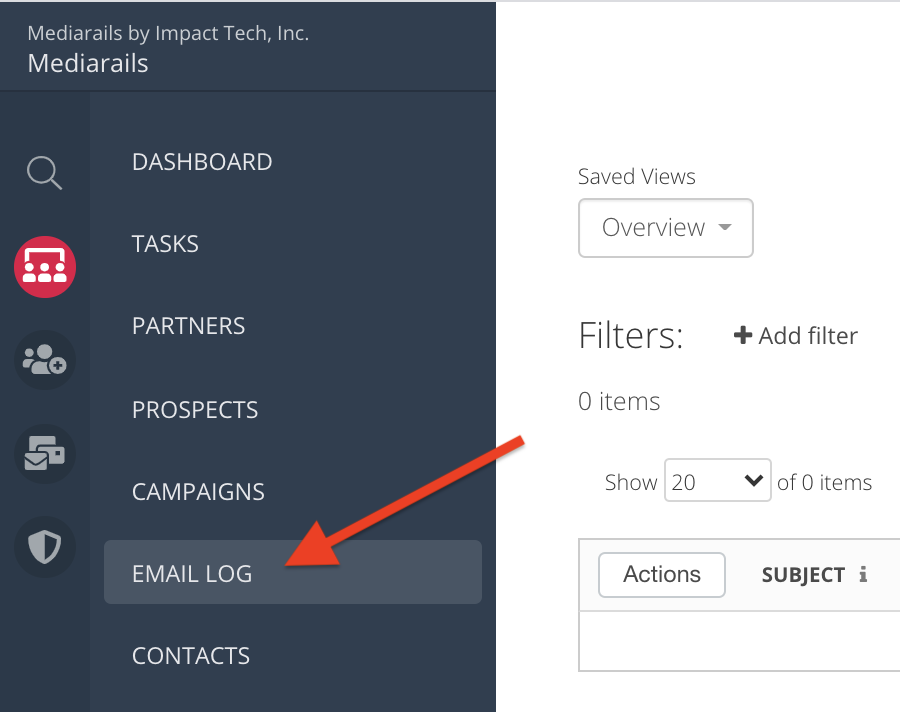
The Email Log is located in the CRM workspace of Mediarails and is a full log of every single email sent or received through Mediarails, including manual one-off messages as well as email workflow messages.
The main differences of Email Workflow reporting in these spaces are outlined below.
Number of Emails Sent
Sent email stats may vary between the Email Workflow Reporting page and the Email Log. This is because the Email Workflow Reporting page shows only the initial and follow-up emails that are sent as part of the workflow stages. In the Email Log, all emails are counted, including every email sent back and forth as part of a thread.
For example:
- Email Workflow Reporting:
You set up a workflow to send 3 messages to 100 partners = 300 messages sent.
- If a partner replies and you begin a back-and-forth thread, this number does not change. - Email Log Reporting:
If 10 of the above 100 partners reply, and you respond to each of them 1 more time = 310 emails sent.
- If a partner replies, all messages sent as part of a thread are counted as well.
Number of Replies
The number of replies may also vary between the Email Workflow Reporting page and the Email Log. This is because the Email Workflow Reporting page counts a response from each thread only once. Whereas in the Email Log, every single reply is counted, including on a back-and-forth thread.
For example:
- Email Workflow Reporting:
- 10 partners reply to your email and you begin a thread with all 10 of them, where they each respond a total of 2 times = 10 replies.
- Each partner's reply is counted only once, regardless of a back-and-forth thread.
- 10 partners reply to your email and you begin a thread with all 10 of them, where they each respond a total of 2 times = 10 replies.
- Email Log Reporting:
- 10 partners reply to your email and you begin a thread with all 10 of them, where they each respond a total of 2 times = 20 replies.
- Every reply a partner sends is counted, including each message of a thread.
- 10 partners reply to your email and you begin a thread with all 10 of them, where they each respond a total of 2 times = 20 replies.
Comments
0 comments
Please sign in to leave a comment.