
In Mediarails you can add images, logos and clickable video thumbnails to outbound emails in both one-off messages and Email Workflows.
To add an image, logo, or video thumbnail to Mediarails, navigate to either an Email Workflow or one-off message edit screen and follow the steps below.
For adding GIFs to emails, see article here.
To Add an Image or Logo
1. Upload Images
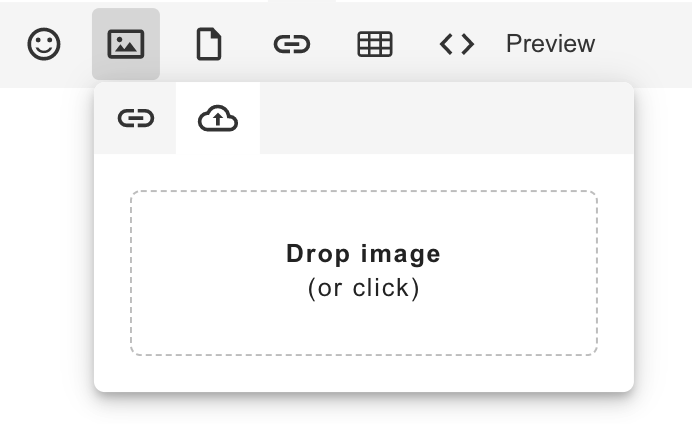
Place your cursor where you would like to place an Image in Mediarails and either drag and drop an image from your desktop directly into the email body, or select the three dot icon on the edit toolbar and select the image icon as shown below.

You will have the option to link to a hosted image via URL link or upload an image directly from your computer by either dragging and dropping the image file into the field, or clicking the field to open the file selector on your computer.
For Impact users: you are able to use Impact-hosted content in Mediarails messaging.
In your Impact account, go to the Content section, then select Ads. From the main Manage Ads list, you can grab an image's URL by right-clicking the image from under the Preview column, and selecting Copy Image Address.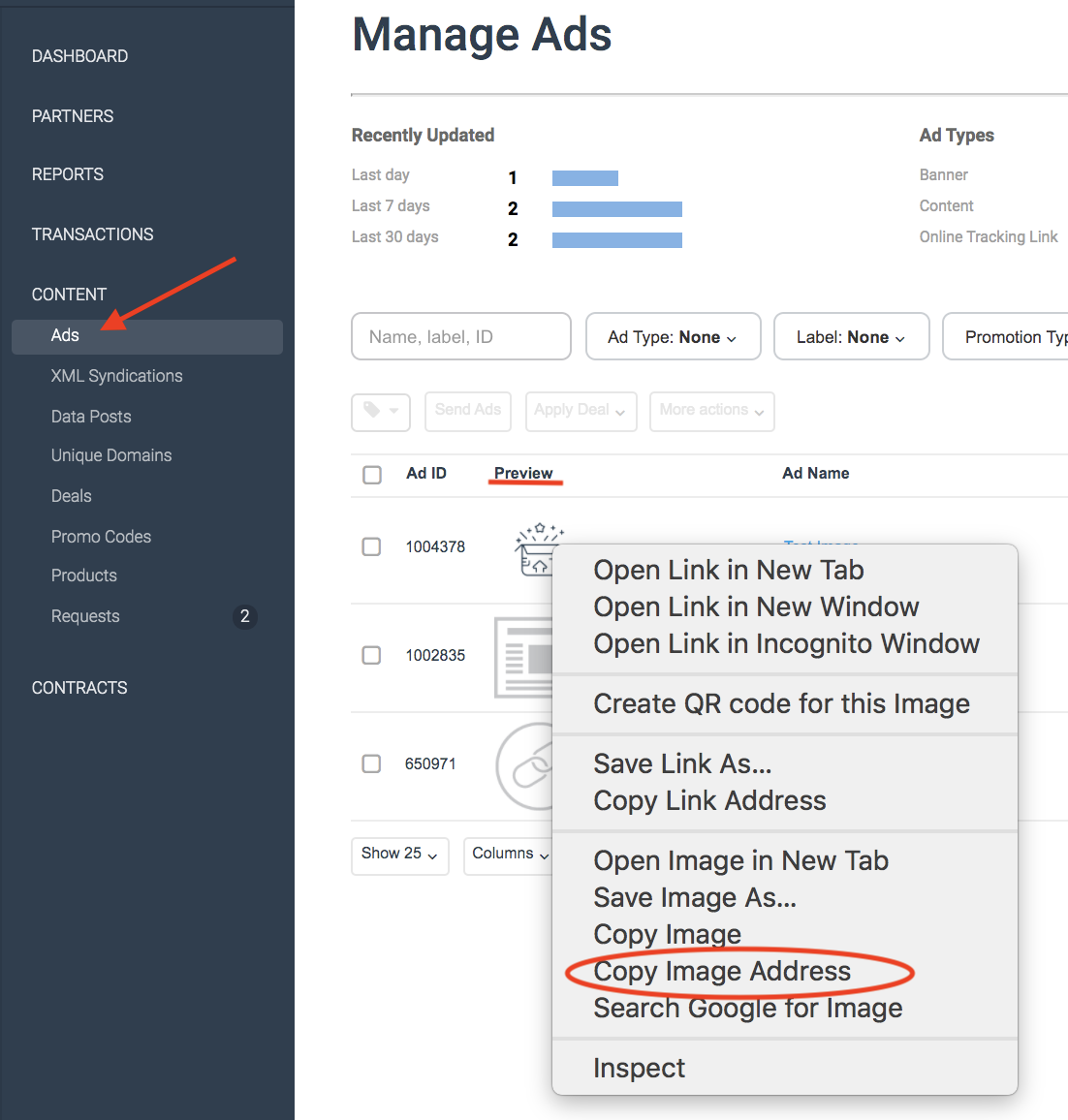
Next, paste the URL into the email by going to the message editor, selecting the option to add an image, and pasting the link into the empty field. Select Insert to add the image to your message. The image will appear immediately if it is hosted correctly.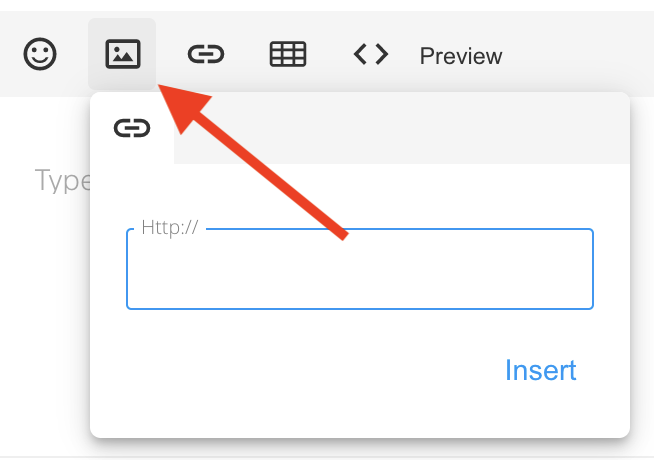
How to Add a Clickable Video Thumbnail
If you would like to have a video thumbnail in your message instead of just a link to a video, you can add a video thumbnail and link it to the video, so that the recipient only needs to click the thumbnail to open the video in a new tab.
1. Get the Video's Thumbnail
If you are using an in-house video, you likely have a thumbnail available in .jpg or .png format. If you are linking to a video that is located on a hosting site such as YouTube, you can search for a site that allows you to put in the video's URL and get the URL for the thumbnail used.
2. Follow the steps outlined above for adding an image
3. Link to the Video
Once your thumbnail is in your message, you will be able to highlight it. Then select the Link option and add the URL of the video to the link pop-up.
We suggest checking the box for the link to open in a new tab.
Depending on where you are viewing the editor, these options will either be visible at the top of the box, or you will need to select the three dot icon (like shown below) to reveal the hidden options.
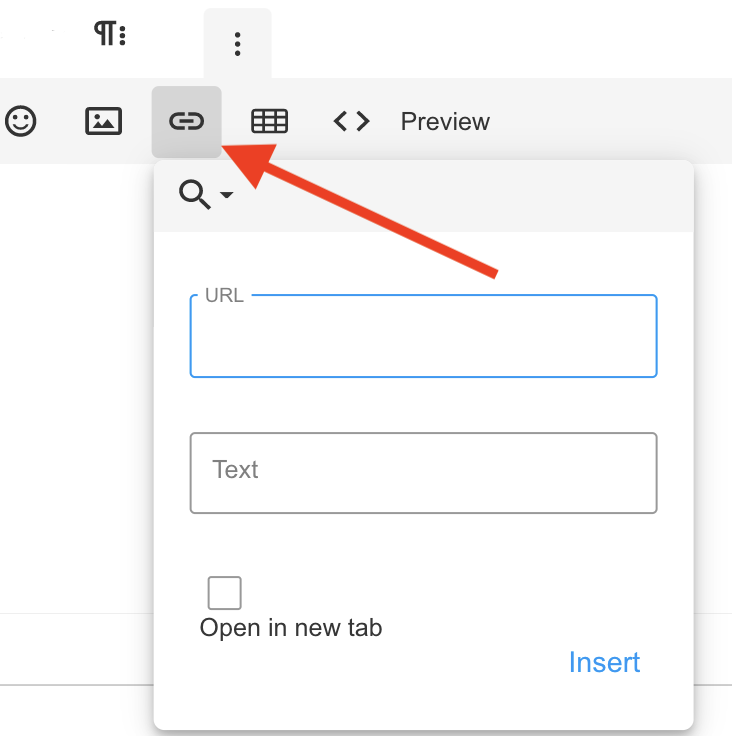
Your thumbnail will now be connected to the video via link. When a recipient clicks on the thumbnail, it will take them to the video.
If you would like to test out the link, go back to the options shown above and select the Preview option. To open the link for testing, hover over the thumbnail and right-click to Open link in a New Tab. This will open the video link in a new tab. Simply clicking the thumbnail will not work while in the Preview Mode.
Additional Tip
- If you'd like to upload a logo as part of your email signature, first try to open a message you have sent from your company's email provider outside of Mediarails. Copy your entire signature and paste into Mediarails' message editor. This option works most of the time.
Comments
0 comments
Please sign in to leave a comment.