
GIFs must be hosted online outside of Mediarails to be able to link to them in an email. Mediarails has no internal storage for uploading GIF files to emails.
The instructions below can be utilized on either one-off messages, Email Workflows or Newsletters.
We suggest hosting GIFs on Giphy for successful sends.
1. go to https://giphy.com/
2. Click the Upload link at the top right
3. Login to Giphy or create a new account if you don't have one
- It's free and only takes a moment to signup
4. Upload the GIF file with the public setting turned off so the gif is private
5. Click "Copy Link" on the right (see below)
6. Copy the long GIF link (see below) - the other two links will not work
Once you have copied your GIF link go back to Mediarails to paste it into your message.
In Mediarails:
1. Go to the message editor in either a one-off message, Email Workflow or Newsletter
2. Select the three dot icon
3. Select the Image icon on the editing toolbar
4. Add the long Giphy link in the url field on the dropdown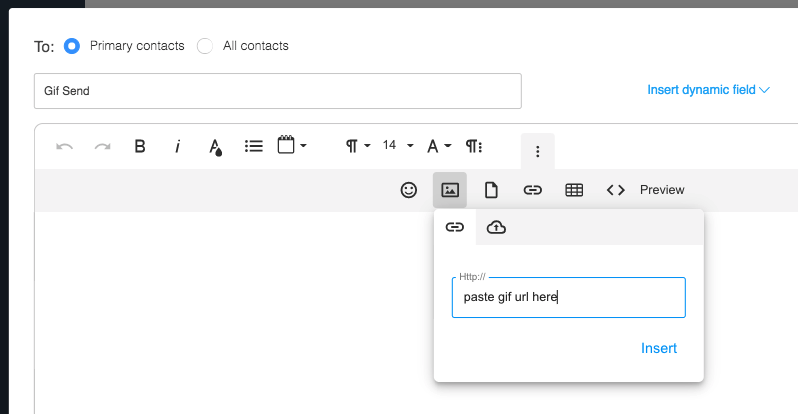
The GIF should show correctly in the body of the email display if it was uploaded correctly.
Comments
0 comments
Please sign in to leave a comment.