
In some cases you may want to add more visual interest to your emails by adding HTML graphic elements. You can easily add HTML to your emails in Mediarails by following the instructions below.
The HTML must be loaded into the correct spot called the Source Code, otherwise the message send will be unsuccessful.
You will not be able to successfully paste HTML into the body of the email without opening the Source Code text box.
Instructions are below for adding HTML to an Email Workflow. Scroll down the page for instructions on adding HTML to one-off messages.
Add HTML to an Email Workflow
Step 1
Navigate to the message edit box on the third stage of workflow settings called "Create Action Stages"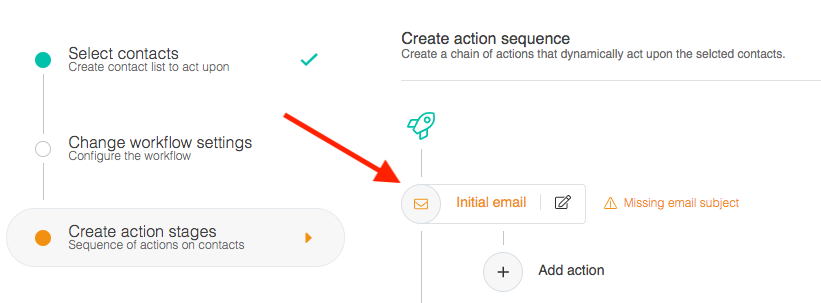
Step 2
Click the Plus sign icon then select the option for Source Code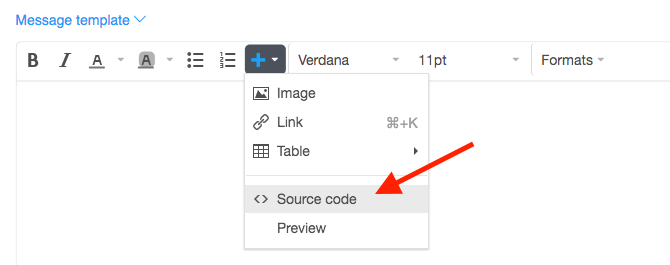
Step 3
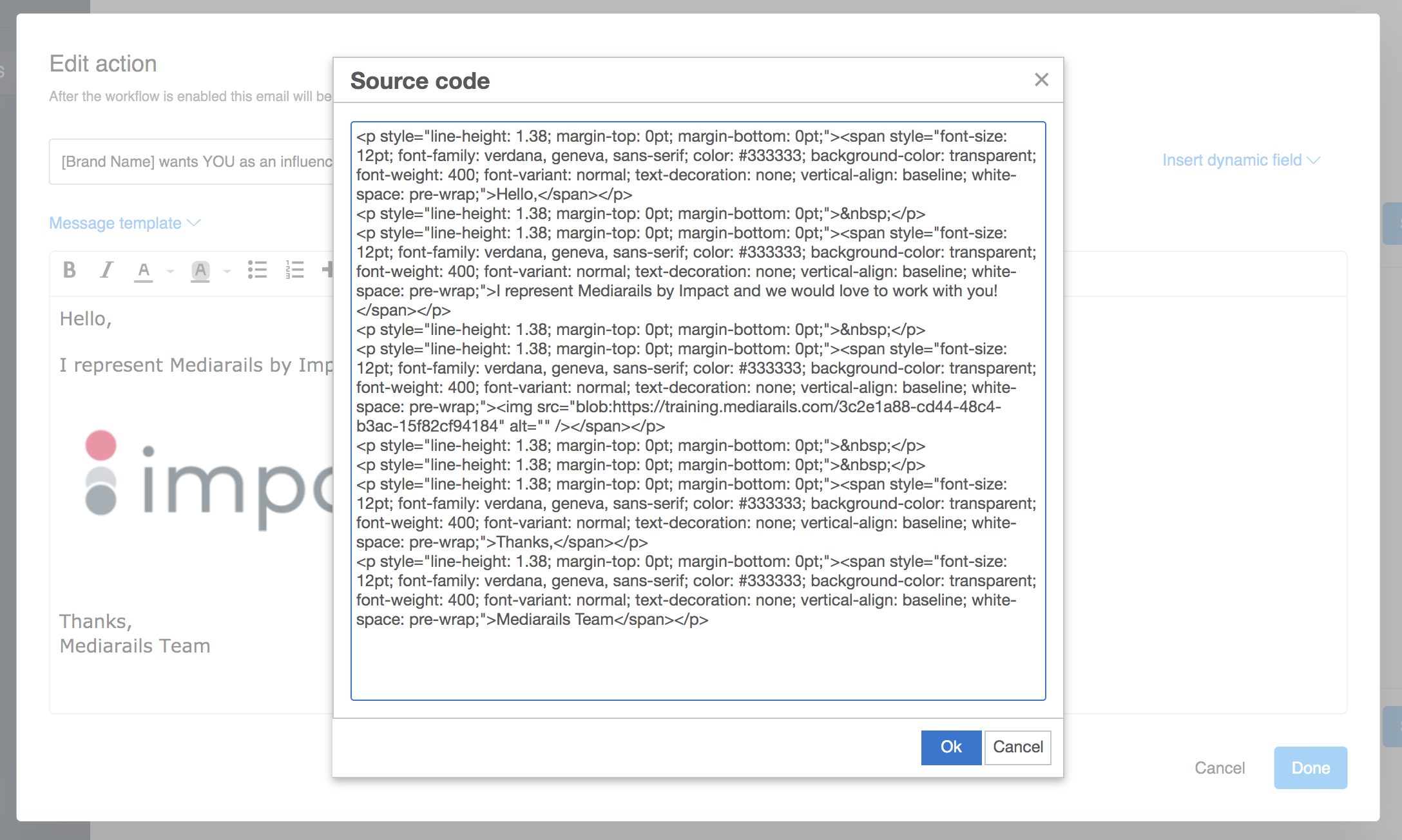
Add your HTML to the box that appears like shown below and click OK once you're finished editing.
Step 4
If desired, click on the Plus sign a second time and select Preview to see a preview of the message

Add HTML to a One-off Email
Step 1
Navigate to the message edit box by selecting your recipient(s) on the list view and clicking the Actions button then Send Message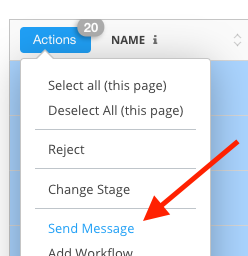
OR
Navigate to the record you wish to contact by clicking on their Name in the list view and then selecting Send Message in the top right of the record's detail page
Step 2
Click the <> icon 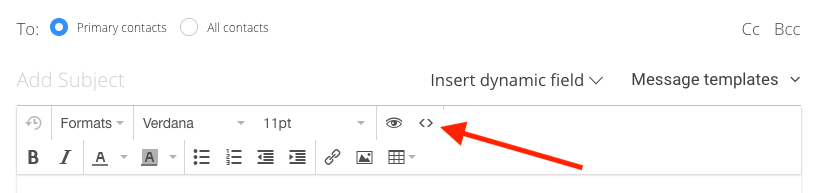
Step 3
Add your HTML to the box that appears (as shown below) and click Ok once you're finished editing.
Step 4
Preview Email
If desired, click the eye icon (next to the <> icon in image above) to see a preview of the message
That's it! Your HTML should now be visible in the normal message body and you can swap back and forth between the source code and normal text editors as needed.
Please note: Mediarails does not have an HTML builder. HTML can only be typed or pasted into Mediarails.
Comments
0 comments
Please sign in to leave a comment.