
Summary:
With this functionality you can either FWD or BCC your "special" email address that connects to your account and it can do the following depending on the conditions met:
- Add email messages to track in the system under the records that match the contact in the TO: line in your account when using the BCC or match to the email address in the body of the FWD message
- Create new Prospect records for contacts not already in your account and add the email to that new record
- For advanced functionality you can add more contacts to a record by putting them in the body of the FWD email, the system will match those to an existing record and add the new contacts to that record
See below for the details on your special email address and how this works.
Your special email address = "dropbox+(accountname)@mediarails.com"
Example if your account was acme.mediarails.com your email would be dropbox+acme@mediarails.com
In order for your email to be accepted and imported you must be sending from an email address that is a user in the Mediarails system.
NOTE: If you are simply wanting to attach an email thread to an existing contact through forwarding the message, Put the email address of the contact of the record you want to attach to in the body of the email. This email must match the email address in the Mediarails record you are wanting to attach the message to.
Details:
There are two options for this as described above:
FWD Logic decision tree:
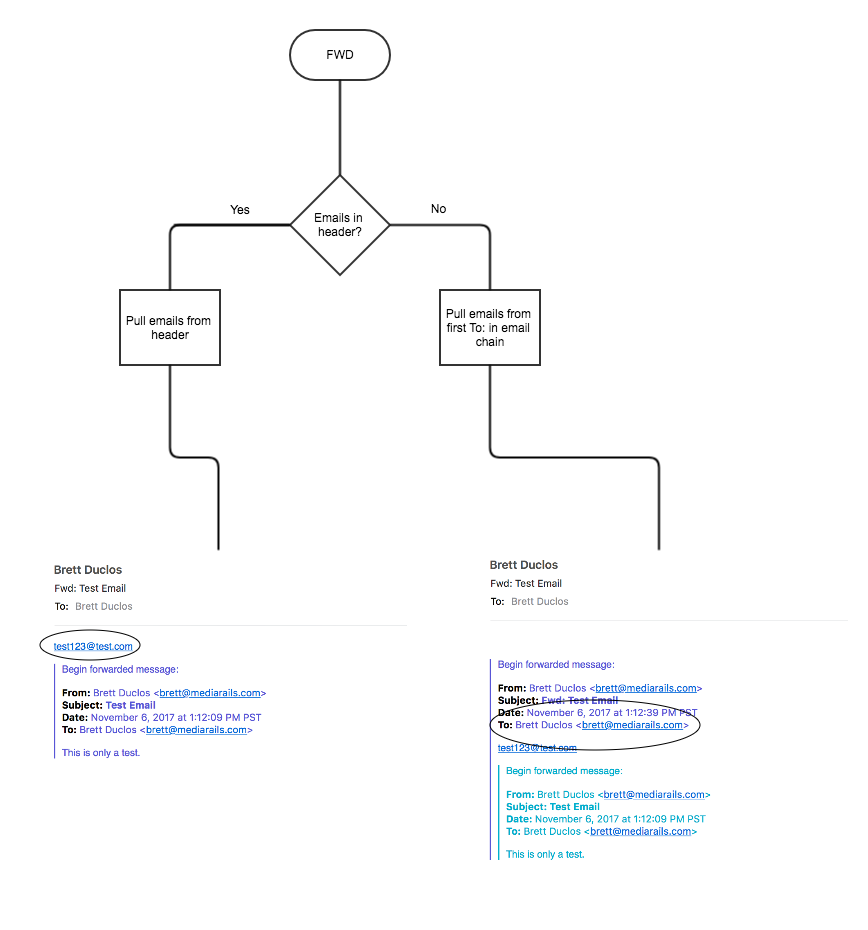
FWD option: Forward an email with contact(s) you would like to add to your account as either a new prospect record or add other contacts to a current record. From there the email will be recorded in the record(s) where that email address is present.
Logic explained:
FWD: FWD to the drop box email
Step 1: System checks to see if your user email address is active in account as a layer of protection
Step 2: System looks for data in body of FWD email to see if you input any contacts in here
- if yes, then pull list of emails from body
- If no, pull most recent recipient (TO) after the message that you forwarded
Step 3: System looks up the emails it collected in your database
- For the contacts that do not currently exist, we create contacts for them
- If one or more exists in the system, then we take the contacts that are new and then associate them to the first existing contact's Partner record and then add the email records to those Partner records as well.
- If no emails in the list are found in the system then we create one prospect record and associated all emails/contacts to that prospect, the first email in the list will be the primary contact. We then record the email thread in that new prospect record.
BCC Logic decision tree:
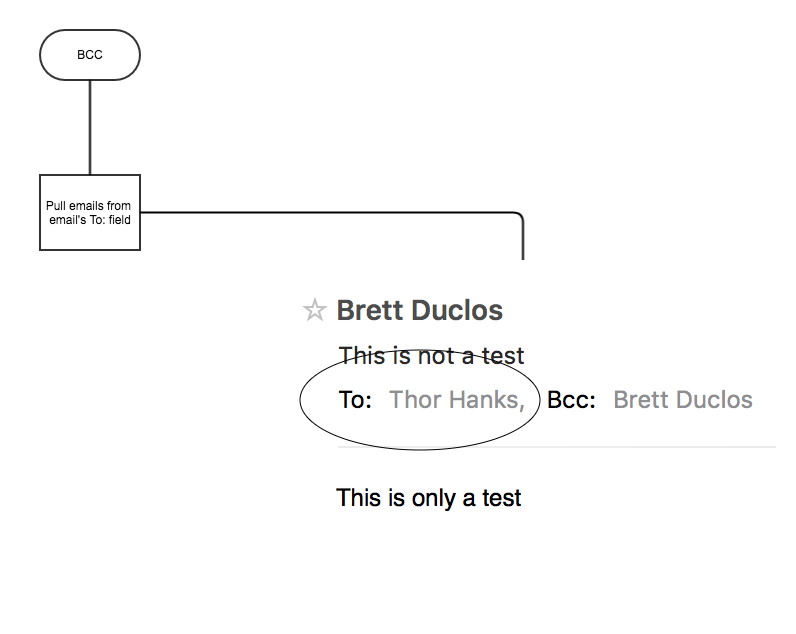
BCC option: Bcc the dropbox email with contact(s) you would like to add to your account as either a new prospect record or add other contacts to a current record. From there the email will be recorded in the record(s) where that email address is present.
BCC: BCC the drop box email
Step 1: System checks to see if your user email address is active in account as a layer of protection
Step 2: Pull the recipient(s) in the (TO) line
Step 3: System looks up the emails in your database that were in the To line of the BCCed email
- For the contacts that do not currently exist, we create contacts for them
- If one or more exists in the system, then we take the other contacts that are new and then associate them to the first existing contact's Partner record and then adds the email thread to those Partner records as well.
- If no emails in the list are found in the system then we create one prospect record and associated all emails/contacts from the TO line to that prospect, the first email in the list will be the primary contact.
NOTES:
In the scenario where there is a list of emails and two or more of them are in the system under separate Partner records the system takes the first one that is found in the list and adds the other emails in the list to that record. It will add the contacts to all of the Partner records that had the first email associated with it. It does not attach any records to secondary existing email addresses.
You can add in names in the email and it will create a contact with a name, Format: First name last name email, for multiple contacts enter on a new line.
Example:
John Smith jsmith@example.com
Jenny Tutone jenny@example.com
Sam sam@example.com
When there is no name in the email, then we take the leading part of the email before the @ symbol and adds that as the first name field of the contact.
Example:
jsmith@example.com will become:
First Name: jsmith
Last Name:
Email address: jsmith@example.com
Comments
0 comments
Article is closed for comments.