
When setting up your email workflow, you need to verify 4 things to ensure the emails will go out.
- Your Email is connected
- Your using the correct saved view
- Your prospects/partners are not already in another workflow
- Dynamic Content that partner/prospect does not have
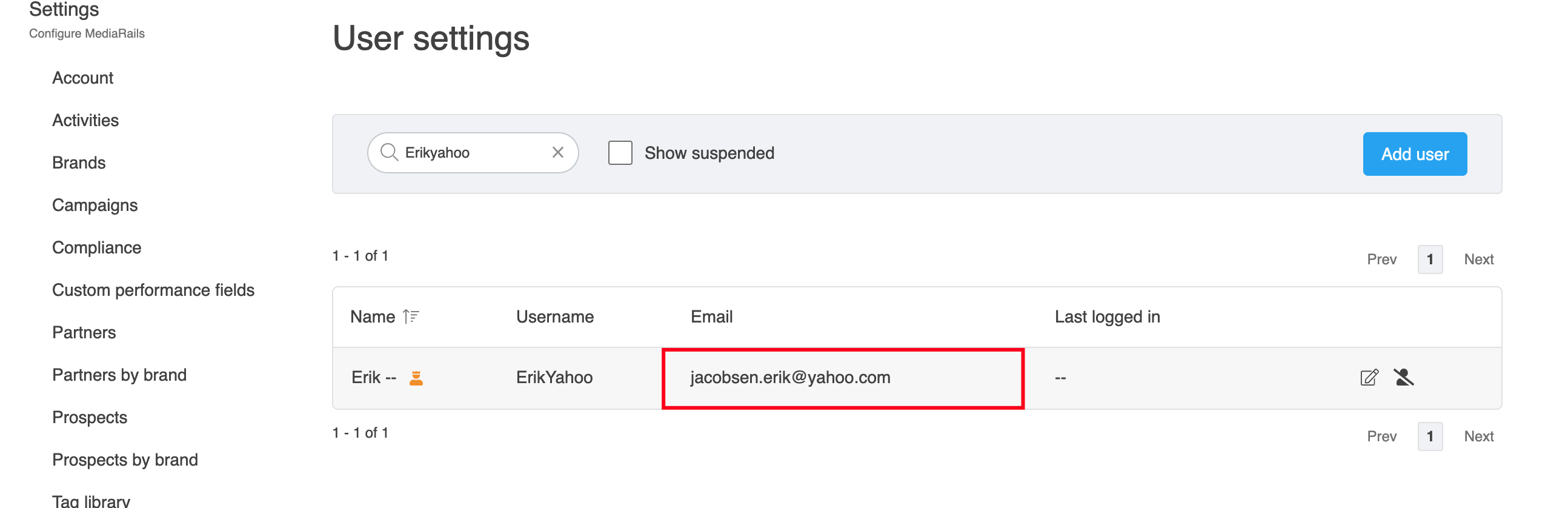
- To verify that your email is connected, navigate to the user settings page by clicking the triple dot menu lower left of screen. Once you are on the user settings page, find your user and look to the right of your email. If you see two yellow arrows, this indicates your email is connect and you can send emails throughout the tool. Instructions for Connecting Email.
Connected Email:

Non Connected Email:
-
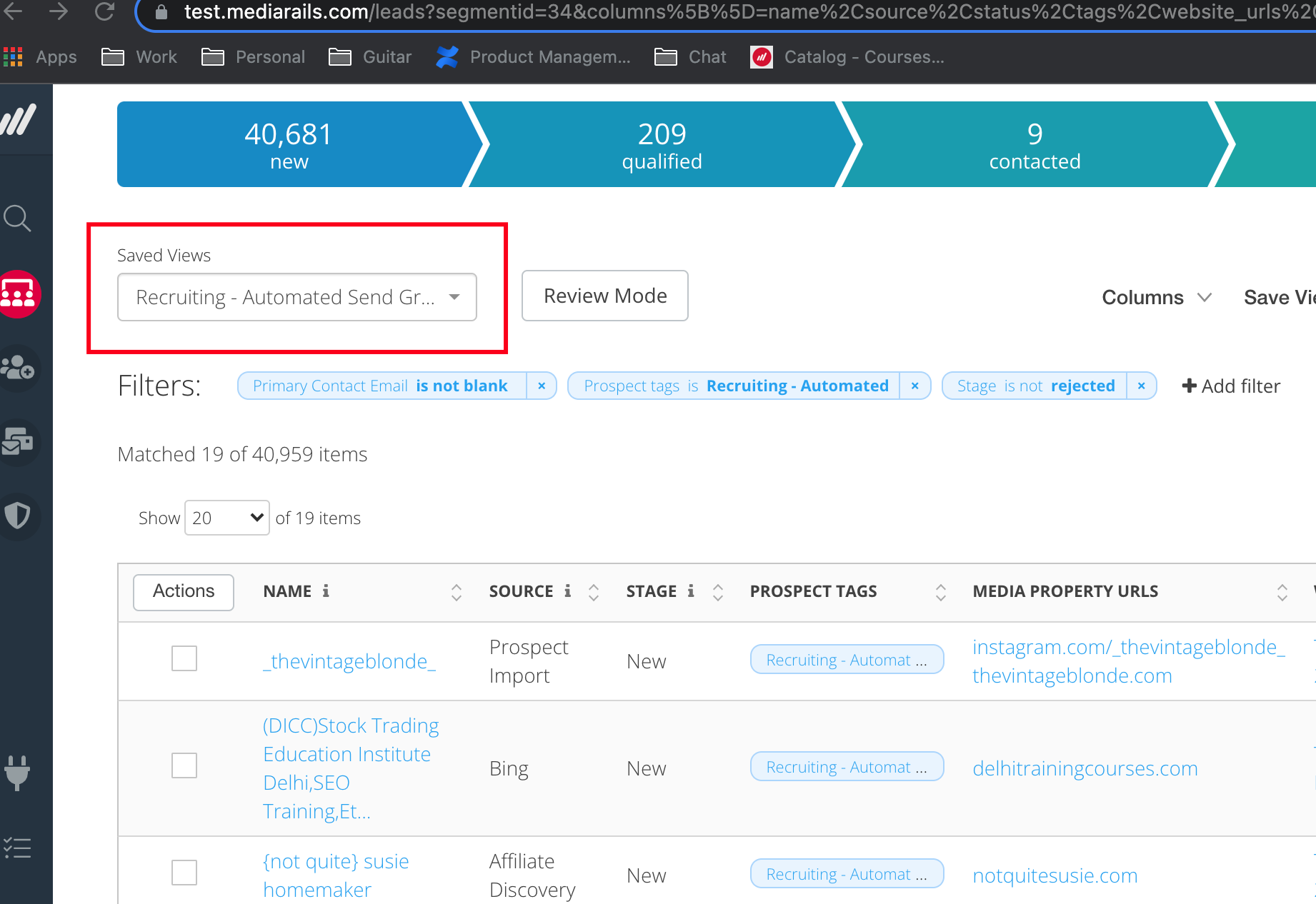
Verify you are using the correct saved view. When setting up a workflow, you link it to a specific saved view based off filters you created, This saved view will dynamically pull all prospects or partners into your workflow as soon as they fall into this saved view. You want to make sure the save view set in your workflow settings matches the saved view of prospects/partners you want in your workflow.
- Check the name of the saved view you have created in prospects/ partners (View of contacts you want to send emails to). This should match the name of the saved view in your workflow settings:
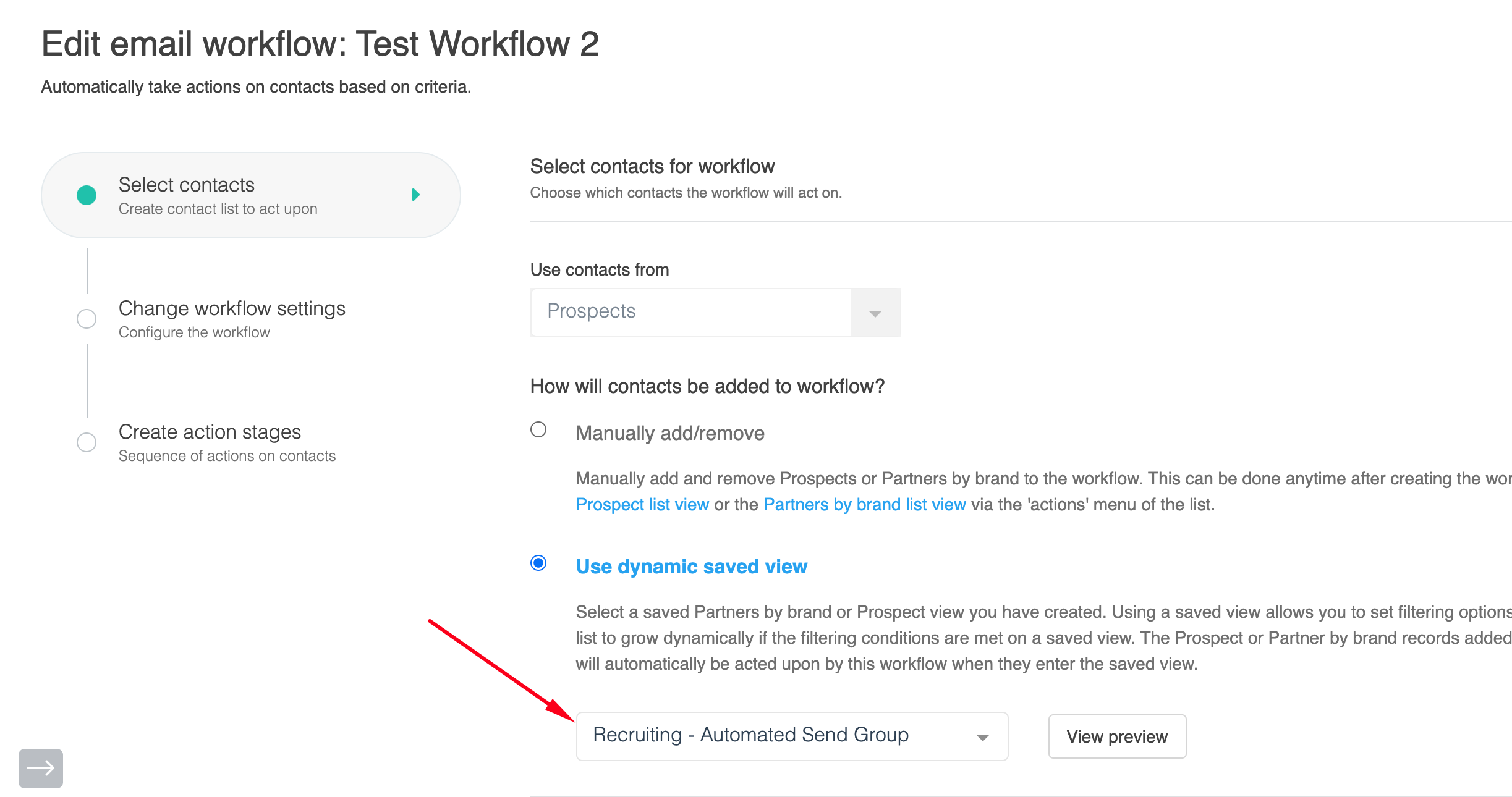
- Navigate to workflow, Select Edit workflow

- Verify the saved view in workflow settings matches the saved view you want prospects/partners being sent emails:
- Check the name of the saved view you have created in prospects/ partners (View of contacts you want to send emails to). This should match the name of the saved view in your workflow settings:
- Verify that your prospects/partners are not already in another workflow. Prospects and partners can only exist in one workflow at a time. The only way they are removed from a workflow is if they complete the workflow or are manually removed. To make sure that your prospects or partners don't exist in another workflow:
- Pull up your saved view for your workflow and pull in the 'Workflow' Column. This will show you what workflow's each prospect/partner is currently in. If the column is empty that means they are not currently in a workflow.
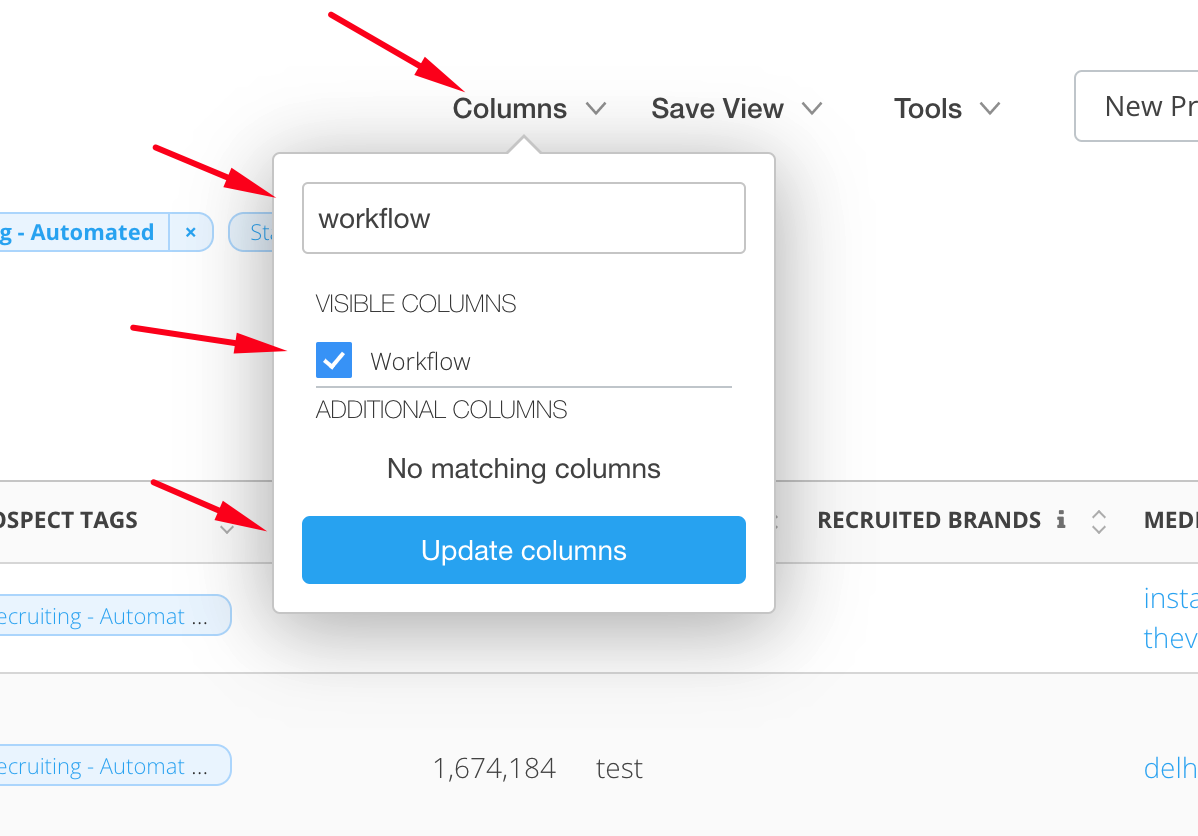
- You can then check if all the prospects in your saved view are in the appropriate workflow, If some exist in another workflow then they wont pull into your specific workflow unless you manually remove them or they finish the workflow they are currently in.

Regardless if the workflow the prospect is in is Active or Paused, They can be removed. This depends on if you want them to finish the workflow they are currently in or not. If the workflow is paused and no longer being used then removing would be the best option so they can enter the next workflow they are scheduled for.
4. Verify you do not have incorrect dynamic content. If your workflow or newsletter contains dynamic content and some or all of your emails are not sending. There is a good chance you have incorrect dynamic content or you are including dynamic content that partners or prospects do not have available.
Example: If you have {{primary_contact_first_name}} in your email, but you do not have primary contact first name on file for some of your prospects/partners. The email will not send to the prospect/partner if they do not have this data available. It is best practice to use a dynamic content that you know all prospects/partners in your workflow have. Such as {{name}}, Which is their display name in MR.
Check the error column in the workflow detail page to see if you have dynamic content in your workflow that does not exist. 
After updating your email to remove or update the correct dynamic content. Your emails will automatically attempt to re-send during the next scheduled sending window.
Notes: Any column header in Mediarails can be used as dynamic content as long as you add two curly brackets around the column name and replace any space with an underscore as shown in this example: {{example_here}}.
Helpful Articles:
-
Email Workflows(Overview)
- How to Create a Saved View
- How To Manage a Saved View
- Connecting Email
- Dynamic Content in Emails
Comments
0 comments
Please sign in to leave a comment.