
An Email Workflow sends series of automated emails to prospect or partner records based on rules and triggers that are setup in the platform. These emails work together to accomplish a goal, like recruiting new partners, engaging current partners, or making announcements.
In Mediarails, Email Workflows are automated to send as many messages as desired. After the initial email is sent, follow-up emails are sent automatically based on time frame or by action-based triggers. For example, you could choose to send out an email that is inviting a group of prospects to join your program. The workflow could be setup to send a follow-up email automatically to any prospect in the group that does not respond within 5 days.
How to setup an Email Workflow:
Instructions for setting up Prospect Recruiting Email Workflows
Instructions for setting up Partner Optimization Workflows
Instruction for setting up Partner Welcome Email Workflows
Main Workflow Screen:
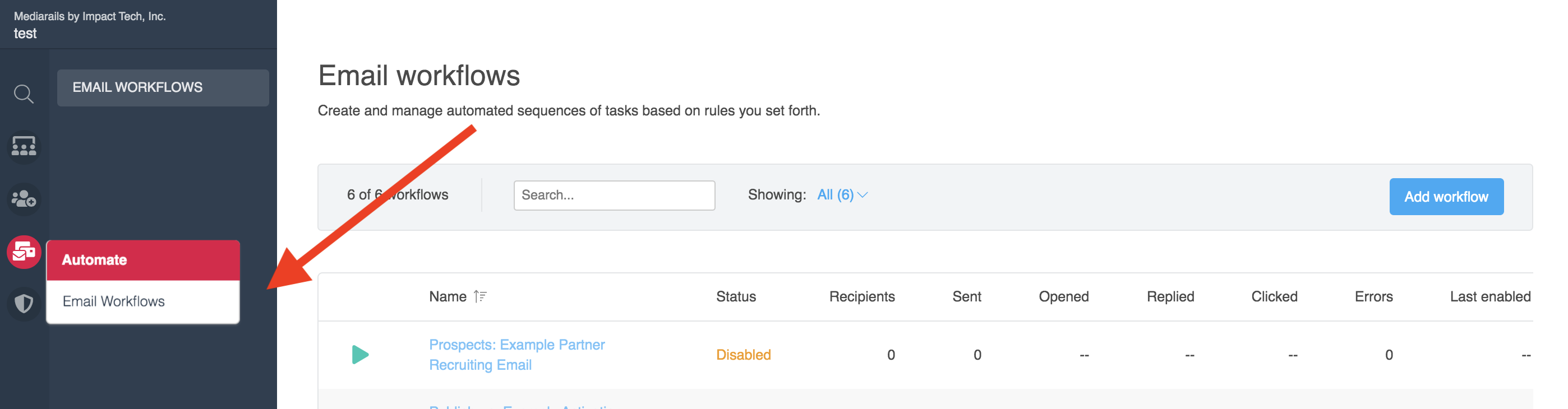
Email Workflows are located within the Automate workspace, found on the left sidebar (see image below).
Enable or Disable an Email Workflow
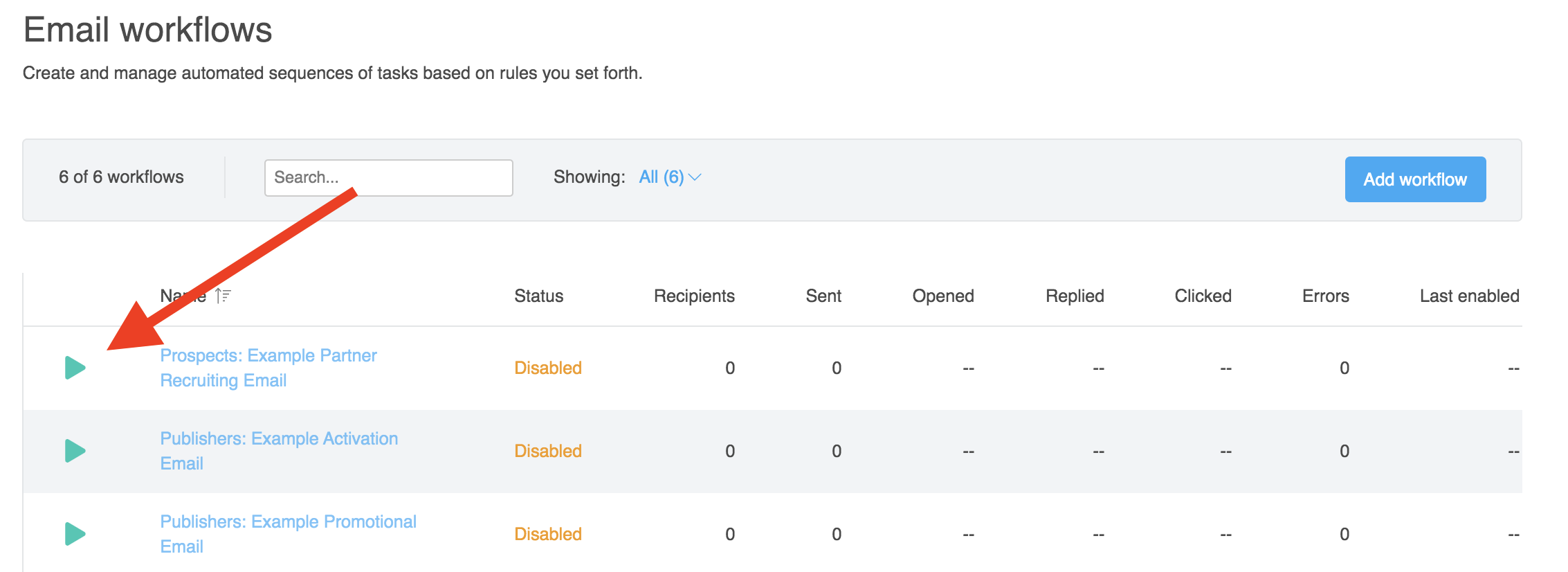
When you are ready to activate, select the Play button on the main Email Workflow screen (see image below). To disable the workflow, press the same button, which will look like a Pause icon on any active workflows.
Workflow Reporting
You can view the status and reporting page of a workflow by clicking on the name of the workflow, shown in blue text in the image above.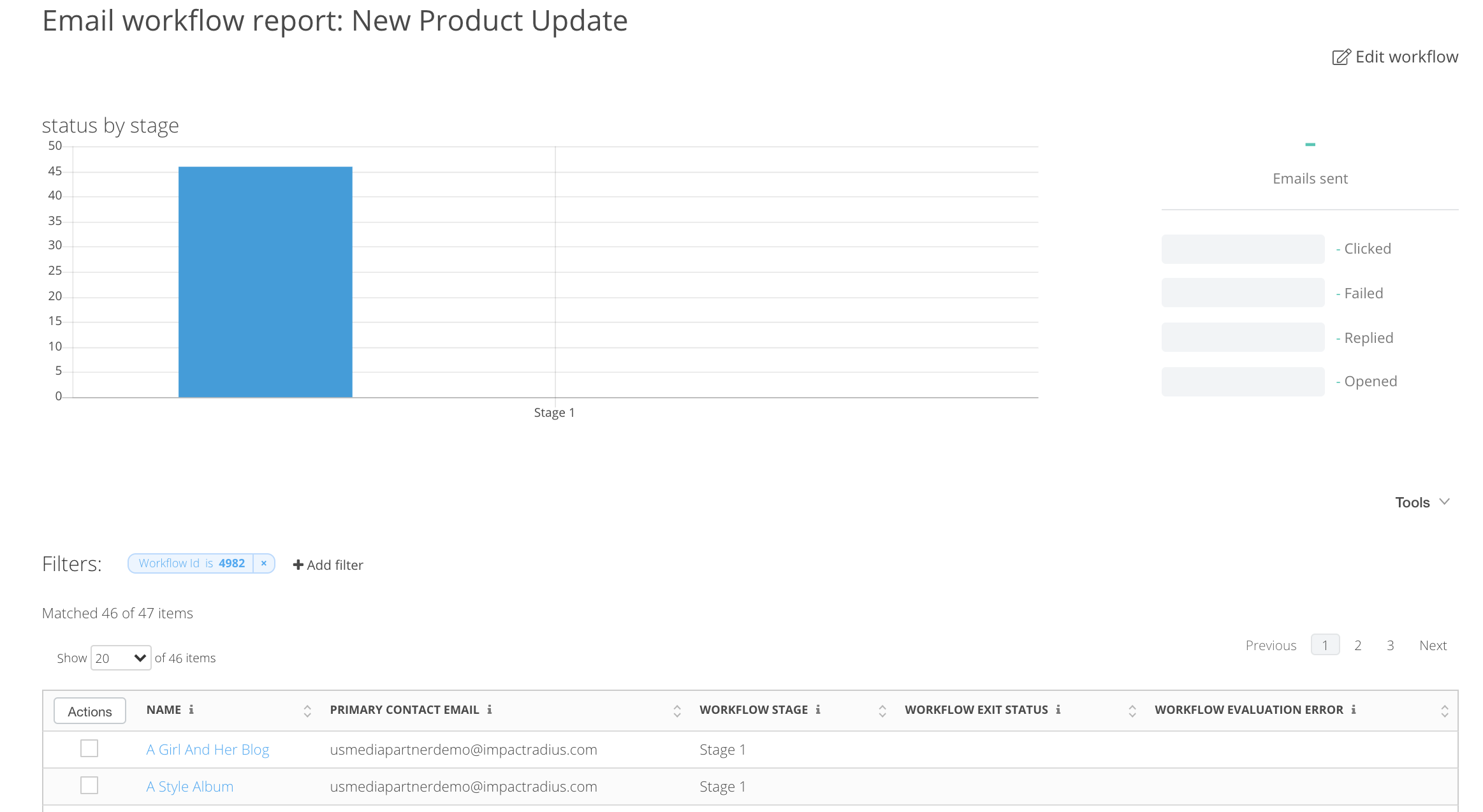
Managing Existing Workflows
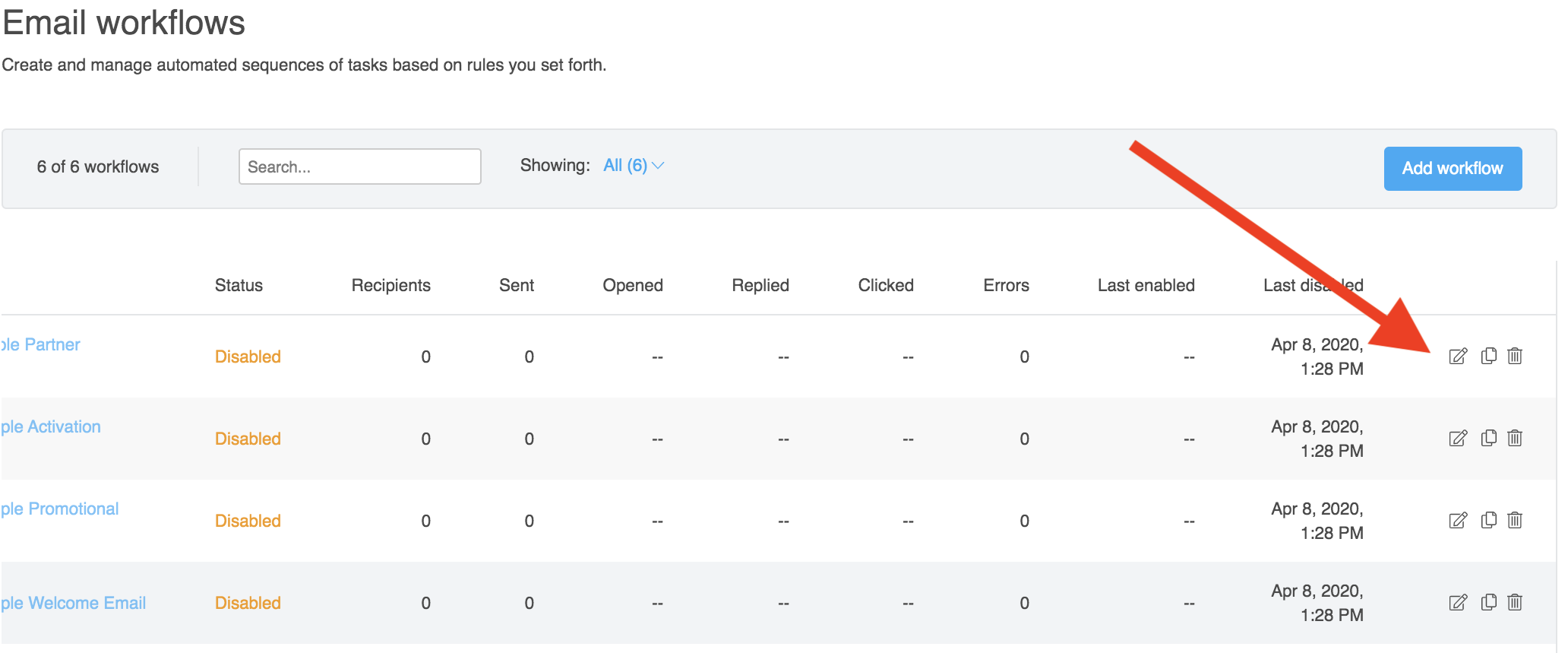
You can Edit, Clone and Delete your workflows by selecting the Edit icon (little pen and paper), the Clone icon (doubled sheets of paper) or the Delete icon (trash can) on the far right of the record once it is setup.
Comments
0 comments
Article is closed for comments.