
In Mediarails terminology, a Saved View is referring to a saved version of the List View.
Saving a view will allow you to save the columns and filters that you’ve added to the List View so that you do not have to add them every single time you are looking for that certain group.
Saved Views dynamically update, so any new records that meet the criteria set by the filters on a Saved View will be included even if they are new to the system.
How to Create a Saved View
Creating a view allows you to save your current list view so that you have pre-set filters and columns to view at a later time.
Views are available in both the Prospects and Partner work spaces.
The video below shows the steps to creating a general saved view in the Prospects section.
How to Edit a Saved View
To edit a saved view, make sure that you are currently in the desired view.
1. Select the desired view from the saved view dropdown
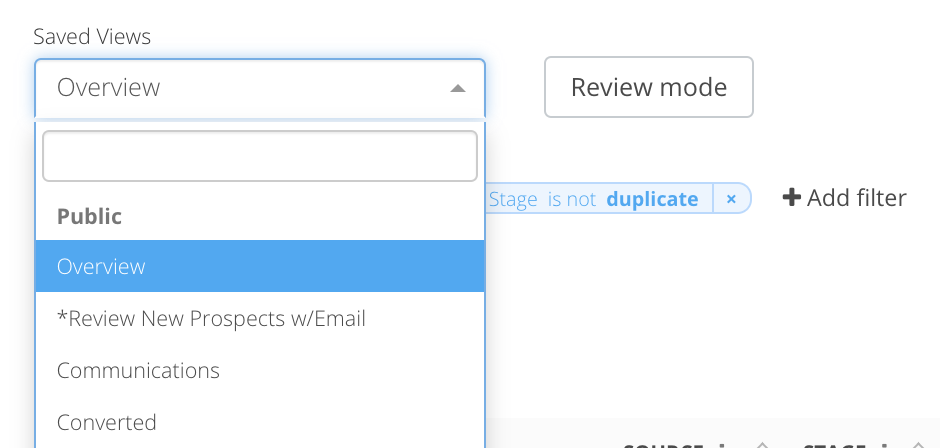
2. Make desired changes. This could include adding/removing columns, adjusting column sorting or adding/removing filters.
3. Click the Save View button on the top right of the list view.

4. After clicking the Save View button a dropdown will appear. Make sure you select the Update Current View option.
- If you would like to edit the name of the workflow, this is where you would change it by editing the Name field.
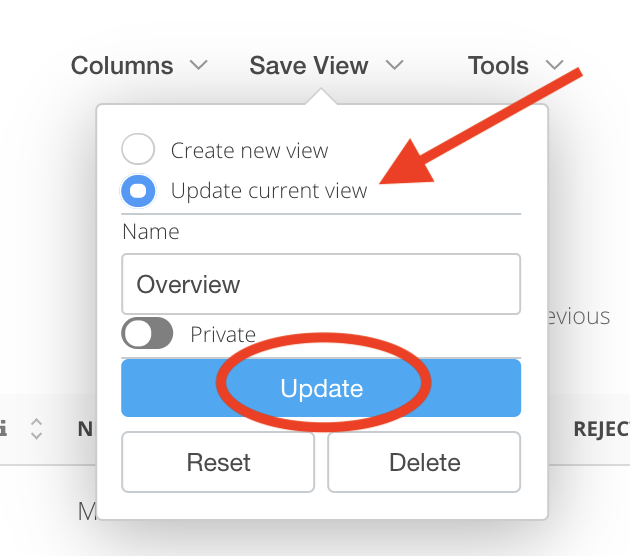
5. Click the Update button to save your changes like seen above.
How to Delete a Saved View
To delete a saved view, make sure that you are currently in the desired view.
1. Select the desired view from the saved view dropdown
2. Click the Save View button on the top right of the list view.
3. After clicking the Save View button a dropdown will appear. Click Delete.
This action cannot be undone so make sure you are deleting the correct view.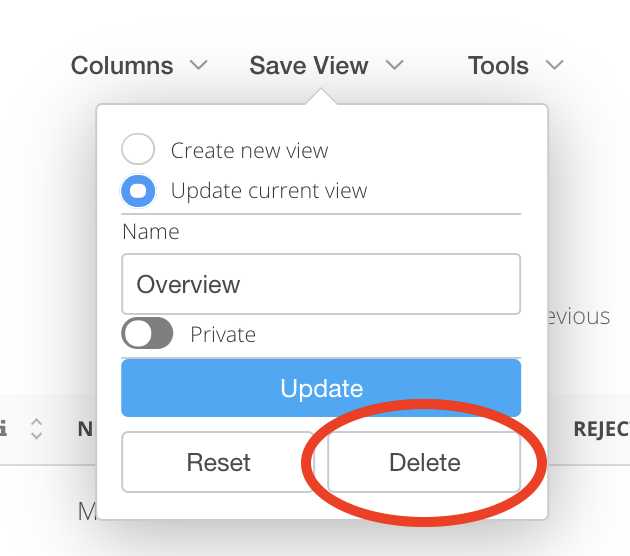
For instructions on creating Saved Views for recruiting prospects, see article here.
Comments
0 comments
Article is closed for comments.