
With Mediarails you have the ability to create and manage campaigns. Campaigns are a way to aggregate performance data across certain time frames and with select partners. Campaigns make it easier to view aggregate performance for a group of partner activities.
To create a Campaign:
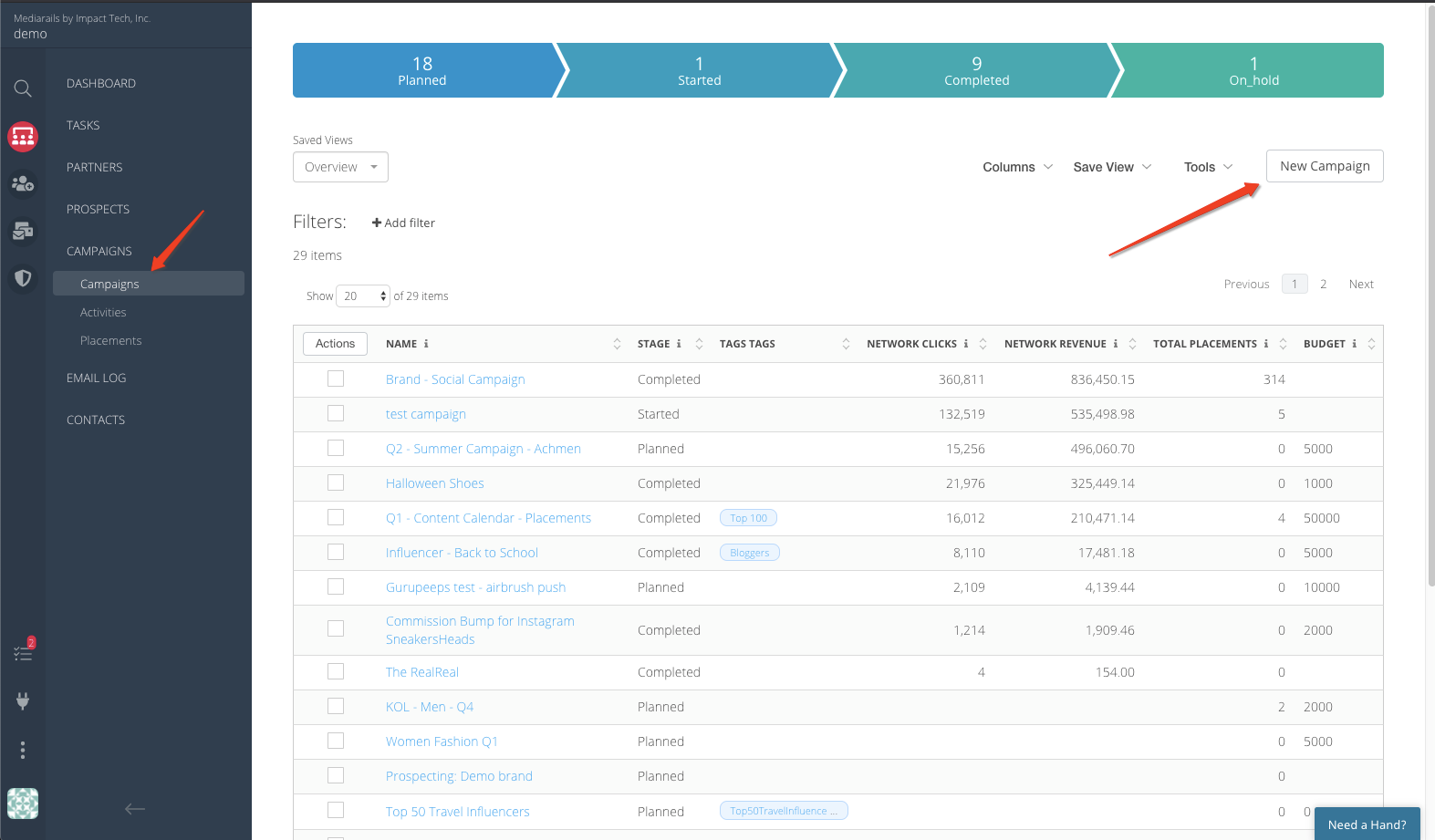
1. Click on the Campaigns workspace on the left sidebar
2. Click the button for New Campaign
2. Follow the prompt and fill out the information on each stage of setup as described below. Required fields will be outlined in red.
Step 1: Setup Tab
Basic settings of the Campaign
- Name: A Campaign Name is required
- Assign to: Add team members who are assigned to managing the Campaign
- Start/End Dates: Fill out start date and end date to track placement performance within that time frame
- Budget: Add a budget
- Status: The Status will default to planned until the start date but can be changed manually if desired (if the campaign is called-off or put on-hold for example)
- Compensation: Select whether the compensation model will be Payments or Free Product
- Description: Add details of the Campaign here
- Brands: An associated Brand is required
- Tags: Tags, Channels, Categories, Topics, and Geographies are optional fields and are intended for organizational purposes
Please note: if you wish to create new tags, categories etc. you will need to add them in settings, see article on Creating Tags for more info.
Step 2: Details Tab
Terms and Requirements of the campaign:
- Post Type: Choose the media type of posts involved in the Campaign (Article, Image, Video)
- Approval Type: Select whether or not the activity needs approval
- Number of Placements: Add the number of placements to be included
- Approval Date: Add the date of approvals if applicable
Step 3: Goals Tab
The goals page is where you will define the goals for a campaign. If you want to monitor a topic listed, make sure to add a value (even an arbitrary one) or the system will not add the goal's metrics to the performance page.
- Activities - Activities refer to the publishers participating in a campaign. If you have 5 participating Partners, you will have 5 activities.
- Revenue - Revenue and ROA goals
- Social Media - Track social engagement KPI's and number of placements (i.e. posts)
- Creative Assets - Track the number of creative assets posted
Now, press Save Campaign at the bottom right to save your campaign.
Congrats! You've setup your campaign and it will now appear in your list.
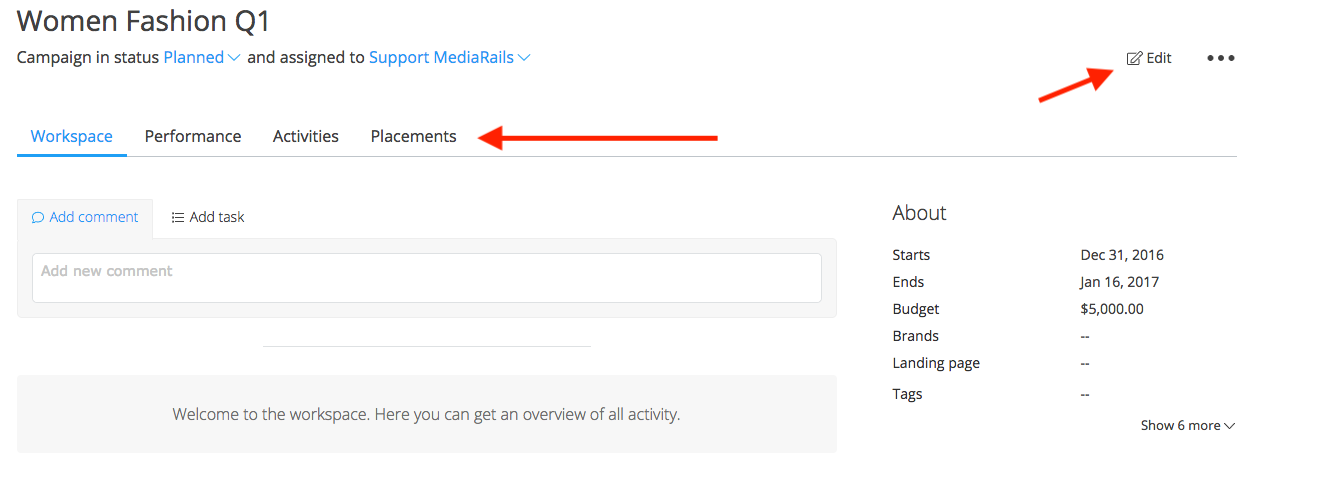
You can now click on the campaign's name in the list and click through the various tabs at the top of the screen to view Performance Metrics, Activities and Placements as seen in the screenshot below. Remember that each activity is linked to a single Partner.
To edit any of the above info while on a campaign page, simply click the Edit button on the right side of the screen as seen below:
How to Add Partners to a Campaign
Adding partners to a campaign is a simple task and only requires a couple of steps. Adding partners to a campaign can either be done from the Actions button on the list view or from the partner's detail page. Adding a partner to a campaign creates an Activity, after adding the partners to a campaign you can view participating partners in the Activities section of the campaign.
Add Partners to a Campaign from the List View
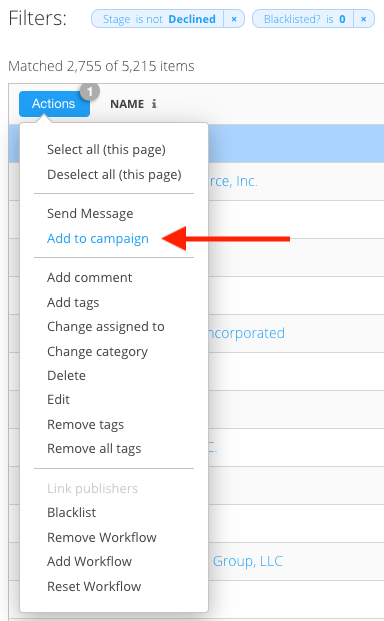
Select the desired partners using the checkboxes on the list view and the click on Actions > Add to Campaign > Then select the campaign from the dropdown.
Add Partners to a Campaign from a Partners Detail Page
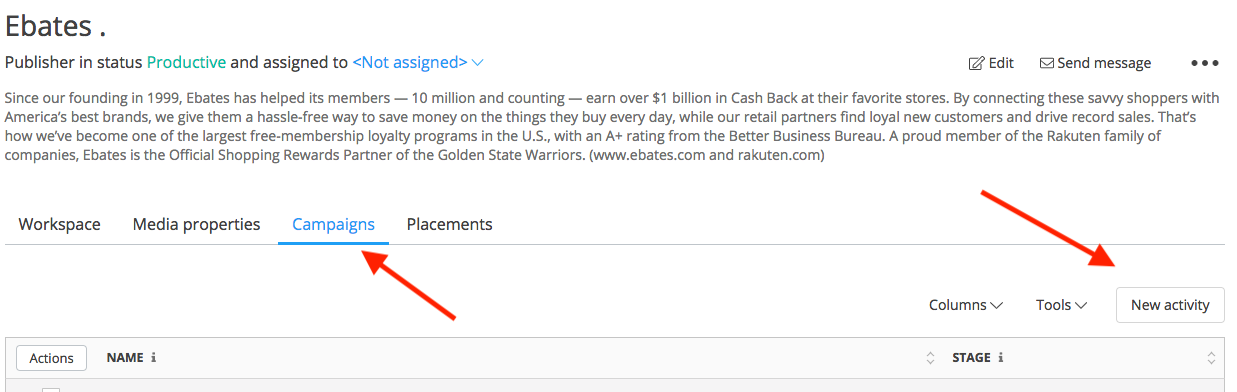
Click on the Campaigns tab near the top of the page and then click "New Activity" on the right side of the page. Name the activity and select the campaign from the dropdown that appears in a pop-up screen.
*For instructions on how to add placements to a campaign, please see this article: How to Create Placements
Comments
0 comments
Please sign in to leave a comment.