
Mediarails enables you to manage the API integrations to your partner platforms in your account.
In the steps below we will work through the process for making an initial connection, as well as how to disable, remove, edit, and monitor your current connections.
First navigate to the Integrations manager located under the plug icon on the bottom left corner of the tool:
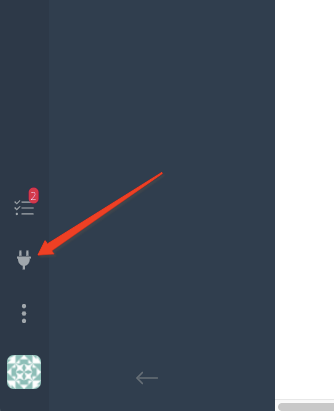
One the Integrations manager loads, select Affiliate Networks from the Add list on the left. This will open the page of current offerings.

Connecting a New Brand's API:
Whether you are new to the platform and need to add your first brand, or you would like to add an additional brand connection to your account; follow the steps below to establish an API connection to the Network(s).
Steps:
Add the Brand to Mediarails (if the brand is new)
- If you are adding a new Brand to your account, you will need to first add this brand to your list of Brands in the ADMIN section. Click here to See this article on adding a new Brand to your tool
Add the Brand's Network API Connection
- Select the plug icon as described at the top of this page
- To add a new integration, select Affiliate Networks on the left side under Add. if you want to add a network
- Select the network that you would like to connect to
- Follow the steps in the link at the top of the popup that says Instructions for Setup, Or you can find instructions for all types of networks: here
- Fill in required info in card (denoted by red boxes) and select Add
- That's it, now you wait overnight and check back in the morning to see if everything was correctly added. You can verify in the Partner work space by adding a filter for your brand.
Removing/Disabling/Editing a current brand connection:
You may find that you need to remove/edit an existing connection to a network due to a brand moving to another agency or a change to your account for some reason. The process is very easy and can be done in a couple simple steps.
One thing to be aware of when disabling/removing a connection is that you are only stopping the connection to the network API, the data that was already brought into the tool will remain there for reference. If you would like to delete all of that data, you will need to do so through the Partner workspace by deleting the records manually.
Steps:
- Locate the Network and Brand card that you would like to edit the API connection for
- If your list of cards is long, you can use the filter options at the top of the page to help you sort by brand
- Click on the card, this will open up the page below:
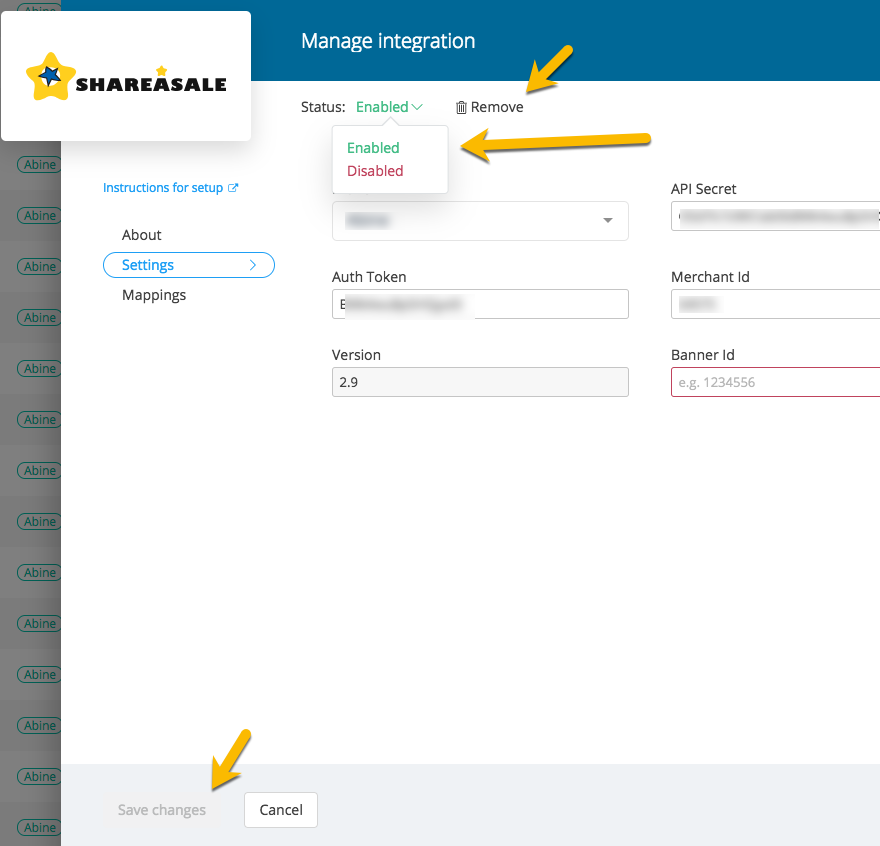
- You can Disable the connection or you can Remove the connection entirely
- Disable: This will pause your connection and you can come back and enable at a later time without needing to setup the whole connection again, you can find these again by filtering on Status: Disabled, they will have a red X icon instead of the green checkmark
- Remove Integration: This will delete the entire connection and you will not be able to come back and find this card again. Your Partner records collected up to that point will remain in your account, you will not lose prior data.
- You can update a password or other data point by typing in the new information to overwrite the existing info
- Once you have decided what is right for you, make your selection or edit and hit the Save button
Monitoring your connections:
If you see a Card with an error, you might have a situation where the network password was changed or another issue may be occurring. Open the card and read the warning message displayed at the bottom of the card. This will let you know what has happened.

If you have any questions, please reach out using the Need a Hand? link at the bottom right-side of the screen.
Comments
0 comments
Please sign in to leave a comment.