
To connect your Microsoft email you will first need to go to the Profile page in your account. Click the geometric icon in the bottom left corner and select Edit Profile:

You will then select the Connect email button on the profile page, See below image:

The last step will load a popup screen where you will select the Exchange or Office 365 options in the list of email types and will start the process by filling in your normal email address and password that you would use to login to your email account.
In most cases this works to connect. If this does not work, please proceed to the next steps for Advanced settings:
Two-Factor Authentication?
You should usually be able to log in via Exchange using your email address and password. However, if you have two-factor authentication enabled on your account, you'll need to generate an app password, and you can use Microsoft's instructions for how to do that.
Advanced Settings
By default, Nylas (Mediarails 3rd party email connection service) performs autodiscovery to determine what the best server settings are to connect. Sometimes autodiscovery might not work properly and you might need to manually input advanced settings to authenticate your account.
Here's a quick video example showing how your users can login using advanced Exchange server info.
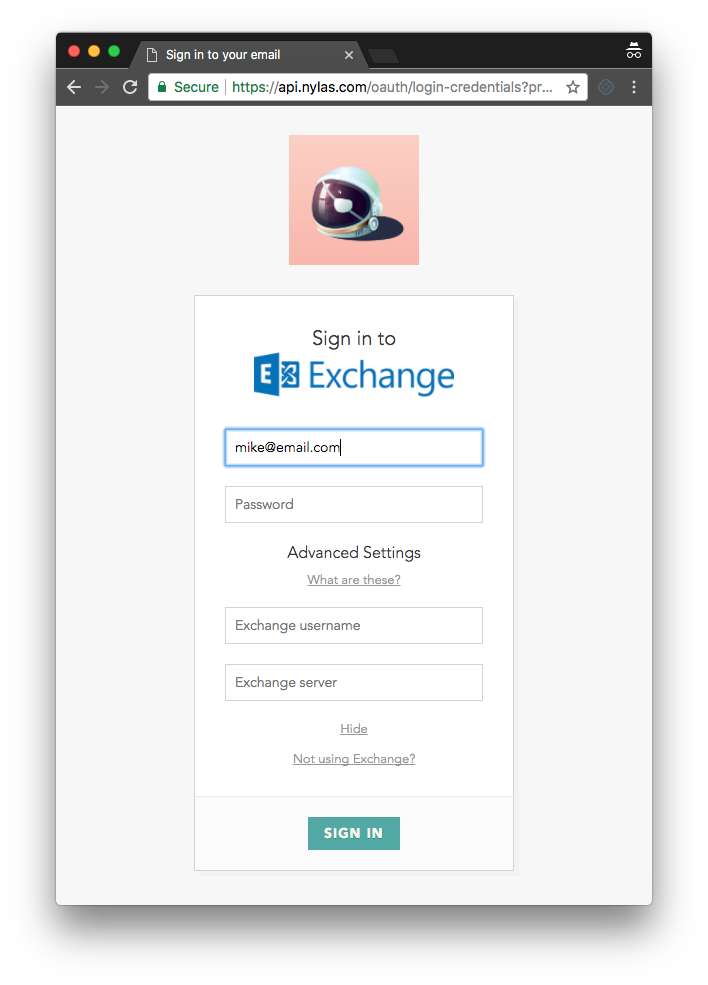
If your Exchange username is different than your email address, you should enter it in the advanced settings form. This can be of the format username@domain.com or DOMAIN\username, and is usually the same as your Windows login.
For the Exchange Server you should enter the address of your Exchange server, like mail.office365.com. You can see this in the address bar (URL) when logging in to the Outlook Web App.
Still having issues? Talk to your friendly Exchange admin.
You might need to reach out to your Exchange or IT admin for the correct connections settings. They should be able to provide the proper connection info for this step.
Still having connection issues?
If you are sure the details are correct but login is failing, this may be due to other connection issues. Please make sure you have not entered a server name that requires VPN access. To do additional troubleshooting, please contact your Mediarails Support team by submitting a ticket using the Need Help? menu on the bottom right of the screen. The more information you are able to provide about what you are seeing when you are attempting to connect the faster we will be able to help.
Extra help from Nylas
Sometimes the username and server details are all correct, but syncing an account still fails. This is rare and we recommend you contact support with a detailed description of the issue you are experiencing.
For System Administrators
Here are the recommended settings to allow full access for Nylas/Mediarails: https://docs.nylas.com/docs/suggested-office-365-settings
If you still have trouble connecting, please contact Mediarails support.
Comments
0 comments
Please sign in to leave a comment.