
The Mediarails Discover feature is where you can find new partners, and view the stats of industry and influencer partners.
Select the Discover icon on the left sidebar to go to the page. The icon is shown below in red.
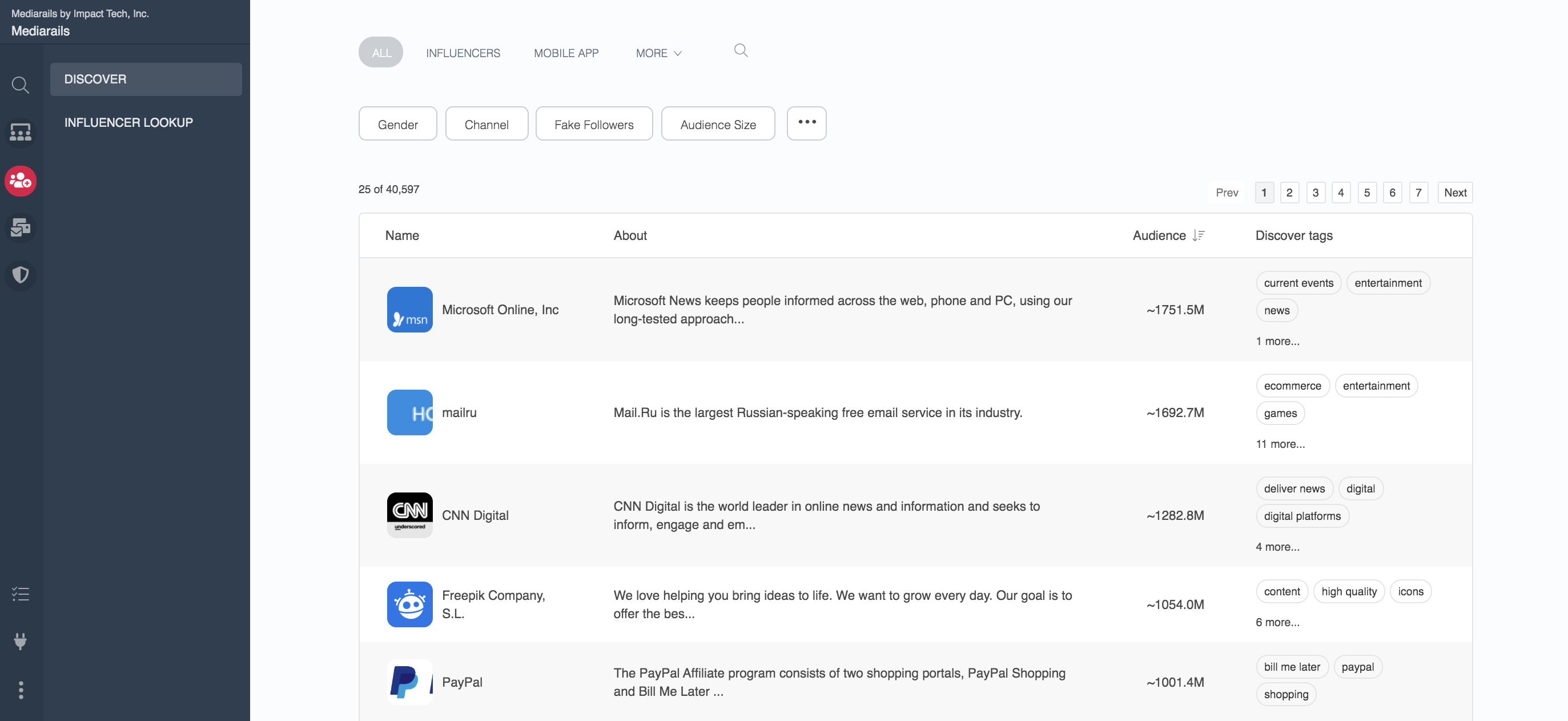
In the Discover tool, select each listing to see more information about that record.
If you are interested in inviting a partner to join your program, add them as a new prospect to your Prospects section. This allows you to take further actions such as inviting them to join your program.
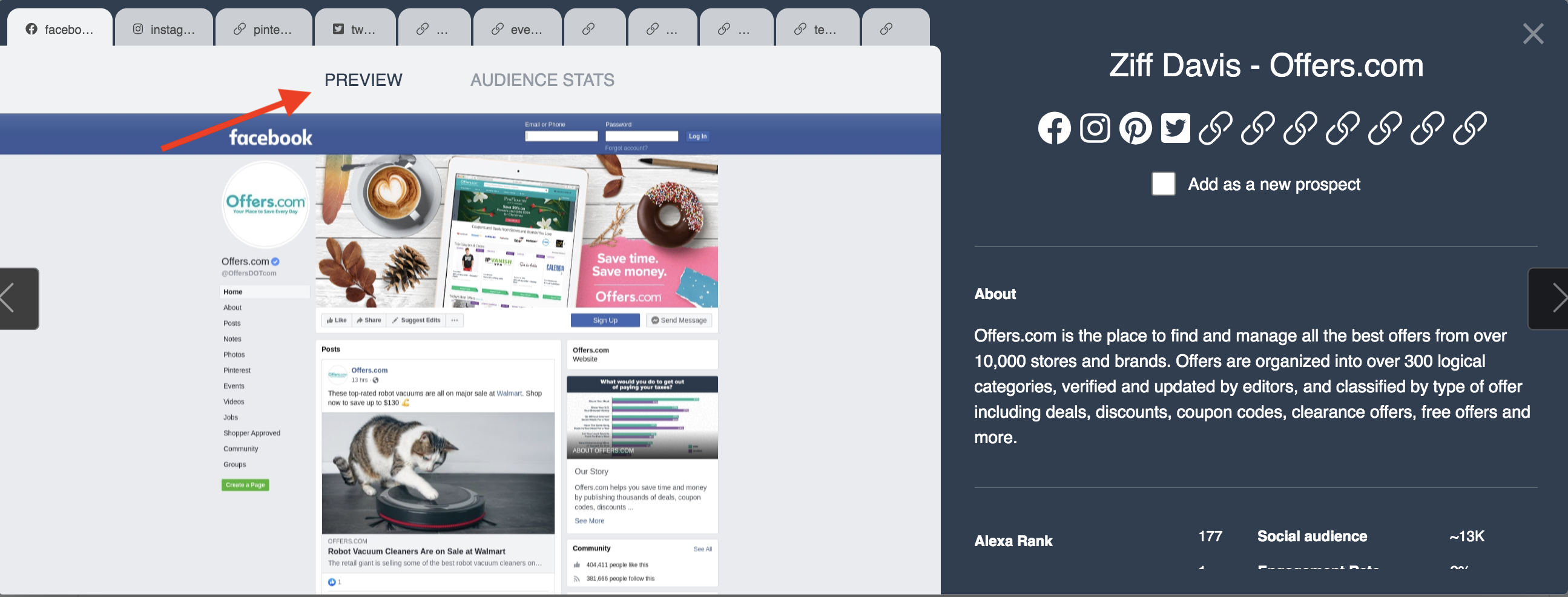
To add a record to your Prospects section, click on a listing. A screen will popup like seen below. The screen has two tabs:
- Preview: where you can view the record's media properties and description
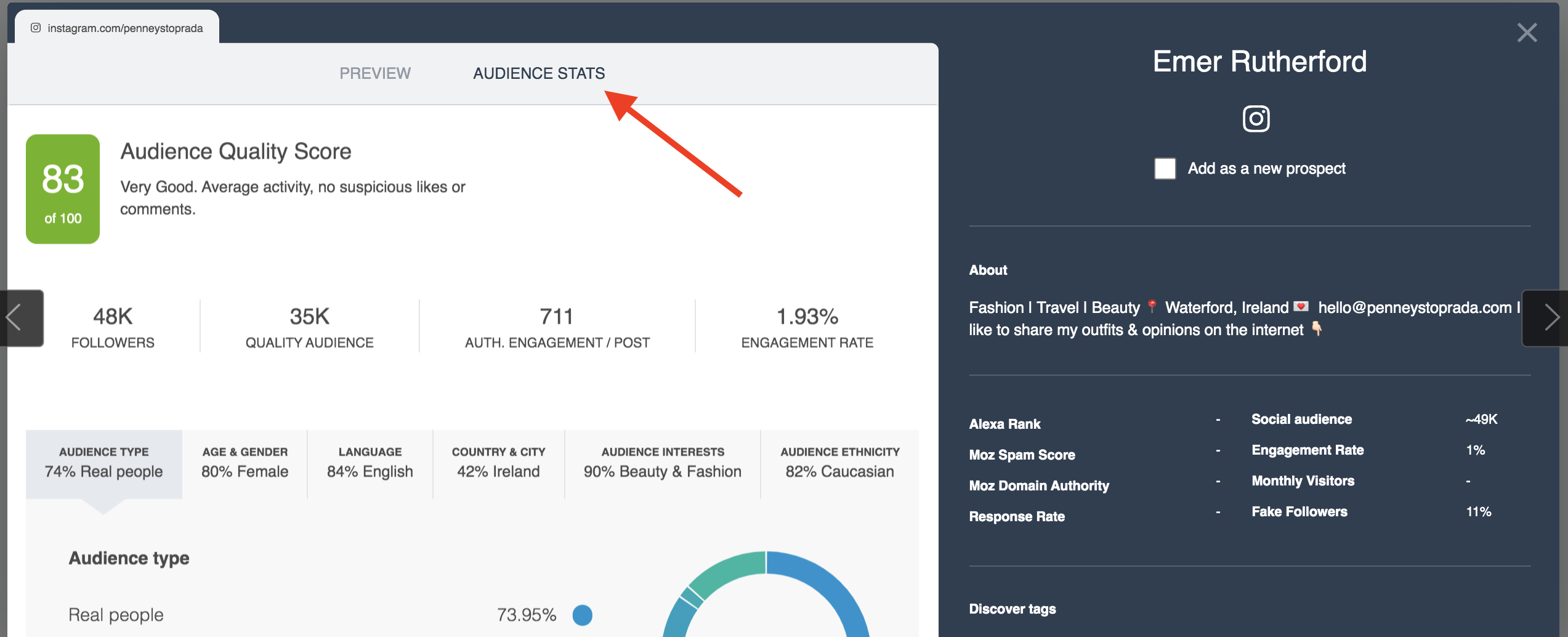
- Audience Stats tab: view social media audience demographics of Influencers
Preview Tab
The Preview tab shows a preview of their Media Properties along with some basic stats on the sidebar
Audience Stats tab
The Influencer Audience stats page show audience and marketing demographics on the influencer you're currently viewing.
The stats on this tab include:
- Audience Type - real vs fake followers, suspicious accounts etc..
- For more information on fake and mass follower data see article here.
- Age & Gender - Audience demographics on age and gender
- Language - Audience demographics on language
- Country & City - Audience demographics on location
- Audience Interests - the most predominate interests of the Influencer's audience determined by mentions and accounts followed
- Audience Ethnicity - Audience demographics on ethnicity
- Engagement metrics - audience reachability, audience authenticity, likes/comments ratio, etc..
- Brand mentions - brand mentions and advertising engagement
To add a record as a new Prospect
1. Click on the record's name in the list and then select the box for "Add as a new prospect" like shown below.
You can continue to work through your list using the left/right arrows like shown below to add multiple records as new prospects without closing the review window.
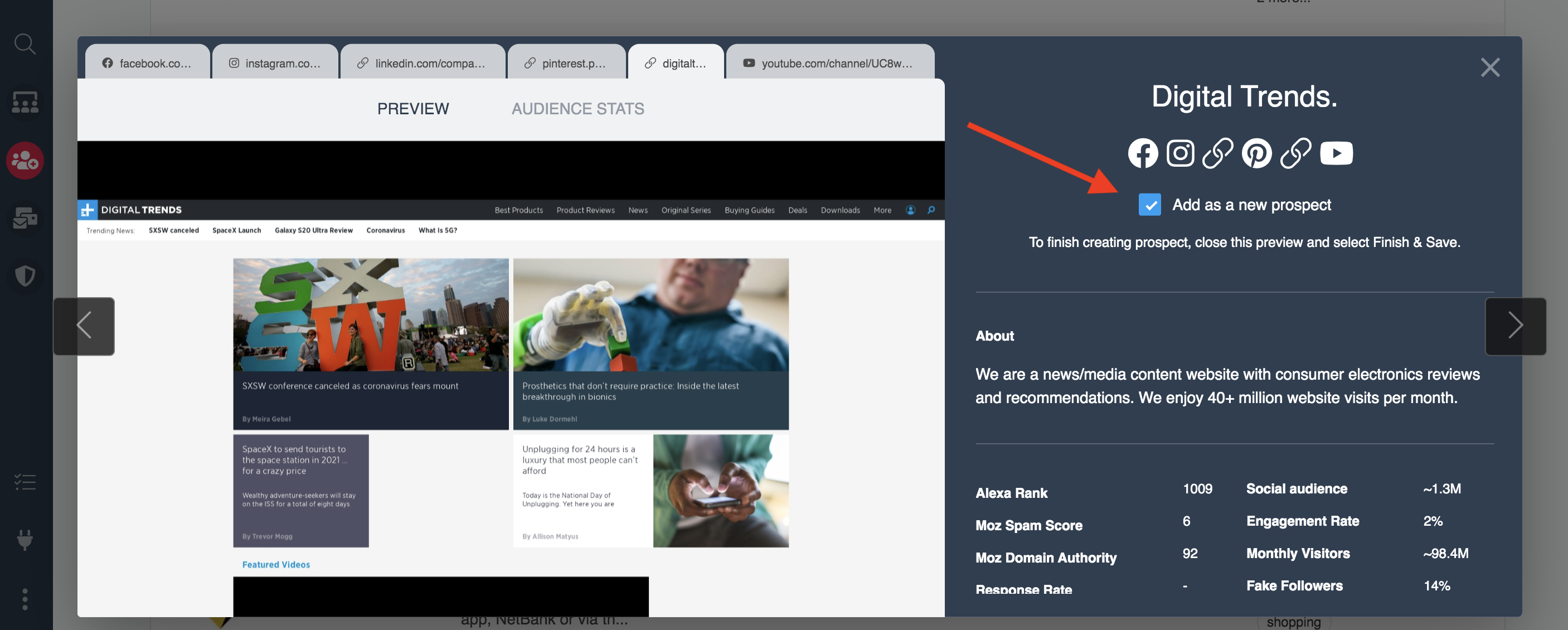
2. Close the review window using the X in the top right corner.
3. Select any desired tags or brands to add to your Prospect records. After closing the review window you will have additional options for turning your records into new Prospects such as adding Tags or Brands to the records selected.
Recruiting: If you would like to add this Partner into a recruiting email workflow, make sure to add your Recruiting tag here.
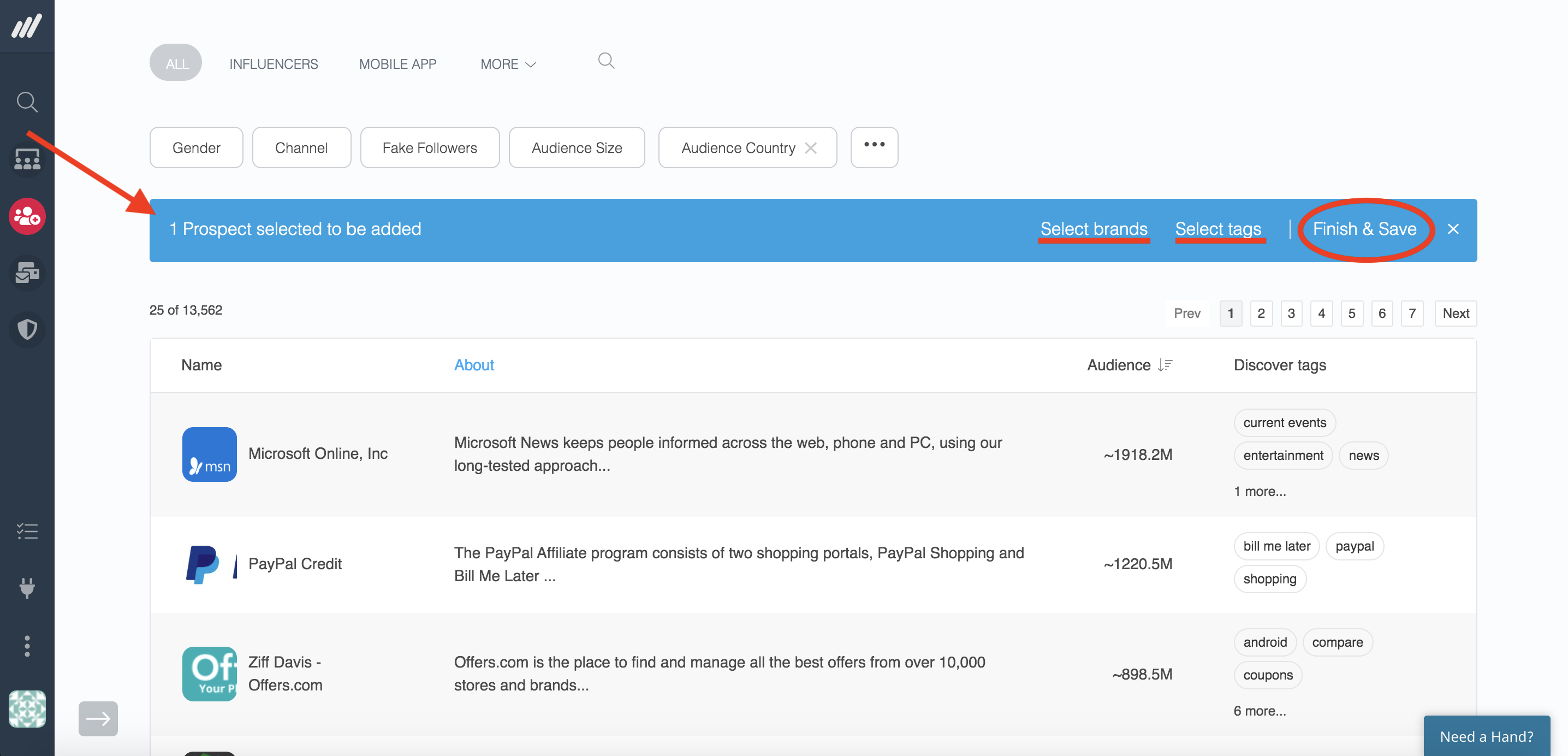
4. Click Finish & Save, as seen in the image above.
Your Partners will now be in your Prospects workspace. Add a filter for Source is Discover Marketplace to locate records added from the Discover tool.
Impact Marketplace Verified Badge
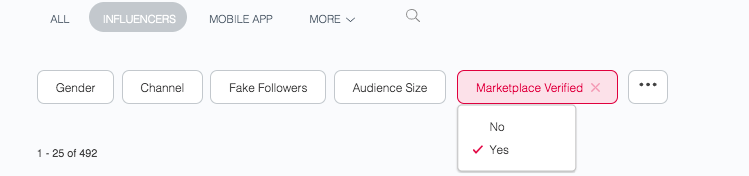
The Marketplace Verified badge and filter designate whether the record has been verified in the Impact Discover Marketplace. This means that the partner is a verified member of Impact, with correct information at the time of verification. Use the Marketplace Verified filter (as shown below) to target Impact partners.

*Please note: the Mediarails Discover tool is a separate feature from the Discover feature in Impact's Partnership Cloud.
Comments
0 comments
Please sign in to leave a comment.