
The Mediarails Debugger Page can be useful if you frequently import Prospect or Partner records into the system. The debugger page shows all uploads into the system, including prospecting integrations, Partners brought in via API, and manual imports to the Prospect or Partner records.
To effectively use the debugger page you will first need to understand the information that is available to view. Mediarails makes several calls daily to Network APIs and to Prospecting integrated services, so you will notice many entries each day on the debugger page. Most of these are automatic and do not need manual monitoring.
When importing Prospect or Partner records manually you will be able to check the Debugger page for errors. If you import a CSV but the records do not appear in the system, checking the Debugger page will be the best way to troubleshoot.
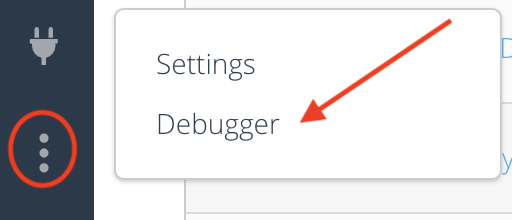
To access the Debugger page, click on the round icon in the top right corner and select Debugger.
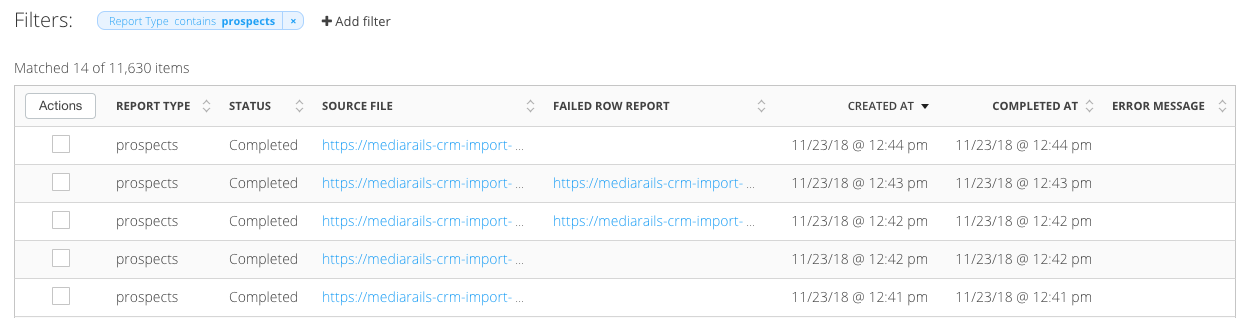
By default there are 7 columns on the Debugger:
- Report Type - There are two report types: Prospects or Partners
- Status - ie. Planned, Processing, Completed, Failed..
- Source File - Downloadable CSV of the original file used to import data
- Failed Row Report - Downloadable CSV of any failed rows
- Created At - Date and time the import was initiated
- Completed At - Date and time the import was completed
- Error Message - The reason for any errors
Troubleshooting a Manual Import
If you are troubleshooting a specific import make sure to start by filtering for the correct Report Type.
For example: If you are troubleshooting an import made to the prospects section, filter with Report Type contains prospects, as seen in the screenshot above.
Handy columns and filters:
- Created By (shows the user that added an upload)
- Using the filter Created By is not [API] will show only user-added imports
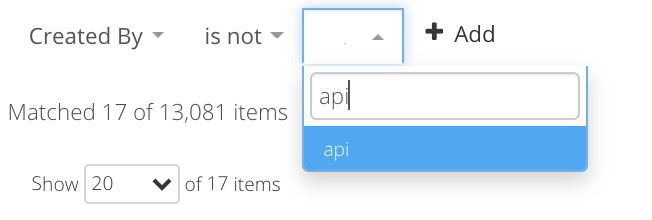
- Using the filter Created By is not [API] will show only user-added imports
- Created At [date] (allows filtering by date or time frame)
- Brand (useful when you have more than one brand in your system)
- Network (handy if you have more than one network connected)
You can click the links in the Source File column to view the original CSV used to import. Once you find the correct report, you will be able to see if the import was successful or if there were any errors.
If any individual rows failed there will be a link to a downloadable CSV explaining the failed rows in the Failed Row Report column.
If an entire import was unsuccessful there would be an error message in the Error Message column and the Status would show as Failed.
TIP: Save a view if you find yourself using the Debugger frequently
Comments
0 comments
Please sign in to leave a comment.