
Activities refer to the Partners participating in a campaign. If you have 5 participating Partners, you will have 5 activities.
Activities can be created in a few ways, from either the Campaigns workspace or the Partner workspace. Please see below for instructions on each method.
After adding activities to a campaign you can view them in the Activities section of the Campaigns Workspace as well as on the Activities tab of the specific Campaign page.
Create an Activity from the Campaigns Workspace
- Once in the Campaigns workspace, click Activities
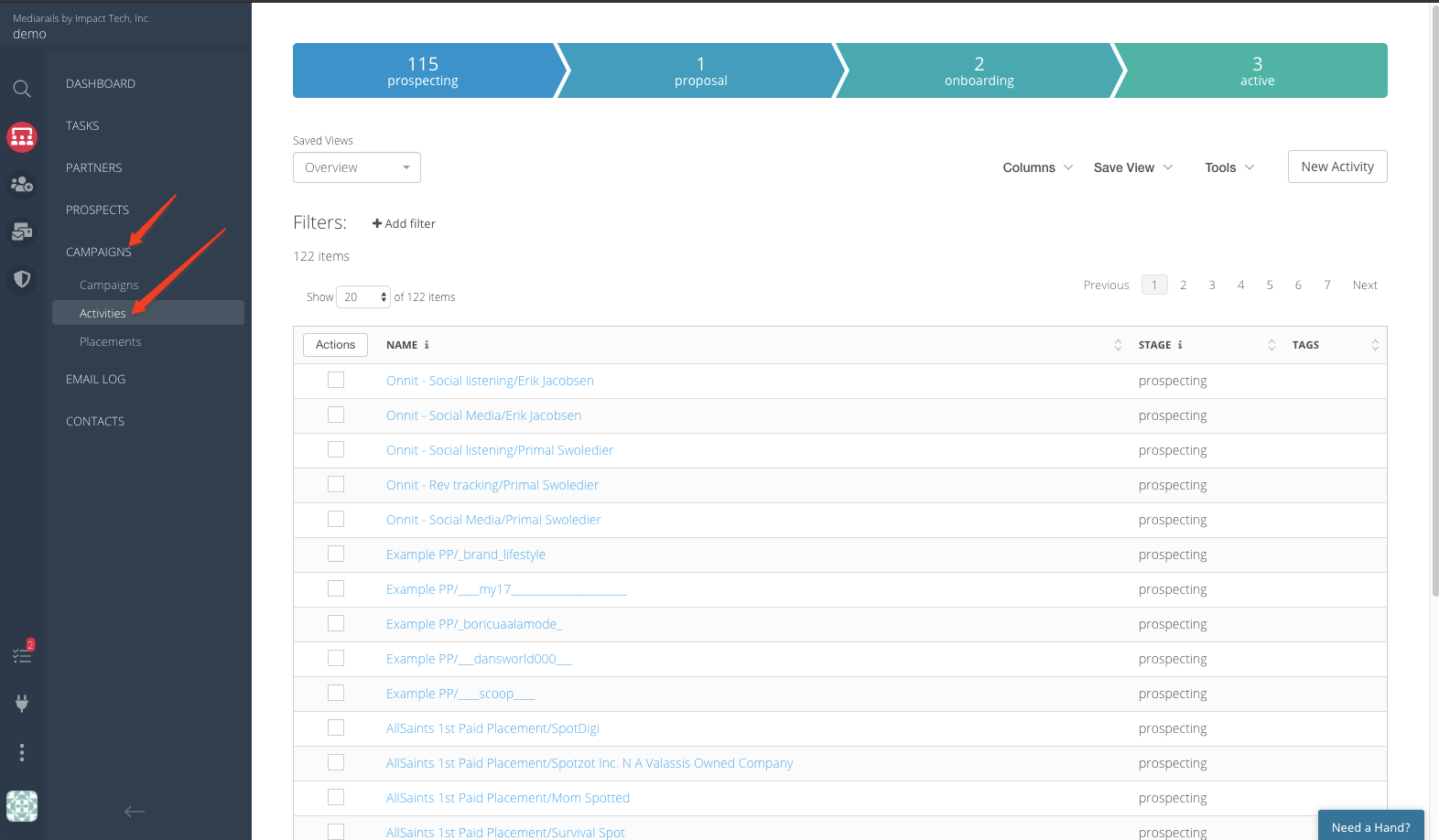
- Click “New Activity” in the upper right hand corner of the activities page
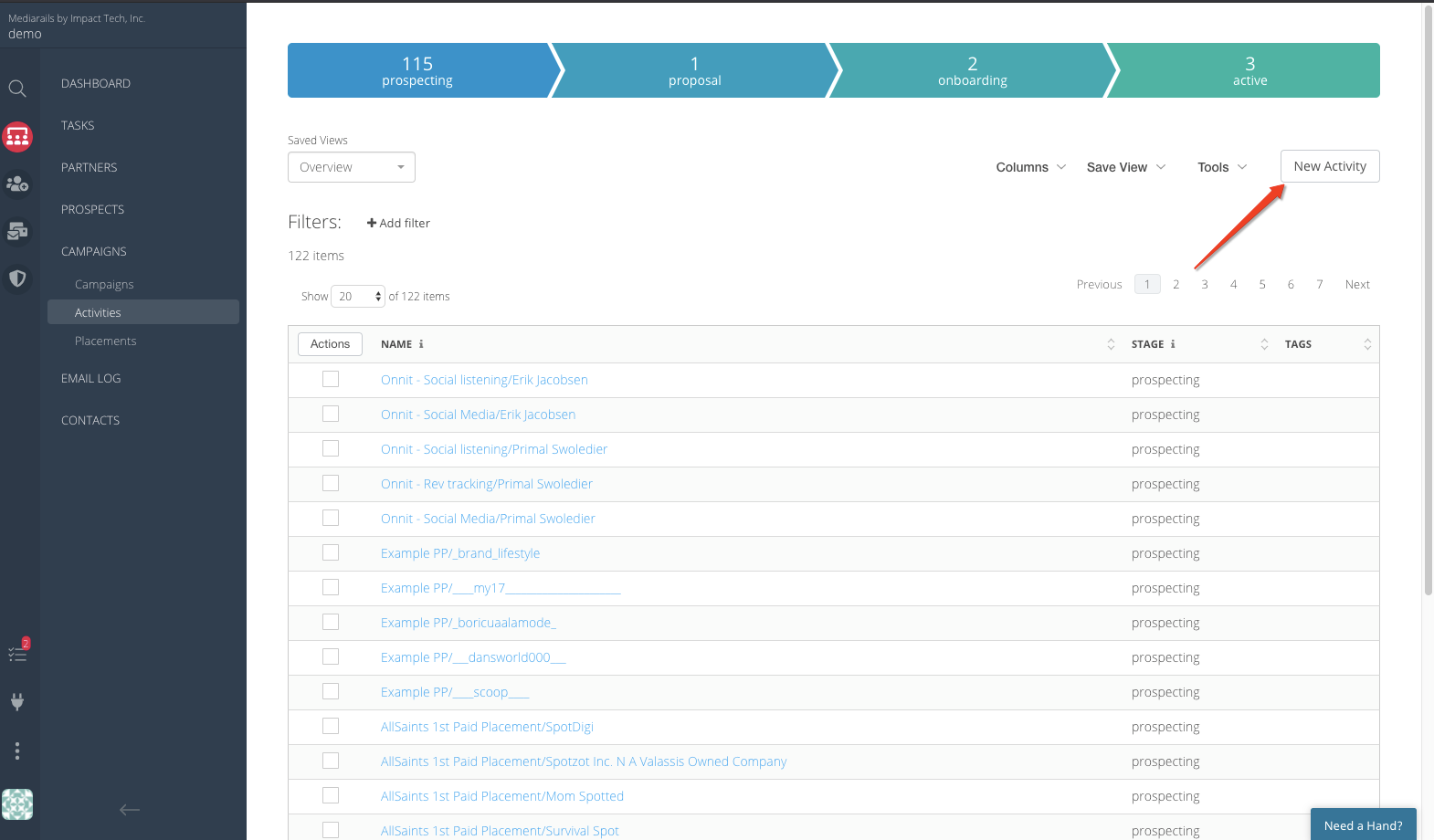
- Enter your activity details on the popup form and click Save
- Since each activity represents a Partner, we'd suggest naming the activity with the name of the Partner included.
- Make sure to select the correct Partners (remember that each activity represents a single Partner).
- Make sure to select the correct campaign the activity will belong to.
- All fields other than Name, Partner, and Campaign are optional.

- Your activity will now show up in the Activities list view as well as on the Activities tab in the specific Campaign's page.
Create an Activity from the Partners Workspace
Adding Partners to a campaign can either be done from the Actions button on the list view or from the Partner's detail page.
Adding a Partners to a campaign creates an Activity. After adding the Partners to a campaign you can view participating Partners in the Activities tab of the campaign.
Add Partners (Activities) to a Campaign from the List View
- Go to the Partners by Brand workspace.
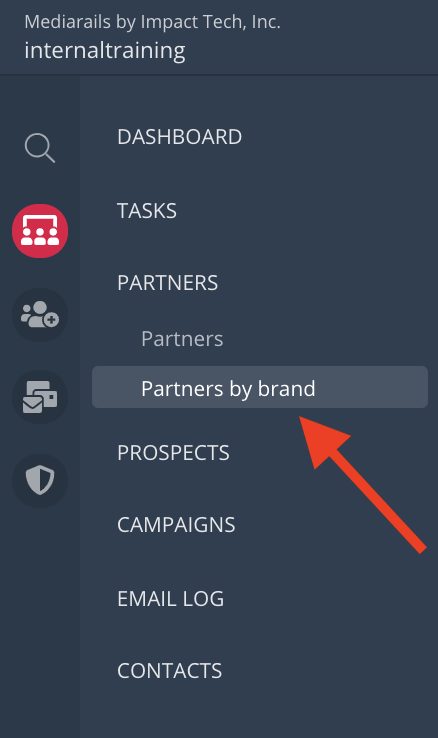
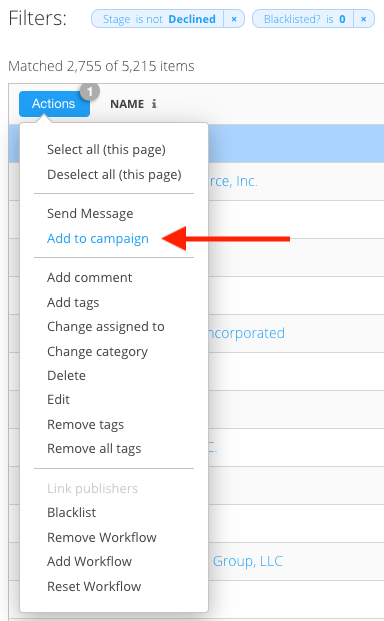
- Select the desired Partners from the list view using the checkboxes on the left and the click on Actions > Add to Campaign > Select the campaign from the dropdown.
Add Activities to a Campaign from a Partner's Detail Page
- Click on the Campaigns tab near the top of the page and then click "New Activity" on the right side of the page. Name the activity and select the Campaign from the dropdown that appears in a pop-up screen.
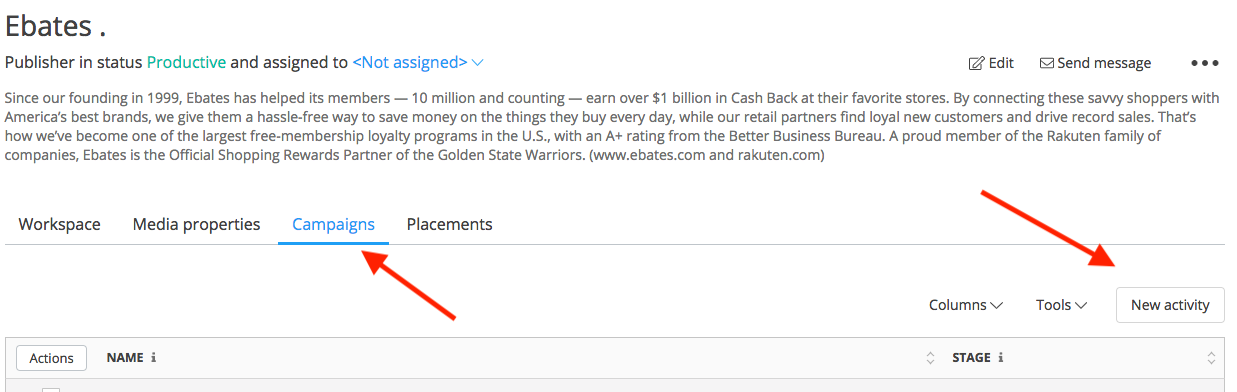
- Enter your activity details on the popup and click Save.
- Since each activity represents a Partner, we'd suggest naming the activity with the name of the Partner included.
- Make sure to select the correct Partner (remember that each activity represents a single Partner).
- Make sure to select the correct campaign the activity will belong to.
- All fields other than Name, Partner, and Campaign are optional.
Your activity will now show up in the Activities list view as well as on the Activities tab in the specific Campaign's page

*To add Placements to an activity please see our guide on adding Placements here
Comments
0 comments
Please sign in to leave a comment.